This guide provides a step-by-step walkthrough of releasing a
Flutter app to the [App Store][appstore] and [TestFlight][].
## Preliminaries
Xcode is required to build and release your app. You
must use a device running macOS to follow this guide.
Before beginning the process of releasing your app,
ensure that it meets Apple's [App Review Guidelines][appreview].
To publish your app to the App Store,
you must first enroll in the [Apple Developer Program][devprogram].
You can read more about the various membership options in Apple's
[Choosing a Membership][devprogram_membership] guide.
## Video overview
For those who prefer video over text,
the following video covers the same material as this guide.
## Register your app on App Store Connect
Manage your app's life cycle on
[App Store Connect][appstoreconnect] (formerly iTunes Connect).
You define your app name and description, add screenshots,
set pricing, and manage releases to the App Store and TestFlight.
Registering your app involves two steps: registering a unique
Bundle ID, and creating an application record on App Store Connect.
For a detailed overview of App Store Connect, see the
[App Store Connect][appstoreconnect_guide] guide.
### Register a Bundle ID
Every iOS application is associated with a Bundle ID,
a unique identifier registered with Apple.
To register a Bundle ID for your app, follow these steps:
1. Open the [App IDs][devportal_appids] page of your developer account.
1. Click **+** to create a new Bundle ID.
1. Enter an app name, select **Explicit App ID**, and enter an ID.
1. Select the services your app uses, then click **Continue**.
1. On the next page, confirm the details and click **Register**
to register your Bundle ID.
### Create an application record on App Store Connect
Register your app on App Store Connect:
1. Open [App Store Connect][appstoreconnect_login] in your browser.
1. On the App Store Connect landing page, click **Apps**.
1. Click **+** in the top-left corner,
then select **New App**.
1. Fill in your app details in the form that appears.
In the Platforms section, ensure that iOS is checked.
Since Flutter does not currently support tvOS,
leave that checkbox unchecked. Click **Create**.
1. Navigate to the application details for your app and select
**App Information** from the sidebar.
1. In the General Information section, select the Bundle ID
you registered in the preceding step.
For a detailed overview, see
[Add an app to your account][appstoreconnect_guide_register].
## Review Xcode project settings
This step covers reviewing the most important settings
in the Xcode workspace.
For detailed procedures and descriptions, see
[Prepare for app distribution][distributionguide_config].
Navigate to your target's settings in Xcode:
1. Open the default Xcode workspace in your project by running
`open ios/Runner.xcworkspace` in a terminal window from your
Flutter project directory.
1. To view your app's settings, select the **Runner** target in the
Xcode navigator.
Verify the most important settings.
In the **Identity** section of the **General** tab:
`Display Name`
: The display name of your app.
`Bundle Identifier`
: The App ID you registered on App Store Connect.
In the **Signing & Capabilities** tab:
`Automatically manage signing`
: Whether Xcode should automatically manage app signing
and provisioning. This is set `true` by default, which should
be sufficient for most apps. For more complex scenarios,
see the [Code Signing Guide][codesigning_guide].
`Team`
: Select the team associated with your registered Apple Developer
account. If required, select **Add Account...**,
then update this setting.
In the **Deployment** section of the **Build Settings** tab:
`iOS Deployment Target`
: The minimum iOS version that your app supports.
Flutter supports iOS 13 and later. If your app or plugins
include Objective-C or Swift code that makes use of APIs newer
than iOS 12, update this setting to the highest required version.
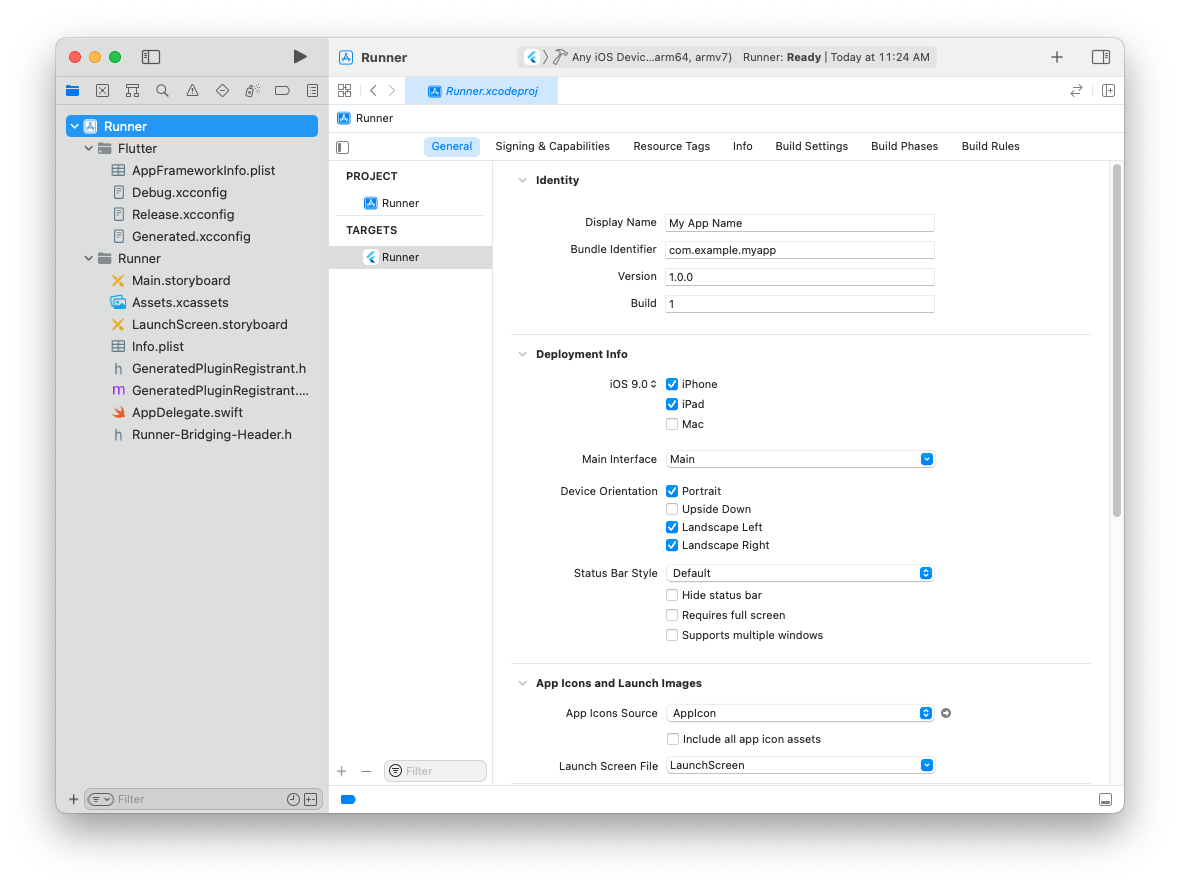
The **General** tab of your project settings should resemble
the following:
{:width="100%"}
For a detailed overview of app signing, see
[Create, export, and delete signing certificates][appsigning].
## Updating the app's deployment version
If you changed `Deployment Target` in your Xcode project,
open `ios/Flutter/AppframeworkInfo.plist` in your Flutter app
and update the `MinimumOSVersion` value to match.
## Add an app icon
When a new Flutter app is created, a placeholder icon set is created.
This step covers replacing these placeholder icons with your
app's icons:
1. Review the [iOS App Icon][app-icon] guidelines and,
in particular, the advice on
[creating light, dark, and tinted][icon-modes] icons for your app.
1. In the Xcode project navigator, select `Assets.xcassets` in the
`Runner` folder. Update the placeholder icons with your own app icons.
1. Verify the icon has been replaced by running your app using
`flutter run`.
[app-icon]: https://developer.apple.com/design/human-interface-guidelines/app-icons/
[icon-modes]: https://developer.apple.com/design/human-interface-guidelines/app-icons#iOS-iPadOS
## Add a launch image
Similar to the app icon,
you can also replace the placeholder launch image:
1. In the Xcode project navigator,
select `Assets.xcassets` in the `Runner` folder.
Update the placeholder launch image with your own launch image.
1. Verify the new launch image by hot restarting your app.
(Don't use `hot reload`.)
## Create a build archive and upload to App Store Connect
During development, you've been building, debugging, and testing
with _debug_ builds. When you're ready to ship your app to users
on the App Store or TestFlight, you need to prepare a _release_ build.
### Update the app's build and version numbers
The default version number of the app is `1.0.0`.
To update it, navigate to the `pubspec.yaml` file
and update the following line:
```yaml
version: 1.0.0+1
```
The version number is three numbers separated by dots,
such as `1.0.0` in the example above, followed by an optional
build number such as `1` in the example above, separated by a `+`.
Both the version and the build number can be overridden in
`flutter build ipa` by specifying `--build-name` and `--build-number`,
respectively.
In iOS, `build-name` uses `CFBundleShortVersionString`
while `build-number` uses `CFBundleVersion`.
Read more about iOS versioning at [Core Foundation Keys][]
on the Apple Developer's site.
You can also override the `pubspec.yaml` build name and number in Xcode:
1. Open `Runner.xcworkspace` in your app's `ios` folder.
1. Select **Runner** in the Xcode project navigator, then select the
**Runner** target in the settings view sidebar.
1. In the Identity section, update the **Version** to the user-facing
version number you wish to publish.
1. In the Identity section, update the **Build** identifier to a unique
build number used to track this build on App Store Connect.
Each upload requires a unique build number.
### Create an app bundle
Run `flutter build ipa` to produce an Xcode build archive (`.xcarchive` file)
in your project's `build/ios/archive/` directory and an App Store app
bundle (`.ipa` file) in `build/ios/ipa`.
Consider adding the `--obfuscate` and `--split-debug-info` flags to
[obfuscate your Dart code][] to make it more difficult
to reverse engineer.
If you are not distributing to the App Store, you can optionally
choose a different [export method][app_bundle_export_method] by
adding the option `--export-method ad-hoc`,
`--export-method development` or `--export-method enterprise`.
:::note
On versions of Flutter where `flutter build ipa --export-method` is unavailable,
open `build/ios/archive/MyApp.xcarchive` and follow the instructions below
to validate and distribute the app from Xcode.
:::
### Upload the app bundle to App Store Connect
Once the app bundle is created, upload it to
[App Store Connect][appstoreconnect_login] by either:
-
Install and open the [Apple Transport macOS app][apple_transport_app].
Drag and drop the `build/ios/ipa/*.ipa` app bundle into the app.
-
Or upload the app bundle from the command line by running:
```bash
xcrun altool --upload-app --type ios -f build/ios/ipa/*.ipa --apiKey your_api_key --apiIssuer your_issuer_id
```
Run `man altool` for details about how to authenticate with the App Store Connect API key.
-
Or open `build/ios/archive/MyApp.xcarchive` in Xcode.
Click the **Validate App** button. If any issues are reported,
address them and produce another build. You can reuse the same
build ID until you upload an archive.
After the archive has been successfully validated, click
**Distribute App**.
:::note
When you export your app at the end of **Distribute App**,
Xcode will create a directory containing
an IPA of your app and an `ExportOptions.plist` file.
You can create new IPAs with the same options without launching
Xcode by running
`flutter build ipa --export-options-plist=path/to/ExportOptions.plist`.
See `xcodebuild -h` for details about the keys in this property list.
:::
You can follow the status of your build in the
Activities tab of your app's details page on
[App Store Connect][appstoreconnect_login].
You should receive an email within 30 minutes notifying you that
your build has been validated and is available to release to testers
on TestFlight. At this point you can choose whether to release
on TestFlight, or go ahead and release your app to the App Store.
For more details, see
[Upload an app to App Store Connect][distributionguide_upload].
## Create a build archive with Codemagic CLI tools
This step covers creating a build archive and uploading
your build to App Store Connect using Flutter build commands
and [Codemagic CLI Tools][codemagic_cli_tools] executed in a terminal
in the Flutter project directory. This allows you to create a build archive
with full control of distribution certificates in a temporary keychain
isolated from your login keychain.
-
Install the Codemagic CLI tools:
```bash
pip3 install codemagic-cli-tools
```
-
You'll need to generate an [App Store Connect API Key][appstoreconnect_api_key]
with App Manager access to automate operations with App Store Connect. To make
subsequent commands more concise, set the following environment variables from
the new key: issuer id, key id, and API key file.
```bash
export APP_STORE_CONNECT_ISSUER_ID=aaaaaaaa-bbbb-cccc-dddd-eeeeeeeeeeee
export APP_STORE_CONNECT_KEY_IDENTIFIER=ABC1234567
export APP_STORE_CONNECT_PRIVATE_KEY=`cat /path/to/api/key/AuthKey_XXXYYYZZZ.p8`
```
-
You need to export or create an iOS Distribution certificate to code sign and package a build archive.
If you have existing [certificates][devportal_certificates], you can export the
private keys by executing the following command for each certificate:
```bash
openssl pkcs12 -in .p12 -nodes -nocerts | openssl rsa -out cert_key
```
Or you can create a new private key by executing the following command:
```bash
ssh-keygen -t rsa -b 2048 -m PEM -f cert_key -q -N ""
```
Later, you can have CLI tools automatically create a new iOS Distribution from the private key.
-
Set up a new temporary keychain to be used for code signing:
```bash
keychain initialize
```
:::note Restore Login Keychain!
After running `keychain initialize` you **must** run the following:
`keychain use-login`
This sets your login keychain as the default to avoid potential
authentication issues with apps on your machine.
:::
-
Fetch the code signing files from App Store Connect:
```bash
app-store-connect fetch-signing-files $(xcode-project detect-bundle-id) \
--platform IOS \
--type IOS_APP_STORE \
--certificate-key=@file:/path/to/cert_key \
--create
```
Where `cert_key` is either your exported iOS Distribution certificate private key
or a new private key which automatically generates a new certificate. The certificate
will be created from the private key if it doesn't exist in App Store Connect.
-
Now add the fetched certificates to your keychain:
```bash
keychain add-certificates
```
-
Update the Xcode project settings to use fetched code signing profiles:
```bash
xcode-project use-profiles
```
-
Install Flutter dependencies:
```bash
flutter packages pub get
```
-
Install CocoaPods dependencies:
```bash
find . -name "Podfile" -execdir pod install \;
```
-
Build the Flutter the iOS project:
```bash
flutter build ipa --release \
--export-options-plist=$HOME/export_options.plist
```
Note that `export_options.plist` is the output of the `xcode-project use-profiles` command.
-
Publish the app to App Store Connect:
```bash
app-store-connect publish \
--path $(find $(pwd) -name "*.ipa")
```
-
As mentioned earlier, don't forget to set your login keychain
as the default to avoid authentication issues
with apps on your machine:
```bash
keychain use-login
```
You should receive an email within 30 minutes notifying you that
your build has been validated and is available to release to testers
on TestFlight. At this point you can choose whether to release
on TestFlight, or go ahead and release your app to the App Store.
## Release your app on TestFlight
[TestFlight][] allows developers to push their apps
to internal and external testers. This optional step
covers releasing your build on TestFlight.
1. Navigate to the TestFlight tab of your app's application
details page on [App Store Connect][appstoreconnect_login].
1. Select **Internal Testing** in the sidebar.
1. Select the build to publish to testers, then click **Save**.
1. Add the email addresses of any internal testers.
You can add additional internal users in the **Users and Roles**
page of App Store Connect,
available from the dropdown menu at the top of the page.
For more details, see
[Distribute an app using TestFlight][distributionguide_testflight].
## Release your app to the App Store
When you're ready to release your app to the world,
follow these steps to submit your app for review and
release to the App Store:
1. Select **Pricing and Availability** from the sidebar of your app's
application details page on
[App Store Connect][appstoreconnect_login] and complete the
required information.
1. Select the status from the sidebar. If this is the first
release of this app, its status is
**1.0 Prepare for Submission**. Complete all required fields.
1. Click **Submit for Review**.
Apple notifies you when their app review process is complete.
Your app is released according to the instructions you
specified in the **Version Release** section.
For more details, see
[Distribute an app through the App Store][distributionguide_submit].
## Troubleshooting
The [Distribute your app][distributionguide] guide provides a
detailed overview of the process of releasing an app to the App Store.
[appreview]: https://developer.apple.com/app-store/review/
[appsigning]: https://help.apple.com/xcode/mac/current/#/dev154b28f09
[appstore]: https://developer.apple.com/app-store/submissions/
[appstoreconnect]: https://developer.apple.com/support/app-store-connect/
[appstoreconnect_api_key]: https://appstoreconnect.apple.com/access/api
[appstoreconnect_guide]: https://developer.apple.com/support/app-store-connect/
[appstoreconnect_guide_register]: https://help.apple.com/app-store-connect/#/dev2cd126805
[appstoreconnect_login]: https://appstoreconnect.apple.com/
[codemagic_cli_tools]: https://github.com/codemagic-ci-cd/cli-tools
[codesigning_guide]: https://developer.apple.com/library/content/documentation/Security/Conceptual/CodeSigningGuide/Introduction/Introduction.html
[Core Foundation Keys]: https://developer.apple.com/library/archive/documentation/General/Reference/InfoPlistKeyReference/Articles/CoreFoundationKeys.html
[devportal_appids]: https://developer.apple.com/account/ios/identifier/bundle
[devportal_certificates]: https://developer.apple.com/account/resources/certificates
[devprogram]: https://developer.apple.com/programs/
[devprogram_membership]: https://developer.apple.com/support/compare-memberships/
[distributionguide]: https://help.apple.com/xcode/mac/current/#/devac02c5ab8
[distributionguide_config]: https://help.apple.com/xcode/mac/current/#/dev91fe7130a
[distributionguide_submit]: https://help.apple.com/xcode/mac/current/#/dev067853c94
[distributionguide_testflight]: https://help.apple.com/xcode/mac/current/#/dev2539d985f
[distributionguide_upload]: https://help.apple.com/xcode/mac/current/#/dev442d7f2ca
[obfuscate your Dart code]: /deployment/obfuscate
[TestFlight]: https://developer.apple.com/testflight/
[app_bundle_export_method]: https://help.apple.com/xcode/mac/current/#/dev31de635e5
[apple_transport_app]: https://apps.apple.com/us/app/transporter/id1450874784