# Create an app
> Instructions on how to create a new Flutter app.
Learn the first steps to building a Flutter app, from creating a project to understanding widgets and hot reload.
title: What you'll accomplish
items:
- title: Create a new Flutter project using the CLI
icon: terminal
- title: Understand widgets and the widget tree
icon: account_tree
- title: Run your app and use hot reload
icon: bolt
---
### What you'll build
In this first section of the Flutter tutorial,
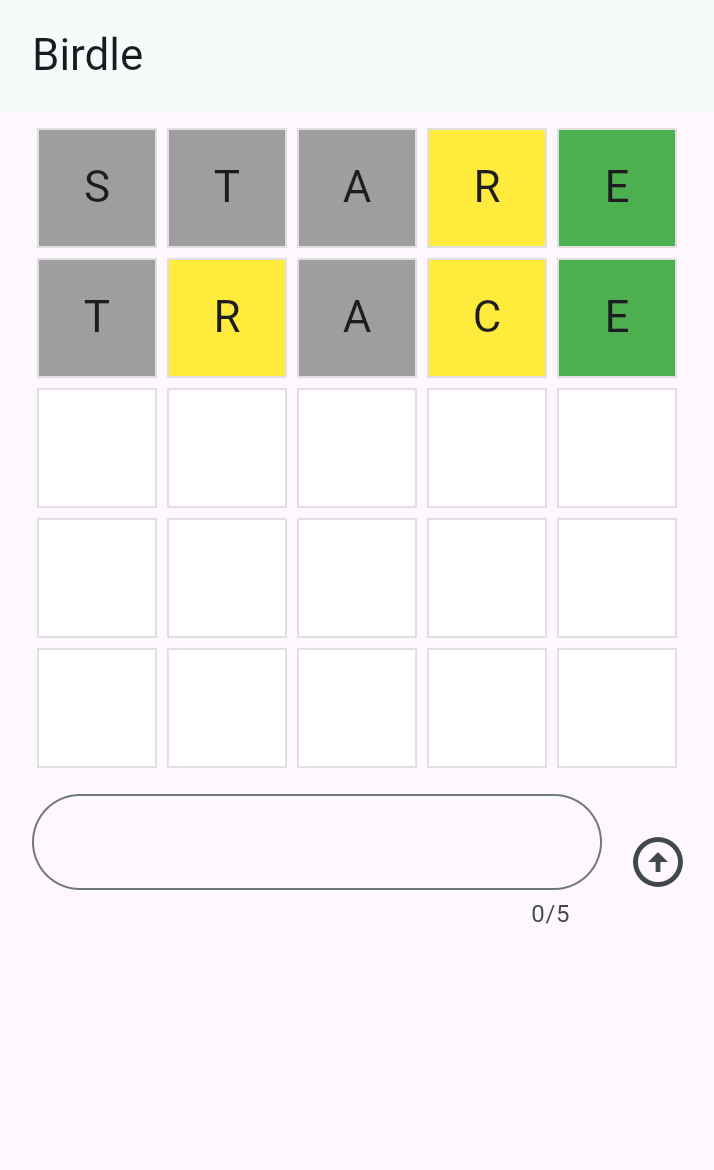
you'll build the core UI of an app called 'Birdle',
a game similar to [Wordle, the popular New York Times game][].
 By the end of this tutorial, you'll have
learned the fundamentals of building Flutter UIs, and your app will
look like the following screenshot (and it'll even mostly work 😀).
[Wordle, the popular New York Times game]: https://www.nytimes.com/games/wordle/index.html
### Create a new Flutter project
The first step to building Flutter apps is to create a new project.
You create new apps with the [Flutter CLI tool][],
installed as part of the Flutter SDK.
Open your terminal or command prompt and run
the following command to create a new Flutter project:
```console
$ flutter create birdle --empty
```
This creates a new Flutter project using the minimal "empty" template.
[Flutter CLI tool]: /reference/flutter-cli
### Examine the code
In your IDE, open the file at `lib/main.dart`.
Starting from the top, you'll see this code.
```dart title="lib/main.dart"
void main() {
runApp(const MainApp());
}
```
The `main` function is the entry point to any Dart program,
and a Flutter app is just a **Dart** program.
The `runApp` method is part of the Flutter SDK,
and it takes a **widget** as an argument.
In this case, an instance of the `MainApp` widget is being passed in.
Just below the `main` function, you'll find the `MainApp` class declaration.
```dart
class MainApp extends StatelessWidget {
const MainApp({super.key});
@override
Widget build(BuildContext context) {
return const MaterialApp(
home: Scaffold(
body: Center(
child: Text('Hello World!'),
),
),
);
}
}
```
`MainApp` is the **root widget**,
as it's the widget that's passed into `runApp`.
Within this widget, there's a `build` method that
returns another widget called `MaterialApp`.
Essentially, this is what a Flutter app is:
a composition of widgets that make
up a tree structure called the **widget tree.**
Your job as a Flutter developer is to
compose widgets from the SDK into larger, custom widgets that display a UI.
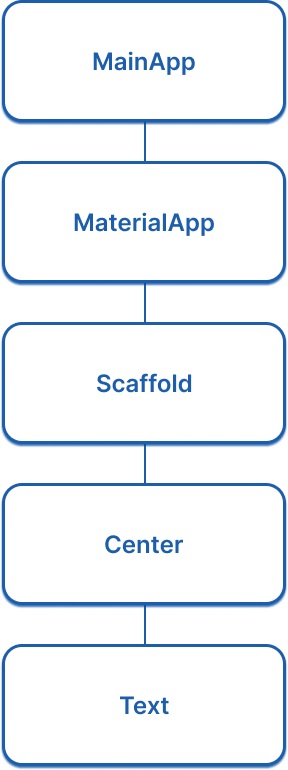
At the moment, the widget tree is quite simple:
By the end of this tutorial, you'll have
learned the fundamentals of building Flutter UIs, and your app will
look like the following screenshot (and it'll even mostly work 😀).
[Wordle, the popular New York Times game]: https://www.nytimes.com/games/wordle/index.html
### Create a new Flutter project
The first step to building Flutter apps is to create a new project.
You create new apps with the [Flutter CLI tool][],
installed as part of the Flutter SDK.
Open your terminal or command prompt and run
the following command to create a new Flutter project:
```console
$ flutter create birdle --empty
```
This creates a new Flutter project using the minimal "empty" template.
[Flutter CLI tool]: /reference/flutter-cli
### Examine the code
In your IDE, open the file at `lib/main.dart`.
Starting from the top, you'll see this code.
```dart title="lib/main.dart"
void main() {
runApp(const MainApp());
}
```
The `main` function is the entry point to any Dart program,
and a Flutter app is just a **Dart** program.
The `runApp` method is part of the Flutter SDK,
and it takes a **widget** as an argument.
In this case, an instance of the `MainApp` widget is being passed in.
Just below the `main` function, you'll find the `MainApp` class declaration.
```dart
class MainApp extends StatelessWidget {
const MainApp({super.key});
@override
Widget build(BuildContext context) {
return const MaterialApp(
home: Scaffold(
body: Center(
child: Text('Hello World!'),
),
),
);
}
}
```
`MainApp` is the **root widget**,
as it's the widget that's passed into `runApp`.
Within this widget, there's a `build` method that
returns another widget called `MaterialApp`.
Essentially, this is what a Flutter app is:
a composition of widgets that make
up a tree structure called the **widget tree.**
Your job as a Flutter developer is to
compose widgets from the SDK into larger, custom widgets that display a UI.
At the moment, the widget tree is quite simple:
 ### Run your app
1. In your terminal,
navigate to the root directory of your created Flutter app:
```console
$ cd birdle
```
1. Run the app using the Flutter CLI tool.
```console
$ flutter run -d chrome
```
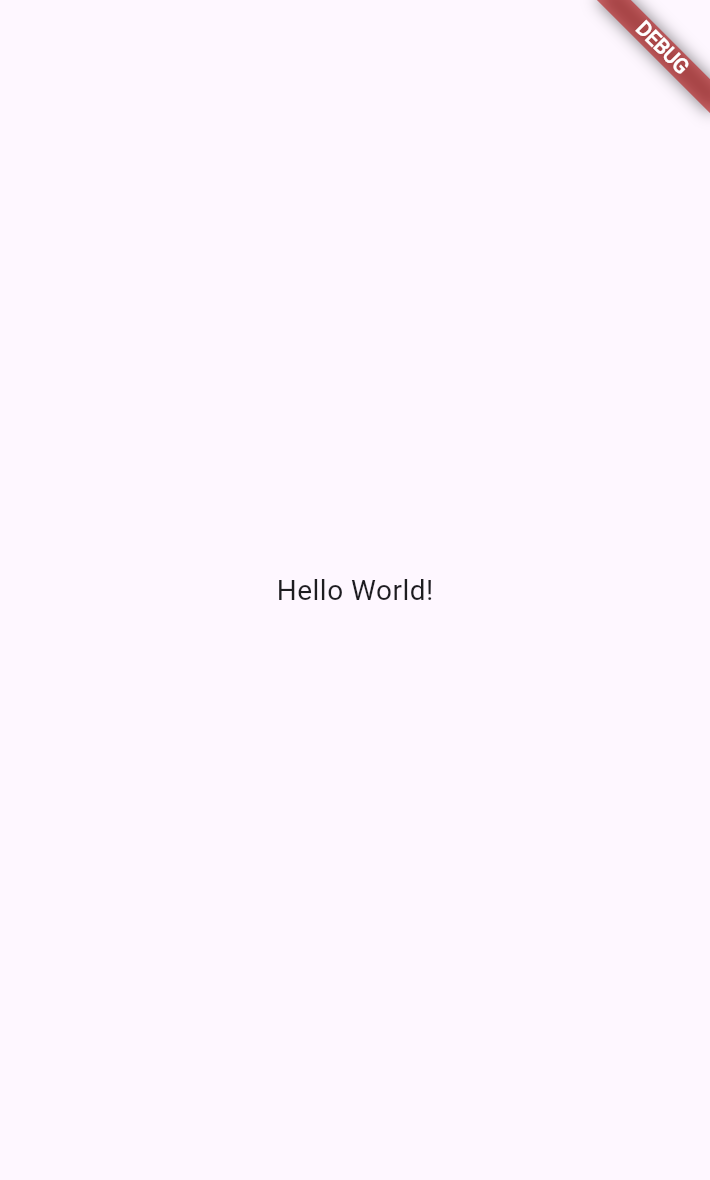
The app will build and launch in a new instance of Chrome.
### Run your app
1. In your terminal,
navigate to the root directory of your created Flutter app:
```console
$ cd birdle
```
1. Run the app using the Flutter CLI tool.
```console
$ flutter run -d chrome
```
The app will build and launch in a new instance of Chrome.
 ### Use hot reload
**Stateful hot reload**, if you haven't heard of it,
allows a running Flutter app to re-render updated business logic or UI code in
less than a second – all without losing your place in the app.
In your IDE, open the `main.dart` file and navigate to line ~15 and find this
code:
```dart
child: Text('Hello World!'),
```
Change the text inside the string to anything you want.
Then, hot-reload your app by
pressing `r` in the terminal where the app is running.
The running app should instantly show your updated text.
### Review
title: What you accomplished
subtitle: Here's a summary of what you built and learned in this lesson.
completed: true
items:
- title: Created your first Flutter project
icon: terminal
details: >-
You used `flutter create` with the `--empty` flag to
scaffold a minimal Flutter project.
The CLI generates the project structure and
boilerplate code needed to get started.
- title: Explored the widget tree
icon: account_tree
details: >-
Flutter UIs are built by composing **widgets** into a tree structure.
The `runApp` function takes a root widget, and that widget's
`build` method returns other widgets, forming the **widget tree**.
Your job as a Flutter developer is to
compose these widgets into custom UIs.
- title: Ran your app with hot reload
icon: bolt
details: >-
You ran your app with `flutter run` and
experienced **stateful hot reload**, which lets you
see code changes reflected in under a second without losing app state.
Press `r` in the terminal to trigger a hot reload.
### Test yourself
- question: "What is the purpose of the `runApp` function in a Flutter application?"
options:
- text: It compiles the Dart code into native machine code.
correct: false
explanation: "Compilation happens before the app runs; `runApp` starts the Flutter framework with a root widget."
- text: It takes a widget as an argument and makes it the root of the widget tree.
correct: true
explanation: "The `runApp` function inflates the given widget and attaches it to the screen, making it the root of the widget tree."
- text: "It creates the `main.dart` file for the project."
correct: false
explanation: "The file is created by `flutter create`; `runApp` is called at runtime."
- text: It downloads Flutter dependencies from the internet.
correct: false
explanation: "Dependencies are managed by `flutter pub get`, not `runApp`."
- question: How do you trigger a hot reload while a Flutter app is running in the terminal?
options:
- text: "Press `h` in the terminal."
correct: false
explanation: "Pressing `h` shows help options; `r` triggers hot reload."
- text: "Press `r` in the terminal."
correct: true
explanation: "Pressing `r` in the terminal where the app is running triggers a hot reload."
- text: "Stop and restart the app with `flutter run`."
correct: false
explanation: A full restart is not needed; hot reload is faster.
- text: Save the file and wait for automatic reload.
correct: false
explanation: "By default, you need to press `r` to trigger hot reload in the terminal."
### Use hot reload
**Stateful hot reload**, if you haven't heard of it,
allows a running Flutter app to re-render updated business logic or UI code in
less than a second – all without losing your place in the app.
In your IDE, open the `main.dart` file and navigate to line ~15 and find this
code:
```dart
child: Text('Hello World!'),
```
Change the text inside the string to anything you want.
Then, hot-reload your app by
pressing `r` in the terminal where the app is running.
The running app should instantly show your updated text.
### Review
title: What you accomplished
subtitle: Here's a summary of what you built and learned in this lesson.
completed: true
items:
- title: Created your first Flutter project
icon: terminal
details: >-
You used `flutter create` with the `--empty` flag to
scaffold a minimal Flutter project.
The CLI generates the project structure and
boilerplate code needed to get started.
- title: Explored the widget tree
icon: account_tree
details: >-
Flutter UIs are built by composing **widgets** into a tree structure.
The `runApp` function takes a root widget, and that widget's
`build` method returns other widgets, forming the **widget tree**.
Your job as a Flutter developer is to
compose these widgets into custom UIs.
- title: Ran your app with hot reload
icon: bolt
details: >-
You ran your app with `flutter run` and
experienced **stateful hot reload**, which lets you
see code changes reflected in under a second without losing app state.
Press `r` in the terminal to trigger a hot reload.
### Test yourself
- question: "What is the purpose of the `runApp` function in a Flutter application?"
options:
- text: It compiles the Dart code into native machine code.
correct: false
explanation: "Compilation happens before the app runs; `runApp` starts the Flutter framework with a root widget."
- text: It takes a widget as an argument and makes it the root of the widget tree.
correct: true
explanation: "The `runApp` function inflates the given widget and attaches it to the screen, making it the root of the widget tree."
- text: "It creates the `main.dart` file for the project."
correct: false
explanation: "The file is created by `flutter create`; `runApp` is called at runtime."
- text: It downloads Flutter dependencies from the internet.
correct: false
explanation: "Dependencies are managed by `flutter pub get`, not `runApp`."
- question: How do you trigger a hot reload while a Flutter app is running in the terminal?
options:
- text: "Press `h` in the terminal."
correct: false
explanation: "Pressing `h` shows help options; `r` triggers hot reload."
- text: "Press `r` in the terminal."
correct: true
explanation: "Pressing `r` in the terminal where the app is running triggers a hot reload."
- text: "Stop and restart the app with `flutter run`."
correct: false
explanation: A full restart is not needed; hot reload is faster.
- text: Save the file and wait for automatic reload.
correct: false
explanation: "By default, you need to press `r` to trigger hot reload in the terminal."