# Simple animations
> Learn the simplest way to implement animations in Flutter.
Flutter provides a rich set of animation APIs, and the simplest way to
start using them is with **implicit animations**.
"Implicit animations" refers to a group of widgets that
automatically animate changes to their properties without you
needing to manage any intermediate behavior.
title: What you'll accomplish
items:
- title: Discover implicit animations in Flutter
icon: auto_awesome
- title: Animate property changes with AnimatedContainer
icon: animation
- title: Customize timing with duration and curves
icon: timeline
In this lesson, you'll learn about one of the most common and
versatile implicit animation widgets: [`AnimatedContainer`][].
With just two additional lines of code, the background color of each `Tile`
animates to a new color in about half a second.
[`AnimatedContainer`]: https://api.flutter.dev/flutter/widgets/AnimatedContainer-class.html
---
### Convert `Container` to `AnimatedContainer`
Currently, the `Tile.build` method returns a `Container` to display a letter.
When the `hitType` changes, like from `HitType.none` to `HitType.hit`,
the background color of the tile changes instantly.
For example, from white to green in the case of `HitType.none` to `HitType.hit`.
For reference, here's the current implementation of the `Tile` widget:
```dart
class Tile extends StatelessWidget {
const Tile(this.letter, this.hitType, {super.key});
final String letter;
final HitType hitType;
@override
Widget build(BuildContext context) {
return Container(
height: 60,
width: 60,
decoration: BoxDecoration(
border: Border.all(color: Colors.grey.shade300),
color: switch (type) {
HitType.hit => Colors.green,
HitType.partial => Colors.yellow,
HitType.miss => Colors.grey,
_ => Colors.white,
},
),
child: Center(
child: Text(
letter.toUpperCase(),
style: Theme.of(context).textTheme.titleLarge,
),
),
);
}
}
```
To make the color change animate smoothly,
replace the `Container` widget with an `AnimatedContainer`.
An `AnimatedContainer` is like a `Container`, but it
automatically animates changes to its properties over a specified `duration`.
When properties such as
`color`, `height`, `width`, `decoration`, or `alignment` change,
`AnimatedContainer` interpolates between the old and new values,
creating a smooth transition.
Modify your `Tile` widget as follows:
```dart
class Tile extends StatelessWidget {
const Tile(this.letter, this.hitType, {super.key});
final String letter;
final HitType hitType;
@override
Widget build(BuildContext context) {
return AnimatedContainer(
duration: Duration(milliseconds: 500),
height: 60,
width: 60,
decoration: BoxDecoration(
border: Border.all(color: Colors.grey.shade300),
color: switch (hitType) {
HitType.hit => Colors.green,
HitType.partial => Colors.yellow,
HitType.miss => Colors.grey,
_ => Colors.white,
},
),
child: Center(
child: Text(
letter.toUpperCase(),
style: Theme.of(context).textTheme.titleLarge,
),
),
);
}
}
```
**`duration`** is a required property that
specifies how long the animation should take.
In this example, passing `Duration(milliseconds: 500)` means
the color transition will take half a second.
You can also specify seconds, minutes, and many other units of time.
Now, when the `hitType` changes and the `Tile` widget rebuilds
(because `setState` was called in `GamePage`),
the color of the tile smoothly animates from its old color to
the new one over the specified duration.
### Adjust the animation curve
To add a bit of customization to an implicit animation,
you can pass it a different [`Curve`][].
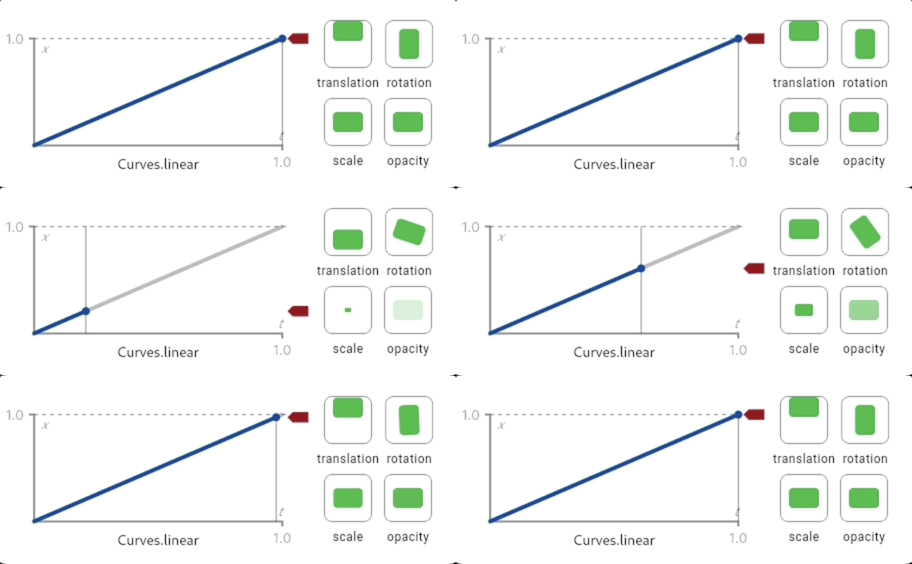
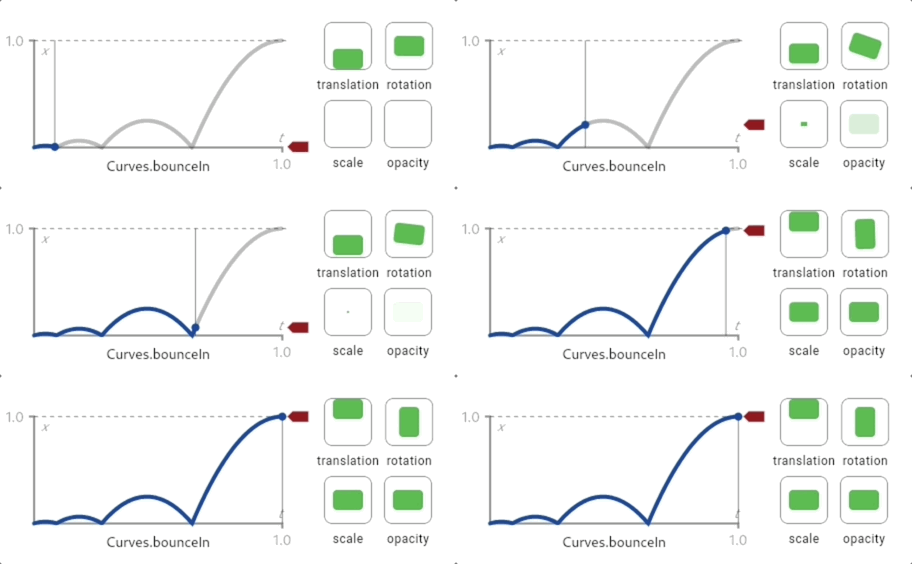
Different curves change the speed of the animation
at different points throughout the animation.
For example, the default curve for Flutter animations is `Curves.linear`. This gif shows how the animation curve behaves:
 Compare that to `Curve.bounceIn`, another common curve:
 To change the `Curve` of this animation, update the code to the following:
```dart
class Tile extends StatelessWidget {
const Tile(this.letter, this.hitType, {super.key});
final String letter;
final HitType hitType;
@override
Widget build(BuildContext context) {
return AnimatedContainer(
duration: Duration(milliseconds: 500),
curve: Curves.bounceIn, // NEW
height: 60,
width: 60,
decoration: BoxDecoration(
border: Border.all(color: Colors.grey.shade300),
color: switch (hitType) {
HitType.hit => Colors.green,
HitType.partial => Colors.yellow,
HitType.miss => Colors.grey,
_ => Colors.white,
},
),
child: Center(
child: Text(
letter.toUpperCase(),
style: Theme.of(context).textTheme.titleLarge,
),
),
);
}
}
```
There are many different curves provided by the Flutter SDK, so
feel free to try them out by passing different types to the `curve` parameter.
Implicit animations like `AnimatedContainer` are powerful because
you just tell the widget what the new state should be, and
it handles the "how" of the animation.
For complex, custom animations, you can write your own animated widgets.
If you're curious, try it out in the [animations tutorial][].
[`Curve`]: https://api.flutter.dev/flutter/animation/Curves-class.html
[animations tutorial]: /ui/animations/tutorial
### Review
title: What you accomplished
subtitle: Here's a summary of what you built and learned in this lesson.
completed: true
items:
- title: Discovered implicit animations
icon: auto_awesome
details: >-
Implicit animations are widgets that automatically
animate changes to their properties.
You specify the new state, and the widget handles
the animation for you without requiring manual animation management.
- title: Animated the tiles with AnimatedContainer
icon: animation
details: >-
By replacing `Container` with `AnimatedContainer` and adding a `duration`,
your tiles now smoothly transition between colors.
With just two lines of code, you added professional polish to your app!
- title: Customized timing with duration and curves
icon: timeline
details: >-
The `duration` property controls how long the animation takes,
while `curve` changes the animation's feel.
You tried `Curves.decelerate`, but you can also try other values
like `Curves.easeIn`, `Curves.bounceOut`, or `Curves.elasticIn`.
- title: Completed the Birdle game
icon: celebration
details: >-
You've built a complete Wordle-style game with custom widgets,
dynamic layouts, user input, state management, and smooth animations.
You now have the foundational skills to build your own Flutter apps!
### Test yourself
- question: What widget can you use to automatically animate changes to properties like color, size, and decoration?
options:
- text: Container
correct: false
explanation: Container doesn't animate; property changes happen instantly.
- text: AnimatedContainer
correct: true
explanation: AnimatedContainer automatically animates changes to its properties over the specified duration.
- text: AnimationController
correct: false
explanation: AnimationController is for explicit animations; AnimatedContainer is simpler for basic animations.
- text: TransitionContainer
correct: false
explanation: There is no TransitionContainer widget; use AnimatedContainer for implicit animations.
- question: "What does the `duration` property control in an AnimatedContainer?"
options:
- text: How long the widget stays on screen before disappearing.
correct: false
explanation: Duration controls animation time, not widget visibility.
- text: How long the animation takes to transition from the old value to the new value.
correct: true
explanation: The duration specifies the time over which the property change is animated.
- text: The delay before the animation starts.
correct: false
explanation: Duration is about animation length; delays require separate configuration.
- text: How many times the animation repeats.
correct: false
explanation: Implicit animations run once per state change; repetition requires explicit animation controllers.
To change the `Curve` of this animation, update the code to the following:
```dart
class Tile extends StatelessWidget {
const Tile(this.letter, this.hitType, {super.key});
final String letter;
final HitType hitType;
@override
Widget build(BuildContext context) {
return AnimatedContainer(
duration: Duration(milliseconds: 500),
curve: Curves.bounceIn, // NEW
height: 60,
width: 60,
decoration: BoxDecoration(
border: Border.all(color: Colors.grey.shade300),
color: switch (hitType) {
HitType.hit => Colors.green,
HitType.partial => Colors.yellow,
HitType.miss => Colors.grey,
_ => Colors.white,
},
),
child: Center(
child: Text(
letter.toUpperCase(),
style: Theme.of(context).textTheme.titleLarge,
),
),
);
}
}
```
There are many different curves provided by the Flutter SDK, so
feel free to try them out by passing different types to the `curve` parameter.
Implicit animations like `AnimatedContainer` are powerful because
you just tell the widget what the new state should be, and
it handles the "how" of the animation.
For complex, custom animations, you can write your own animated widgets.
If you're curious, try it out in the [animations tutorial][].
[`Curve`]: https://api.flutter.dev/flutter/animation/Curves-class.html
[animations tutorial]: /ui/animations/tutorial
### Review
title: What you accomplished
subtitle: Here's a summary of what you built and learned in this lesson.
completed: true
items:
- title: Discovered implicit animations
icon: auto_awesome
details: >-
Implicit animations are widgets that automatically
animate changes to their properties.
You specify the new state, and the widget handles
the animation for you without requiring manual animation management.
- title: Animated the tiles with AnimatedContainer
icon: animation
details: >-
By replacing `Container` with `AnimatedContainer` and adding a `duration`,
your tiles now smoothly transition between colors.
With just two lines of code, you added professional polish to your app!
- title: Customized timing with duration and curves
icon: timeline
details: >-
The `duration` property controls how long the animation takes,
while `curve` changes the animation's feel.
You tried `Curves.decelerate`, but you can also try other values
like `Curves.easeIn`, `Curves.bounceOut`, or `Curves.elasticIn`.
- title: Completed the Birdle game
icon: celebration
details: >-
You've built a complete Wordle-style game with custom widgets,
dynamic layouts, user input, state management, and smooth animations.
You now have the foundational skills to build your own Flutter apps!
### Test yourself
- question: What widget can you use to automatically animate changes to properties like color, size, and decoration?
options:
- text: Container
correct: false
explanation: Container doesn't animate; property changes happen instantly.
- text: AnimatedContainer
correct: true
explanation: AnimatedContainer automatically animates changes to its properties over the specified duration.
- text: AnimationController
correct: false
explanation: AnimationController is for explicit animations; AnimatedContainer is simpler for basic animations.
- text: TransitionContainer
correct: false
explanation: There is no TransitionContainer widget; use AnimatedContainer for implicit animations.
- question: "What does the `duration` property control in an AnimatedContainer?"
options:
- text: How long the widget stays on screen before disappearing.
correct: false
explanation: Duration controls animation time, not widget visibility.
- text: How long the animation takes to transition from the old value to the new value.
correct: true
explanation: The duration specifies the time over which the property change is animated.
- text: The delay before the animation starts.
correct: false
explanation: Duration is about animation length; delays require separate configuration.
- text: How many times the animation repeats.
correct: false
explanation: Implicit animations run once per state change; repetition requires explicit animation controllers.