# User input
> Accept input from the user with buttons and text fields.
Learn to build text inputs, manage text with controllers, and handle user actions with buttons.
title: What you'll accomplish
items:
- title: Build a text input widget with TextField
icon: text_fields
- title: Manage text with TextEditingController
icon: edit_note
- title: Control input focus for a better user experience
icon: center_focus_strong
- title: Handle user actions with callbacks and buttons
icon: touch_app
---
### Introduction
The app will display the user's guesses in the `Tile` widgets,
but it needs a way for the user to input those guesses.
In this lesson, build that functionality with two interaction widgets:
[`TextField`][] and [`IconButton`][].
[`TextField`]: https://api.flutter.dev/flutter/material/TextField-class.html
[`IconButton`]: https://api.flutter.dev/flutter/material/IconButton-class.html
### Implement callback functions
To allow users to type in their guesses,
you'll create a dedicated widget named `GuessInput`.
First, create the basic structure for your `GuessInput` widget that
requires a callback function as an argument.
Name the callback function `onSubmitGuess`.
Add the following code to your `main.dart` file.
```dart
class GuessInput extends StatelessWidget {
GuessInput({super.key, required this.onSubmitGuess});
final void Function(String) onSubmitGuess;
@override
Widget build(BuildContext context) {
// You'll build the UI in the next steps.
return Container(); // Placeholder
}
}
```
The line `final void Function(String) onSubmitGuess;`
declares a `final` member of the class called `onSubmitGuess`
that has the type `void Function(String)`.
This function takes a single `String` argument (the user's guess) and
doesn't return any value (denoted by `void`).
This callback tells us that the logic that
actually handles the user's guess will be written elsewhere.
It's a good practice for interactive widgets to
use callback functions to keep the widget that handles interactions reusable and
decoupled from any specific functionality.
By the end of this lesson, the passed-in `onSubmitGuess` function
is called when a user enters a guess.
First, you'll need to build the visual parts of this widget.
This is what the widget will look like.
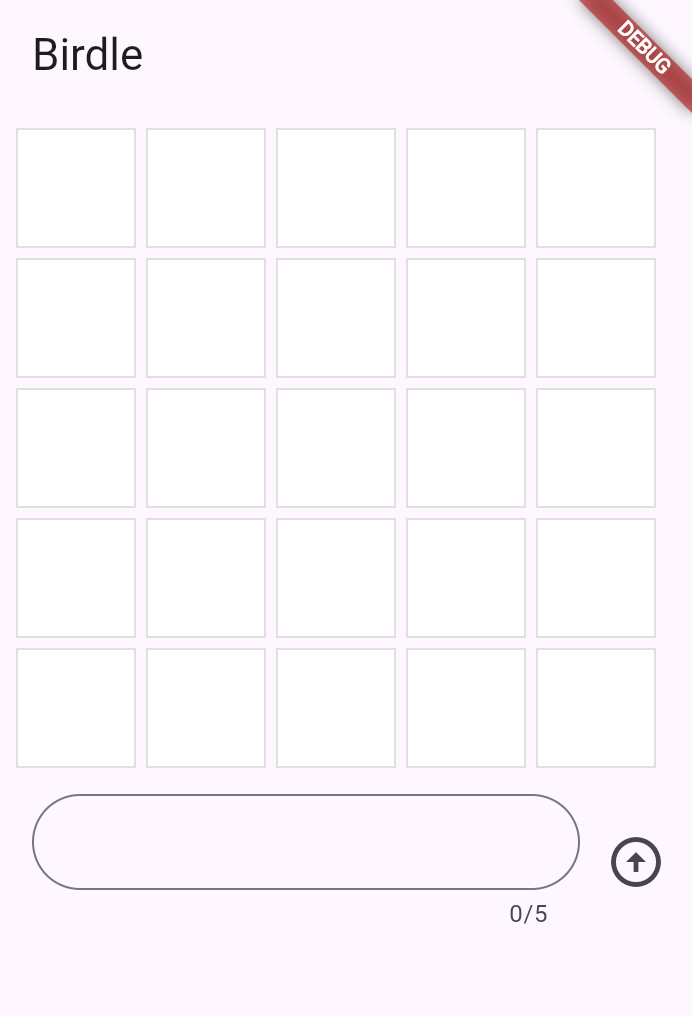 ### The `TextField` widget
Given that the text field and button are displayed side-by-side,
create them as a `Row` widget.
Replace the `Container` placeholder in your `build` method with
a `Row` containing an `Expanded` `TextField`:
```dart
class GuessInput extends StatelessWidget {
GuessInput({super.key, required this.onSubmitGuess});
final void Function(String) onSubmitGuess;
@override
Widget build(BuildContext context) {
return Row(
children: [
Expanded(
child: Padding(
padding: const EdgeInsets.all(8.0),
child: TextField(
maxLength: 5,
decoration: InputDecoration(
border: OutlineInputBorder(
borderRadius: BorderRadius.all(Radius.circular(35)),
),
),
),
),
),
],
);
}
}
```
You have seen some of these widgets in previous lessons:
`Row` and `Padding`. New, though, is the [`Expanded`][] widget.
When a child of a `Row` (or `Column`) is wrapped in `Expanded`,
it tells that child to fill all the available space along the main axis
(horizontal for`Row`, vertical for `Column`) that
hasn't been taken by other children.
This makes the `TextField` stretch to take up all the space *except*
what's taken by other widgets in the row.
:::tip
`Expanded` is often the solution to "[unbounded width/height][]" exceptions.
:::
The `TextField` widget is also new in this lesson and is the star of the show.
This is the basic Flutter widget for text input.
Thus far, `TextField` has the following configuration.
- It's decorated with a rounded border.
Notice that the decoration configuration is
very similar to how a `Container` and boxes are decorated.
- Its `maxLength` property is set to 5 because the game
only allows guesses of 5-letter words.
[`Expanded`]: https://api.flutter.dev/flutter/widgets/Expanded-class.html
[unbounded width/height]: https://www.youtube.com/watch?v=jckqXR5CrPI
### Handle text with `TextEditingController`
Next, you need a way to manage the text that
the user types into the input field.
For this, use a [`TextEditingController`][].
```dart
class GuessInput extends StatelessWidget {
GuessInput({super.key, required this.onSubmitGuess});
final void Function(String) onSubmitGuess;
// NEW
final TextEditingController _textEditingController = TextEditingController();
@override
Widget build(BuildContext context) {
return Row(
children: [
Expanded(
child: Padding(
padding: const EdgeInsets.all(8.0),
child: TextField(
maxLength: 5,
decoration: InputDecoration(
border: OutlineInputBorder(
borderRadius: BorderRadius.all(Radius.circular(35)),
),
),
),
),
),
//
],
);
}
}
```
A `TextEditingController` is used to
read, clear, and modify the text in a `TextField`.
To use it, pass it into the `TextField`.
```dart
class GuessInput extends StatelessWidget {
GuessInput({super.key, required this.onSubmitGuess});
final void Function(String) onSubmitGuess;
final TextEditingController _textEditingController = TextEditingController();
@override
Widget build(BuildContext context) {
return Row(
children: [
Expanded(
child: Padding(
padding: const EdgeInsets.all(8.0),
child: TextField(
maxLength: 5,
decoration: const InputDecoration(
border: OutlineInputBorder(
borderRadius: BorderRadius.all(Radius.circular(35)),
),
),
controller: _textEditingController, // NEW
),
),
),
],
);
}
}
```
Now, when a user inputs text, you can
capture it with the `_textEditingController`, but
you'll need to know _when_ to capture it.
The simplest way to react to input is by
using the `TextField.onSubmitted` argument.
This argument accepts a callback, and the callback is triggered whenever
the user presses the "Enter" key on the keyboard while the text field has focus.
For now, ensure that this works by
adding the following callback to `TextField.onSubmitted`:
```dart
class GuessInput extends StatelessWidget {
GuessInput({super.key, required this.onSubmitGuess});
final void Function(String) onSubmitGuess;
final TextEditingController _textEditingController = TextEditingController();
@override
Widget build(BuildContext context) {
return Row(
children: [
Expanded(
child: Padding(
padding: const EdgeInsets.all(8.0),
child: TextField(
maxLength: 5,
decoration: const InputDecoration(
border: OutlineInputBorder(
borderRadius: BorderRadius.all(Radius.circular(35)),
),
),
controller: _textEditingController,
onSubmitted: (input) {
// NEW
print(_textEditingController.text); // Temporary
},
),
),
),
],
);
}
}
```
In this case,
you could print the `input` passed to the `onSubmitted` callback directly,
but a better user experience clears the text after each guess:
You need a `TextEditingController` to do that. Update the code as follows:
```dart
class GuessInput extends StatelessWidget {
GuessInput({super.key, required this.onSubmitGuess});
final void Function(String) onSubmitGuess;
final TextEditingController _textEditingController = TextEditingController();
@override
Widget build(BuildContext context) {
return Row(
children: [
Expanded(
child: Padding(
padding: const EdgeInsets.all(8.0),
child: TextField(
maxLength: 5,
decoration: const InputDecoration(
border: OutlineInputBorder(
borderRadius: BorderRadius.all(Radius.circular(35)),
),
),
controller: _textEditingController,
onSubmitted: (_) {
// UPDATED
print(_textEditingController.text); // Temporary
_textEditingController.clear(); // NEW
},
),
),
),
],
);
}
}
```
:::note
In Dart, it's good practice to use the `_` [wildcard][] to
hide the input to a function that'll never be used.
The preceding example does so.
:::
[`TextEditingController`]: https://api.flutter.dev/flutter/widgets/TextEditingController-class.html
[wildcard]: https://dart.dev/language/variables#wildcard-variables
### Gain input focus
Often, you want a specific input or widget to
automatically gain focus without the user taking action.
In this app, for example, the only thing a user can do is enter a guess,
so the `TextField` should be focused automatically when the app launches.
And after the user enters a guess, the focus should stay
in the `TextField` so they can enter their next guess.
To resolve the first focus issue,
set up the `autofocus` property on the `TextField`.
```dart
class GuessInput extends StatelessWidget {
GuessInput({super.key, required this.onSubmitGuess});
final void Function(String) onSubmitGuess;
final TextEditingController _textEditingController = TextEditingController();
@override
Widget build(BuildContext context) {
return Row(
children: [
Expanded(
child: Padding(
padding: const EdgeInsets.all(8.0),
child: TextField(
maxLength: 5,
decoration: const InputDecoration(
border: OutlineInputBorder(
borderRadius: BorderRadius.all(Radius.circular(35)),
),
),
controller: _textEditingController,
autofocus: true, // NEW
onSubmitted: (input) {
print(input); // Temporary
_textEditingController.clear();
},
),
),
),
],
);
}
}
```
The second issue requires you to
use a [`FocusNode`][] to manage the keyboard focus.
You can use `FocusNode` to request that a `TextField` gain focus,
(making the keyboard appear on mobile),
or to know when a field has focus.
First, create a `FocusNode` in the `GuessInput` class:
```dart
class GuessInput extends StatelessWidget {
GuessInput({super.key, required this.onSubmitGuess});
final void Function(String) onSubmitGuess;
final TextEditingController _textEditingController = TextEditingController();
final FocusNode _focusNode = FocusNode(); // NEW
@override
Widget build(BuildContext context) {
// ...
return Container();
}
}
```
Then, use the `FocusNode` to request focus whenever
the `TextField` is submitted after the controller is cleared:
```dart
class GuessInput extends StatelessWidget {
GuessInput({super.key, required this.onSubmitGuess});
final void Function(String) onSubmitGuess;
final TextEditingController _textEditingController = TextEditingController();
final FocusNode _focusNode = FocusNode();
@override
Widget build(BuildContext context) {
return Row(
children: [
Expanded(
child: Padding(
padding: const EdgeInsets.all(8.0),
child: TextField(
maxLength: 5,
decoration: const InputDecoration(
border: OutlineInputBorder(
borderRadius: BorderRadius.all(Radius.circular(35)),
),
),
controller: _textEditingController,
autofocus: true,
focusNode: _focusNode, // NEW
onSubmitted: (input) {
print(input); // Temporary
_textEditingController.clear();
_focusNode.requestFocus(); // NEW
},
),
),
),
],
);
}
}
```
Now, when you press Enter after inputting text,
you can continue typing.
[`FocusNode`]: https://api.flutter.dev/flutter/widgets/FocusNode-class.html
### Use the input
Finally, you need to handle the text that the user enters.
Recall that the constructor for `GuessInput` requires a
callback called `onSubmitGuess`.
In `GuessInput`, you need to use that callback.
Replace the `print` statement with a call to that function.
```dart
class GuessInput extends StatelessWidget {
GuessInput({super.key, required this.onSubmitGuess});
final void Function(String) onSubmitGuess;
final TextEditingController _textEditingController = TextEditingController();
final FocusNode _focusNode = FocusNode();
@override
Widget build(BuildContext context) {
return Row(
children: [
Expanded(
child: Padding(
padding: const EdgeInsets.all(8.0),
child: TextField(
maxLength: 5,
decoration: const InputDecoration(
border: OutlineInputBorder(
borderRadius: BorderRadius.all(Radius.circular(35)),
),
),
controller: _textEditingController,
autofocus: true,
focusNode: _focusNode,
onSubmitted: (input) {
onSubmitGuess(_textEditingController.text.trim());
_textEditingController.clear();
_focusNode.requestFocus();
},
),
),
),
],
);
}
}
```
:::note
The `trim` function prevents whitespace from being entered;
otherwise, the user could enter a four-letter word plus a space character.
:::
The remaining functionality is handled in the parent widget, `GamePage`.
In the `build` method of that class,
under the `Row` widgets in the `Column` widget's children,
add the `GuessInput` widget:
```dart
class GamePage extends StatelessWidget {
GamePage({super.key});
final Game _game = Game();
@override
Widget build(BuildContext context) {
return Padding(
padding: const EdgeInsets.all(8.0),
child: Column(
spacing: 5.0,
children: [
for (final guess in _game.guesses)
Row(
spacing: 5.0,
children: [
for (final letter in guess) Tile(letter.char, letter.type),
],
),
GuessInput(
onSubmitGuess: (guess) {
// TODO, handle guess
print(guess); // Temporary
},
),
],
),
);
}
}
```
For the moment, this only prints the guess to
prove that it's wired up correctly.
Submitting the guess requires using the functionality of a `StatefulWidget`,
which you'll do in the next lesson.
### Buttons
To improve the UX on mobile and reflect well-known UI practices,
there should also be a button that can submit the guess.
There are many button widgets built into Flutter, like [`TextButton`][],
[`ElevatedButton`][], and the button you'll use now: [`IconButton`][].
All of these buttons (and many other interaction widgets) require two
arguments (in addition to their optional arguments):
- A callback function passed to `onPressed`.
- A widget that makes up the content of the button (often `Text` or an `Icon`).
Add an icon button to the row widget's children list in the `GuessInput` widget,
and give it an [`Icon`][] widget to display.
The `Icon` widget requires configuration; in this case,
the `padding` property sets the padding between the
edge of the button and the icon it wraps to zero.
This removes the default padding and makes the button smaller.
```dart
class GuessInput extends StatelessWidget {
GuessInput({super.key, required this.onSubmitGuess});
final void Function(String) onSubmitGuess;
final TextEditingController _textEditingController = TextEditingController();
final FocusNode _focusNode = FocusNode();
@override
Widget build(BuildContext context) {
return Row(
children: [
Expanded(child: Container()),
IconButton(
padding: EdgeInsets.zero,
icon: const Icon(Icons.arrow_circle_up),
onPressed: null,
),
],
);
}
}
```
The `IconButton.onPressed` callback should look familiar:
```dart
class GuessInput extends StatelessWidget {
GuessInput({super.key, required this.onSubmitGuess});
final void Function(String) onSubmitGuess;
final TextEditingController _textEditingController = TextEditingController();
final FocusNode _focusNode = FocusNode();
@override
Widget build(BuildContext context) {
return Row(
children: [
Expanded(child: Container()),
IconButton(
padding: EdgeInsets.zero,
icon: const Icon(Icons.arrow_circle_up),
onPressed: () {
onSubmitGuess(_textEditingController.text.trim());
_textEditingController.clear();
_focusNode.requestFocus();
},
),
],
);
}
}
```
This method does the same as the `onSubmitted` callback on the `TextField`.
[`Icon`]: https://api.flutter.dev/flutter/material/Icons-class.html
[`TextButton`]: https://api.flutter.dev/flutter/material/TextButton-class.html
[`ElevatedButton`]: https://api.flutter.dev/flutter/material/ElevatedButton-class.html
[`IconButton`]: https://api.flutter.dev/flutter/material/IconButton-class.html
:::note Challenge - Share "on submitted" logic.
You might be thinking, "Shouldn't we abstract these methods into one
function and pass it to both inputs?"
You could, and as your app grows in complexity, you probably should.
That said, the callbacks `IconButton.onPressed` and `TextField.onSubmitted` have
different signatures, so it's not completely straight-forward.
Refactor the code such that the logic inside this method isn't repeated.
**Solution:**
```dart title="solution.dart" collapsed
class GuessInput extends StatelessWidget {
GuessInput({super.key, required this.onSubmitGuess});
final void Function(String) onSubmitGuess;
final TextEditingController _textEditingController = TextEditingController();
final FocusNode _focusNode = FocusNode();
void _onSubmit() {
onSubmitGuess(_textEditingController.text);
_textEditingController.clear();
_focusNode.requestFocus();
}
@override
Widget build(BuildContext context) {
return Row(
children: [
Expanded(
child: Padding(
padding: const EdgeInsets.all(8.0),
child: TextField(
maxLength: 5,
focusNode: _focusNode,
autofocus: true,
decoration: const InputDecoration(
border: OutlineInputBorder(
borderRadius: BorderRadius.all(Radius.circular(35)),
),
),
controller: _textEditingController,
onSubmitted: (value) {
_onSubmit();
},
),
),
),
IconButton(
padding: EdgeInsets.zero,
icon: const Icon(Icons.arrow_circle_up),
onPressed: _onSubmit,
),
],
);
}
}
```
:::
### Review
title: What you accomplished
subtitle: Here's a summary of what you built and learned in this lesson.
completed: true
items:
- title: Built a text input widget with TextField
icon: text_fields
details: >-
You created a `GuessInput` widget with a `TextField` for text entry.
You configured it with a rounded border, character limit, and
used `Expanded` to make it fill available space in the row.
- title: Managed text with TextEditingController
icon: edit_note
details: >-
`TextEditingController` lets you read and modify text field content.
You used it to capture the user's input with `.text` and clear the
field after submission with `.clear()`.
- title: Controlled input focus for a polished UX
icon: center_focus_strong
details: >-
You used `autofocus` to focus the text field on launch and `FocusNode`
with `requestFocus()` to maintain focus after each guess.
These details make your app feel responsive and well-built.
- title: Handled user actions with callbacks and buttons
icon: touch_app
details: >-
To respond to user input,
you specified callback functions like `onSubmitted` and `onPressed`.
Passing callback functions as constructor arguments keeps your
widgets reusable and decoupled from specific logic.
### Test yourself
- question: How do you programmatically read or clear the text in a TextField?
options:
- text: Access the TextField's text property directly.
correct: false
explanation: TextField doesn't expose a text property; you need a controller.
- text: Use the TextEditingController attached to the TextField.
correct: true
explanation: TextEditingController provides the text property to read the value and clear() method to reset it.
- text: Listen to the onChanged callback and store the value in a variable.
correct: false
explanation: While onChanged works for reading, clearing requires a TextEditingController.
- text: Call TextField.getText() method.
correct: false
explanation: TextField doesn't have a getText method; use TextEditingController instead.
- question: How do you programmatically move focus to a specific TextField?
options:
- text: "Call `TextField.focus()` directly."
correct: false
explanation: TextField doesn't have a focus method; you use a FocusNode.
- text: "Set the `autofocus` property to true at runtime."
correct: false
explanation: The 'autofocus' property only works on initial build, not for moving focus later.
- text: "Use a FocusNode and call `requestFocus()` on it."
correct: true
explanation: "A FocusNode gives you control over focus, and calling `requestFocus()` moves focus to its associated widget."
- text: Wrap the TextField in a GestureDetector and tap programmatically.
correct: false
explanation: This is not how focus is managed; FocusNode is the proper approach.
### The `TextField` widget
Given that the text field and button are displayed side-by-side,
create them as a `Row` widget.
Replace the `Container` placeholder in your `build` method with
a `Row` containing an `Expanded` `TextField`:
```dart
class GuessInput extends StatelessWidget {
GuessInput({super.key, required this.onSubmitGuess});
final void Function(String) onSubmitGuess;
@override
Widget build(BuildContext context) {
return Row(
children: [
Expanded(
child: Padding(
padding: const EdgeInsets.all(8.0),
child: TextField(
maxLength: 5,
decoration: InputDecoration(
border: OutlineInputBorder(
borderRadius: BorderRadius.all(Radius.circular(35)),
),
),
),
),
),
],
);
}
}
```
You have seen some of these widgets in previous lessons:
`Row` and `Padding`. New, though, is the [`Expanded`][] widget.
When a child of a `Row` (or `Column`) is wrapped in `Expanded`,
it tells that child to fill all the available space along the main axis
(horizontal for`Row`, vertical for `Column`) that
hasn't been taken by other children.
This makes the `TextField` stretch to take up all the space *except*
what's taken by other widgets in the row.
:::tip
`Expanded` is often the solution to "[unbounded width/height][]" exceptions.
:::
The `TextField` widget is also new in this lesson and is the star of the show.
This is the basic Flutter widget for text input.
Thus far, `TextField` has the following configuration.
- It's decorated with a rounded border.
Notice that the decoration configuration is
very similar to how a `Container` and boxes are decorated.
- Its `maxLength` property is set to 5 because the game
only allows guesses of 5-letter words.
[`Expanded`]: https://api.flutter.dev/flutter/widgets/Expanded-class.html
[unbounded width/height]: https://www.youtube.com/watch?v=jckqXR5CrPI
### Handle text with `TextEditingController`
Next, you need a way to manage the text that
the user types into the input field.
For this, use a [`TextEditingController`][].
```dart
class GuessInput extends StatelessWidget {
GuessInput({super.key, required this.onSubmitGuess});
final void Function(String) onSubmitGuess;
// NEW
final TextEditingController _textEditingController = TextEditingController();
@override
Widget build(BuildContext context) {
return Row(
children: [
Expanded(
child: Padding(
padding: const EdgeInsets.all(8.0),
child: TextField(
maxLength: 5,
decoration: InputDecoration(
border: OutlineInputBorder(
borderRadius: BorderRadius.all(Radius.circular(35)),
),
),
),
),
),
//
],
);
}
}
```
A `TextEditingController` is used to
read, clear, and modify the text in a `TextField`.
To use it, pass it into the `TextField`.
```dart
class GuessInput extends StatelessWidget {
GuessInput({super.key, required this.onSubmitGuess});
final void Function(String) onSubmitGuess;
final TextEditingController _textEditingController = TextEditingController();
@override
Widget build(BuildContext context) {
return Row(
children: [
Expanded(
child: Padding(
padding: const EdgeInsets.all(8.0),
child: TextField(
maxLength: 5,
decoration: const InputDecoration(
border: OutlineInputBorder(
borderRadius: BorderRadius.all(Radius.circular(35)),
),
),
controller: _textEditingController, // NEW
),
),
),
],
);
}
}
```
Now, when a user inputs text, you can
capture it with the `_textEditingController`, but
you'll need to know _when_ to capture it.
The simplest way to react to input is by
using the `TextField.onSubmitted` argument.
This argument accepts a callback, and the callback is triggered whenever
the user presses the "Enter" key on the keyboard while the text field has focus.
For now, ensure that this works by
adding the following callback to `TextField.onSubmitted`:
```dart
class GuessInput extends StatelessWidget {
GuessInput({super.key, required this.onSubmitGuess});
final void Function(String) onSubmitGuess;
final TextEditingController _textEditingController = TextEditingController();
@override
Widget build(BuildContext context) {
return Row(
children: [
Expanded(
child: Padding(
padding: const EdgeInsets.all(8.0),
child: TextField(
maxLength: 5,
decoration: const InputDecoration(
border: OutlineInputBorder(
borderRadius: BorderRadius.all(Radius.circular(35)),
),
),
controller: _textEditingController,
onSubmitted: (input) {
// NEW
print(_textEditingController.text); // Temporary
},
),
),
),
],
);
}
}
```
In this case,
you could print the `input` passed to the `onSubmitted` callback directly,
but a better user experience clears the text after each guess:
You need a `TextEditingController` to do that. Update the code as follows:
```dart
class GuessInput extends StatelessWidget {
GuessInput({super.key, required this.onSubmitGuess});
final void Function(String) onSubmitGuess;
final TextEditingController _textEditingController = TextEditingController();
@override
Widget build(BuildContext context) {
return Row(
children: [
Expanded(
child: Padding(
padding: const EdgeInsets.all(8.0),
child: TextField(
maxLength: 5,
decoration: const InputDecoration(
border: OutlineInputBorder(
borderRadius: BorderRadius.all(Radius.circular(35)),
),
),
controller: _textEditingController,
onSubmitted: (_) {
// UPDATED
print(_textEditingController.text); // Temporary
_textEditingController.clear(); // NEW
},
),
),
),
],
);
}
}
```
:::note
In Dart, it's good practice to use the `_` [wildcard][] to
hide the input to a function that'll never be used.
The preceding example does so.
:::
[`TextEditingController`]: https://api.flutter.dev/flutter/widgets/TextEditingController-class.html
[wildcard]: https://dart.dev/language/variables#wildcard-variables
### Gain input focus
Often, you want a specific input or widget to
automatically gain focus without the user taking action.
In this app, for example, the only thing a user can do is enter a guess,
so the `TextField` should be focused automatically when the app launches.
And after the user enters a guess, the focus should stay
in the `TextField` so they can enter their next guess.
To resolve the first focus issue,
set up the `autofocus` property on the `TextField`.
```dart
class GuessInput extends StatelessWidget {
GuessInput({super.key, required this.onSubmitGuess});
final void Function(String) onSubmitGuess;
final TextEditingController _textEditingController = TextEditingController();
@override
Widget build(BuildContext context) {
return Row(
children: [
Expanded(
child: Padding(
padding: const EdgeInsets.all(8.0),
child: TextField(
maxLength: 5,
decoration: const InputDecoration(
border: OutlineInputBorder(
borderRadius: BorderRadius.all(Radius.circular(35)),
),
),
controller: _textEditingController,
autofocus: true, // NEW
onSubmitted: (input) {
print(input); // Temporary
_textEditingController.clear();
},
),
),
),
],
);
}
}
```
The second issue requires you to
use a [`FocusNode`][] to manage the keyboard focus.
You can use `FocusNode` to request that a `TextField` gain focus,
(making the keyboard appear on mobile),
or to know when a field has focus.
First, create a `FocusNode` in the `GuessInput` class:
```dart
class GuessInput extends StatelessWidget {
GuessInput({super.key, required this.onSubmitGuess});
final void Function(String) onSubmitGuess;
final TextEditingController _textEditingController = TextEditingController();
final FocusNode _focusNode = FocusNode(); // NEW
@override
Widget build(BuildContext context) {
// ...
return Container();
}
}
```
Then, use the `FocusNode` to request focus whenever
the `TextField` is submitted after the controller is cleared:
```dart
class GuessInput extends StatelessWidget {
GuessInput({super.key, required this.onSubmitGuess});
final void Function(String) onSubmitGuess;
final TextEditingController _textEditingController = TextEditingController();
final FocusNode _focusNode = FocusNode();
@override
Widget build(BuildContext context) {
return Row(
children: [
Expanded(
child: Padding(
padding: const EdgeInsets.all(8.0),
child: TextField(
maxLength: 5,
decoration: const InputDecoration(
border: OutlineInputBorder(
borderRadius: BorderRadius.all(Radius.circular(35)),
),
),
controller: _textEditingController,
autofocus: true,
focusNode: _focusNode, // NEW
onSubmitted: (input) {
print(input); // Temporary
_textEditingController.clear();
_focusNode.requestFocus(); // NEW
},
),
),
),
],
);
}
}
```
Now, when you press Enter after inputting text,
you can continue typing.
[`FocusNode`]: https://api.flutter.dev/flutter/widgets/FocusNode-class.html
### Use the input
Finally, you need to handle the text that the user enters.
Recall that the constructor for `GuessInput` requires a
callback called `onSubmitGuess`.
In `GuessInput`, you need to use that callback.
Replace the `print` statement with a call to that function.
```dart
class GuessInput extends StatelessWidget {
GuessInput({super.key, required this.onSubmitGuess});
final void Function(String) onSubmitGuess;
final TextEditingController _textEditingController = TextEditingController();
final FocusNode _focusNode = FocusNode();
@override
Widget build(BuildContext context) {
return Row(
children: [
Expanded(
child: Padding(
padding: const EdgeInsets.all(8.0),
child: TextField(
maxLength: 5,
decoration: const InputDecoration(
border: OutlineInputBorder(
borderRadius: BorderRadius.all(Radius.circular(35)),
),
),
controller: _textEditingController,
autofocus: true,
focusNode: _focusNode,
onSubmitted: (input) {
onSubmitGuess(_textEditingController.text.trim());
_textEditingController.clear();
_focusNode.requestFocus();
},
),
),
),
],
);
}
}
```
:::note
The `trim` function prevents whitespace from being entered;
otherwise, the user could enter a four-letter word plus a space character.
:::
The remaining functionality is handled in the parent widget, `GamePage`.
In the `build` method of that class,
under the `Row` widgets in the `Column` widget's children,
add the `GuessInput` widget:
```dart
class GamePage extends StatelessWidget {
GamePage({super.key});
final Game _game = Game();
@override
Widget build(BuildContext context) {
return Padding(
padding: const EdgeInsets.all(8.0),
child: Column(
spacing: 5.0,
children: [
for (final guess in _game.guesses)
Row(
spacing: 5.0,
children: [
for (final letter in guess) Tile(letter.char, letter.type),
],
),
GuessInput(
onSubmitGuess: (guess) {
// TODO, handle guess
print(guess); // Temporary
},
),
],
),
);
}
}
```
For the moment, this only prints the guess to
prove that it's wired up correctly.
Submitting the guess requires using the functionality of a `StatefulWidget`,
which you'll do in the next lesson.
### Buttons
To improve the UX on mobile and reflect well-known UI practices,
there should also be a button that can submit the guess.
There are many button widgets built into Flutter, like [`TextButton`][],
[`ElevatedButton`][], and the button you'll use now: [`IconButton`][].
All of these buttons (and many other interaction widgets) require two
arguments (in addition to their optional arguments):
- A callback function passed to `onPressed`.
- A widget that makes up the content of the button (often `Text` or an `Icon`).
Add an icon button to the row widget's children list in the `GuessInput` widget,
and give it an [`Icon`][] widget to display.
The `Icon` widget requires configuration; in this case,
the `padding` property sets the padding between the
edge of the button and the icon it wraps to zero.
This removes the default padding and makes the button smaller.
```dart
class GuessInput extends StatelessWidget {
GuessInput({super.key, required this.onSubmitGuess});
final void Function(String) onSubmitGuess;
final TextEditingController _textEditingController = TextEditingController();
final FocusNode _focusNode = FocusNode();
@override
Widget build(BuildContext context) {
return Row(
children: [
Expanded(child: Container()),
IconButton(
padding: EdgeInsets.zero,
icon: const Icon(Icons.arrow_circle_up),
onPressed: null,
),
],
);
}
}
```
The `IconButton.onPressed` callback should look familiar:
```dart
class GuessInput extends StatelessWidget {
GuessInput({super.key, required this.onSubmitGuess});
final void Function(String) onSubmitGuess;
final TextEditingController _textEditingController = TextEditingController();
final FocusNode _focusNode = FocusNode();
@override
Widget build(BuildContext context) {
return Row(
children: [
Expanded(child: Container()),
IconButton(
padding: EdgeInsets.zero,
icon: const Icon(Icons.arrow_circle_up),
onPressed: () {
onSubmitGuess(_textEditingController.text.trim());
_textEditingController.clear();
_focusNode.requestFocus();
},
),
],
);
}
}
```
This method does the same as the `onSubmitted` callback on the `TextField`.
[`Icon`]: https://api.flutter.dev/flutter/material/Icons-class.html
[`TextButton`]: https://api.flutter.dev/flutter/material/TextButton-class.html
[`ElevatedButton`]: https://api.flutter.dev/flutter/material/ElevatedButton-class.html
[`IconButton`]: https://api.flutter.dev/flutter/material/IconButton-class.html
:::note Challenge - Share "on submitted" logic.
You might be thinking, "Shouldn't we abstract these methods into one
function and pass it to both inputs?"
You could, and as your app grows in complexity, you probably should.
That said, the callbacks `IconButton.onPressed` and `TextField.onSubmitted` have
different signatures, so it's not completely straight-forward.
Refactor the code such that the logic inside this method isn't repeated.
**Solution:**
```dart title="solution.dart" collapsed
class GuessInput extends StatelessWidget {
GuessInput({super.key, required this.onSubmitGuess});
final void Function(String) onSubmitGuess;
final TextEditingController _textEditingController = TextEditingController();
final FocusNode _focusNode = FocusNode();
void _onSubmit() {
onSubmitGuess(_textEditingController.text);
_textEditingController.clear();
_focusNode.requestFocus();
}
@override
Widget build(BuildContext context) {
return Row(
children: [
Expanded(
child: Padding(
padding: const EdgeInsets.all(8.0),
child: TextField(
maxLength: 5,
focusNode: _focusNode,
autofocus: true,
decoration: const InputDecoration(
border: OutlineInputBorder(
borderRadius: BorderRadius.all(Radius.circular(35)),
),
),
controller: _textEditingController,
onSubmitted: (value) {
_onSubmit();
},
),
),
),
IconButton(
padding: EdgeInsets.zero,
icon: const Icon(Icons.arrow_circle_up),
onPressed: _onSubmit,
),
],
);
}
}
```
:::
### Review
title: What you accomplished
subtitle: Here's a summary of what you built and learned in this lesson.
completed: true
items:
- title: Built a text input widget with TextField
icon: text_fields
details: >-
You created a `GuessInput` widget with a `TextField` for text entry.
You configured it with a rounded border, character limit, and
used `Expanded` to make it fill available space in the row.
- title: Managed text with TextEditingController
icon: edit_note
details: >-
`TextEditingController` lets you read and modify text field content.
You used it to capture the user's input with `.text` and clear the
field after submission with `.clear()`.
- title: Controlled input focus for a polished UX
icon: center_focus_strong
details: >-
You used `autofocus` to focus the text field on launch and `FocusNode`
with `requestFocus()` to maintain focus after each guess.
These details make your app feel responsive and well-built.
- title: Handled user actions with callbacks and buttons
icon: touch_app
details: >-
To respond to user input,
you specified callback functions like `onSubmitted` and `onPressed`.
Passing callback functions as constructor arguments keeps your
widgets reusable and decoupled from specific logic.
### Test yourself
- question: How do you programmatically read or clear the text in a TextField?
options:
- text: Access the TextField's text property directly.
correct: false
explanation: TextField doesn't expose a text property; you need a controller.
- text: Use the TextEditingController attached to the TextField.
correct: true
explanation: TextEditingController provides the text property to read the value and clear() method to reset it.
- text: Listen to the onChanged callback and store the value in a variable.
correct: false
explanation: While onChanged works for reading, clearing requires a TextEditingController.
- text: Call TextField.getText() method.
correct: false
explanation: TextField doesn't have a getText method; use TextEditingController instead.
- question: How do you programmatically move focus to a specific TextField?
options:
- text: "Call `TextField.focus()` directly."
correct: false
explanation: TextField doesn't have a focus method; you use a FocusNode.
- text: "Set the `autofocus` property to true at runtime."
correct: false
explanation: The 'autofocus' property only works on initial build, not for moving focus later.
- text: "Use a FocusNode and call `requestFocus()` on it."
correct: true
explanation: "A FocusNode gives you control over focus, and calling `requestFocus()` moves focus to its associated widget."
- text: Wrap the TextField in a GestureDetector and tap programmatically.
correct: false
explanation: This is not how focus is managed; FocusNode is the proper approach.