# Swift Package Manager for plugin authors
> How to add Swift Package Manager compatibility to iOS and macOS plugins
:::note
As of the 3.44 release, Flutter uses [Swift Package Manager][]
to manage iOS and macOS native dependencies.
Flutter continues to support CocoaPods in maintenance mode,
however, the CocoaPods registry permanently becomes
[read-only on December 2, 2026][cocoapods].
:::
[cocoapods]: https://blog.cocoapods.org/CocoaPods-Specs-Repo/
[Swift Package Manager]: https://www.swift.org/documentation/package-manager/
For information on how to turn SwiftPM off and on, visit
[Swift Package Manager for app developers][for-app-devs].
[for-app-devs]: /packages-and-plugins/swift-package-manager/for-app-developers
## How to add Swift Package Manager support to an existing Flutter plugin
This guide shows how to add Swift Package Manager support to a plugin that
already supports CocoaPods.
This ensures the plugin is usable by all Flutter projects.
Flutter plugins should support _both_ Swift Package Manager and CocoaPods until
further notice.
Swift Package Manager adoption will be gradual.
As of Flutter 3.44, plugins that don't support
CocoaPods aren't usable by projects that haven't
migrated to Swift Package Manager yet.
Plugins that don't support Swift Package Manager
can cause problems for projects that have migrated.
Please migrate your plugins as soon as possible.
Replace `plugin_name` throughout this guide with the name of your plugin.
The example below uses `ios`, replace `ios` with `macos` or `darwin`, as applicable.
1. Ensure that you are using Flutter 3.44 or later. This enables SwiftPM by default.
1. Start by creating a directory under the `ios`, `macos`, and/or `darwin`
directories.
Name this new directory the name of the platform package.
- plugin_name/
- ios/
- ...
- **plugin_name/**
1. Within this new directory, create the following files/directories:
- `Package.swift` (file)
- `Sources` (directory)
- `Sources/plugin_name` (directory)
Your plugin should look like:
- plugin_name/
- ios/
- ...
- plugin_name/
- **Package.swift**
- **Sources/**
- **plugin_name/**
1. Use the following template in the `Package.swift` file:
```swift title="Package.swift"
// swift-tools-version: 5.9
// The swift-tools-version declares the minimum version of Swift required to build this package.
import PackageDescription
let package = Package(
// TODO: Update your plugin name.
name: "plugin_name",
platforms: [
// TODO: Update the platforms your plugin supports.
// If your plugin only supports iOS, remove `.macOS(...)`.
// If your plugin only supports macOS, remove `.iOS(...)`.
.iOS("13.0"),
.macOS("10.15")
],
products: [
// TODO: Update your library and target names.
// If the plugin name contains "_", replace with "-" for the library name.
.library(name: "plugin-name", targets: ["plugin_name"])
],
dependencies: [
.package(name: "FlutterFramework", path: "../FlutterFramework")
],
targets: [
.target(
// TODO: Update your target name.
name: "plugin_name",
dependencies: [
.product(name: "FlutterFramework", package: "FlutterFramework")
],
resources: [
// TODO: If your plugin requires a privacy manifest
// (e.g. if it uses any required reason APIs), update the PrivacyInfo.xcprivacy file
// to describe your plugin's privacy impact, and then uncomment this line.
// For more information, visit:
// https://developer.apple.com/documentation/bundleresources/privacy_manifest_files
// .process("PrivacyInfo.xcprivacy"),
// TODO: If you have other resources that need to be bundled with your plugin, refer to
// the following instructions to add them:
// https://developer.apple.com/documentation/xcode/bundling-resources-with-a-swift-package
]
)
]
)
```
1. Update the [supported platforms][] in your `Package.swift` file.
```swift title="Package.swift"
platforms: [
// TODO: Update the platforms your plugin supports.
// If your plugin only supports iOS, remove `.macOS(...)`.
// If your plugin only supports macOS, remove `.iOS(...)`.
[!.iOS("13.0"),!]
[!.macOS("10.15")!]
],
```
[supported platforms]: https://developer.apple.com/documentation/packagedescription/supportedplatform
1. Update the package, library, and target names in your `Package.swift` file.
```swift title="Package.swift"
let package = Package(
// TODO: Update your plugin name.
name: [!"plugin_name"!],
platforms: [
.iOS("13.0"),
.macOS("10.15")
],
products: [
// TODO: Update your library and target names.
// If the plugin name contains "_", replace with "-" for the library name
.library(name: [!"plugin-name"!], targets: [[!"plugin_name"!]])
],
dependencies: [
.package(name: "FlutterFramework", path: "../FlutterFramework")
],
targets: [
.target(
// TODO: Update your target name.
name: [!"plugin_name"!],
dependencies: [
.product(name: "FlutterFramework", package: "FlutterFramework")
],
resources: [
// TODO: If your plugin requires a privacy manifest
// (e.g. if it uses any required reason APIs), update the PrivacyInfo.xcprivacy file
// to describe your plugin's privacy impact, and then uncomment this line.
// For more information, visit:
// https://developer.apple.com/documentation/bundleresources/privacy_manifest_files
// .process("PrivacyInfo.xcprivacy"),
// TODO: If you have other resources that need to be bundled with your plugin, refer to
// the following instructions to add them:
// https://developer.apple.com/documentation/xcode/bundling-resources-with-a-swift-package
]
)
]
)
```
:::note
If the plugin name contains `_`, the library name must be a `-` separated
version of the plugin name.
:::
1. If your plugin has a [`PrivacyInfo.xcprivacy` file][], move it to
`ios/plugin_name/Sources/plugin_name/PrivacyInfo.xcprivacy` and uncomment
the resource in the `Package.swift` file.
```swift title="Package.swift"
resources: [
// TODO: If your plugin requires a privacy manifest
// (e.g. if it uses any required reason APIs), update the PrivacyInfo.xcprivacy file
// to describe your plugin's privacy impact, and then uncomment this line.
// For more information, visit:
// https://developer.apple.com/documentation/bundleresources/privacy_manifest_files
[!.process("PrivacyInfo.xcprivacy"),!]
// TODO: If you have other resources that need to be bundled with your plugin, refer to
// the following instructions to add them:
// https://developer.apple.com/documentation/xcode/bundling-resources-with-a-swift-package
],
```
1. Move any resource files from `ios/Assets` to
`ios/plugin_name/Sources/plugin_name` (or a subdirectory).
Add the resource files to your `Package.swift` file, if applicable.
For more instructions, visit
[Bundling resources with a Swift package][].
1. Move all files from `ios/Classes` to `ios/plugin_name/Sources/plugin_name`.
1. Add the `FlutterFramework` as a dependency.
Update `Package.swift` to include `FlutterFramework`:
```swift title="Package.swift"
dependencies: [
[!.package(name: "FlutterFramework", path: "../FlutterFramework")!]
],
targets: [
.target(
// TODO: Update your target name.
name: "plugin_name",
dependencies: [
[!.product(name: "FlutterFramework", package: "FlutterFramework")!]
],
)
]
```
1. The `ios/Assets`, `ios/Resources`, and `ios/Classes` directories should now
be empty and can be deleted.
1. If your plugin uses [Pigeon][], update your Pigeon input file.
```dart title="pigeons/messages.dart" diff
kotlinOptions: KotlinOptions(),
javaOut: 'android/app/src/main/java/io/flutter/plugins/Messages.java',
javaOptions: JavaOptions(),
- swiftOut: 'ios/Classes/messages.g.swift',
+ swiftOut: 'ios/plugin_name/Sources/plugin_name/messages.g.swift',
swiftOptions: SwiftOptions(),
```
1. Update your `Package.swift` file with any customizations you might need.
1. In Xcode, open the `ios/plugin_name/` directory.
1. In Xcode, open your `Package.swift` file.
Verify Xcode doesn't produce any warnings or errors for this file.
:::tip
If Xcode doesn't show any files, quit Xcode (**Xcode > Quit Xcode**) and
reopen.
If Xcode doesn't update after you make a change, try clicking
**File > Packages > Reset Package Caches**.
:::
1. If your `ios/plugin_name.podspec` file has [CocoaPods `dependency`][]s,
add the corresponding [Swift Package Manager dependencies][] to your
`Package.swift` file.
1. If your package must be linked explicitly `static` or `dynamic`
([not recommended by Apple][]), update the [Product][] to define the
type:
```swift title="Package.swift"
products: [
.library(name: "plugin-name", type: .static, targets: ["plugin_name"])
],
```
1. Make any other customizations. For more information on how to write a
`Package.swift` file, visit [`PackageDescription`][].
:::tip
If you add targets to your `Package.swift` file, use unique names.
This avoids conflicts with targets from other packages.
:::
1. Update your `ios/plugin_name.podspec` to point to new paths.
```ruby title="ios/plugin_name.podspec" diff
- s.source_files = 'Classes/**/*.swift'
- s.resource_bundles = {'plugin_name_privacy' => ['Resources/PrivacyInfo.xcprivacy']}
+ s.source_files = 'plugin_name/Sources/plugin_name/**/*.swift'
+ s.resource_bundles = {'plugin_name_privacy' => ['plugin_name/Sources/plugin_name/PrivacyInfo.xcprivacy']}
```
1. Update loading of resources from bundle to use [`Bundle.module`][].
```swift
#if SWIFT_PACKAGE
let settingsURL = Bundle.module.url(forResource: "image", withExtension: "jpg")
#else
let settingsURL = Bundle(for: Self.self).url(forResource: "image", withExtension: "jpg")
#endif
```
:::note
`Bundle.module` only works if there are resources
[defined in the `Package.swift` file][Bundling resources] or
[automatically included by Xcode][Xcode resource detection].
Otherwise, using `Bundle.module` results in an error.
:::
1. If your `.gitignore` doesn't include `.build/` and `.swiftpm/` directories,
you'll want to update your `.gitignore` to include:
```text title=".gitignore"
.build/
.swiftpm/
```
Commit your plugin's changes to your version control system.
1. Verify the plugin still works with CocoaPods.
1. Turn off Swift Package Manager.
```sh
flutter config --no-enable-swift-package-manager
```
1. Navigate to the plugin's example app.
```sh
cd path/to/plugin/example/
```
1. Ensure the plugin's example app builds and runs.
```sh
flutter run
```
1. Navigate to the plugin's top-level directory.
```sh
cd path/to/plugin/
```
1. Run CocoaPods validation lints.
```sh
pod lib lint ios/plugin_name.podspec --configuration=Debug --skip-tests --use-modular-headers --use-libraries
```
```sh
pod lib lint ios/plugin_name.podspec --configuration=Debug --skip-tests --use-modular-headers
```
1. Verify the plugin works with Swift Package Manager.
1. Turn on Swift Package Manager.
```sh
flutter config --enable-swift-package-manager
```
1. Navigate to the plugin's example app.
```sh
cd path/to/plugin/example/
```
1. Ensure the plugin's example app builds and runs.
```sh
flutter run
```
:::note
Using the Flutter CLI to run the plugin's example app with the
Swift Package Manager feature turned on migrates the project to add
Swift Package Manager integration.
This raises the example app's Flutter SDK requirement to version 3.24 or
higher.
If you'd like to run the example app using an older Flutter SDK version,
do not commit the migration's changes to your version control system.
If needed, you can always
[undo the Swift Package Manager migration][removeSPM].
:::
1. In Xcode, open the plugin's example app.
Ensure that **Package Dependencies** shows in the left
**Project Navigator**.
1. Verify tests pass.
* **If your plugin has native unit tests (XCTest), make sure you also
[update unit tests in the plugin's example app][].**
* Follow instructions for [testing plugins][].
[`PrivacyInfo.xcprivacy` file]: https://developer.apple.com/documentation/bundleresources/privacy_manifest_files
[Pigeon]: https://pub.dev/packages/pigeon
[CocoaPods `dependency`]: https://guides.cocoapods.org/syntax/podspec.html#dependency
[Swift Package Manager dependencies]: https://developer.apple.com/documentation/packagedescription/package/dependency
[not recommended by Apple]: https://developer.apple.com/documentation/packagedescription/product/library(name:type:targets:)
[Product]: https://developer.apple.com/documentation/packagedescription/product
[`Bundle.module`]: https://developer.apple.com/documentation/xcode/bundling-resources-with-a-swift-package#Access-a-resource-in-code
[Bundling resources]: https://developer.apple.com/documentation/xcode/bundling-resources-with-a-swift-package#Explicitly-declare-or-exclude-resources
[Xcode resource detection]: https://developer.apple.com/documentation/xcode/bundling-resources-with-a-swift-package#:~:text=Xcode%20detects%20common%20resource%20types%20for%20Apple%20platforms%20and%20treats%20them%20as%20a%20resource%20automatically
[removeSPM]: /packages-and-plugins/swift-package-manager/for-app-developers#how-to-remove-swift-package-manager-integration
[update unit tests in the plugin's example app]: /packages-and-plugins/swift-package-manager/for-plugin-authors/#how-to-update-unit-tests-in-a-plugins-example-app
[testing plugins]: /testing/testing-plugins
[Bundling resources with a Swift package]: https://developer.apple.com/documentation/xcode/bundling-resources-with-a-swift-package
[`PackageDescription`]: https://developer.apple.com/documentation/packagedescription
Replace `plugin_name` throughout this guide with the name of your plugin.
The example below uses `ios`, replace `ios` with `macos` or `darwin`, as applicable.
1. Ensure that you are running Flutter 3.44 or later. This enables SwiftPM by default.
1. Start by creating a directory under the `ios`, `macos`, and/or `darwin`
directories.
Name this new directory the name of the platform package.
- plugin_name/
- ios/
- ...
- **plugin_name/**
1. Within this new directory, create the following files/directories:
- `Package.swift` (file)
- `Sources` (directory)
- `Sources/plugin_name` (directory)
- `Sources/plugin_name/include` (directory)
- `Sources/plugin_name/include/plugin_name` (directory)
- `Sources/plugin_name/include/plugin_name/.gitkeep` (file)
- This file ensures the directory is committed.
You can remove the `.gitkeep` file if other files are added to the
directory.
Your plugin should look like:
- plugin_name/
- ios/
- ...
- plugin_name/
- **Package.swift**
- **Sources/plugin_name/include/plugin_name/**
- **.gitkeep/**
1. Use the following template in the `Package.swift` file:
```swift title="Package.swift"
// swift-tools-version: 5.9
// The swift-tools-version declares the minimum version of Swift required to build this package.
import PackageDescription
let package = Package(
// TODO: Update your plugin name.
name: "plugin_name",
platforms: [
// TODO: Update the platforms your plugin supports.
// If your plugin only supports iOS, remove `.macOS(...)`.
// If your plugin only supports macOS, remove `.iOS(...)`.
.iOS("13.0"),
.macOS("10.15")
],
products: [
// TODO: Update your library and target names.
// If the plugin name contains "_", replace with "-" for the library name
.library(name: "plugin-name", targets: ["plugin_name"])
],
dependencies: [
.package(name: "FlutterFramework", path: "../FlutterFramework")
],
targets: [
.target(
// TODO: Update your target name.
name: "plugin_name",
dependencies: [
.product(name: "FlutterFramework", package: "FlutterFramework")
],
resources: [
// TODO: If your plugin requires a privacy manifest
// (in other words, if it uses any required reason APIs),
// update the PrivacyInfo.xcprivacy file
// to describe your plugin's privacy impact, and then uncomment this line.
// For more information, visit:
// https://developer.apple.com/documentation/bundleresources/privacy_manifest_files
// .process("PrivacyInfo.xcprivacy"),
// TODO: If you have other resources that need to be bundled with your plugin, refer to
// the following instructions to add them:
// https://developer.apple.com/documentation/xcode/bundling-resources-with-a-swift-package
],
cSettings: [
// TODO: Update your plugin name.
.headerSearchPath("include/plugin_name")
]
)
]
)
```
1. Update the [supported platforms][] in your `Package.swift` file.
```swift title="Package.swift"
platforms: [
// TODO: Update the platforms your plugin supports.
// If your plugin only supports iOS, remove `.macOS(...)`.
// If your plugin only supports macOS, remove `.iOS(...)`.
[!.iOS("13.0"),!]
[!.macOS("10.15")!]
],
```
[supported platforms]: https://developer.apple.com/documentation/packagedescription/supportedplatform
1. Update the package, library, and target names in your `Package.swift` file.
```swift title="Package.swift"
let package = Package(
// TODO: Update your plugin name.
name: [!"plugin_name"!],
platforms: [
.iOS("13.0"),
.macOS("10.15")
],
products: [
// TODO: Update your library and target names.
// If the plugin name contains "_", replace with "-" for the library name
.library(name: [!"plugin-name"!], targets: [[!"plugin_name"!]])
],
dependencies: [
.package(name: "FlutterFramework", path: "../FlutterFramework")
],
targets: [
.target(
// TODO: Update your target name.
name: [!"plugin_name"!],
dependencies: [
.product(name: "FlutterFramework", package: "FlutterFramework")
],
resources: [
// TODO: If your plugin requires a privacy manifest
// (for example, if it uses any required reason APIs),
// update the PrivacyInfo.xcprivacy file
// to describe your plugin's privacy impact, and then uncomment this line.
// For more information, visit:
// https://developer.apple.com/documentation/bundleresources/privacy_manifest_files
// .process("PrivacyInfo.xcprivacy"),
// TODO: If you have other resources that need to be bundled with your plugin, refer to
// the following instructions to add them:
// https://developer.apple.com/documentation/xcode/bundling-resources-with-a-swift-package
],
cSettings: [
// TODO: Update your plugin name.
.headerSearchPath("include/[!plugin_name!]")
]
)
]
)
```
:::note
If the plugin name contains `_`, the library name must be a `-` separated
version of the plugin name.
:::
1. If your plugin has a [`PrivacyInfo.xcprivacy` file][], move it to
`ios/plugin_name/Sources/plugin_name/PrivacyInfo.xcprivacy` and uncomment
the resource in the `Package.swift` file.
```swift title="Package.swift"
resources: [
// TODO: If your plugin requires a privacy manifest
// (for example, if it uses any required reason APIs),
// update the PrivacyInfo.xcprivacy file
// to describe your plugin's privacy impact, and then uncomment this line.
// For more information, visit:
// https://developer.apple.com/documentation/bundleresources/privacy_manifest_files
[!.process("PrivacyInfo.xcprivacy"),!]
// TODO: If you have other resources that need to be bundled with your plugin, refer to
// the following instructions to add them:
// https://developer.apple.com/documentation/xcode/bundling-resources-with-a-swift-package
],
```
1. Move any resource files from `ios/Assets` to
`ios/plugin_name/Sources/plugin_name` (or a subdirectory).
Add the resource files to your `Package.swift` file, if applicable.
For more instructions, visit
[https://developer.apple.com/documentation/xcode/bundling-resources-with-a-swift-package](https://developer.apple.com/documentation/xcode/bundling-resources-with-a-swift-package).
1. Move any public headers from `ios/Classes` to
`ios/plugin_name/Sources/plugin_name/include/plugin_name`.
* If you're unsure which headers are public, check your `podspec` file's
[`public_header_files`][] attribute.
If this attribute isn't specified, all of your headers were public.
You should consider whether you want all of your headers to be public.
* The `pluginClass` defined in your `pubspec.yaml` file must be public and
within this directory.
1. Handling `modulemap`.
Skip this step if your plugin does not have a `modulemap`.
If you're using a `modulemap` for CocoaPods to create a Test submodule,
consider removing it for Swift Package Manager.
Note that this makes all public headers available through the module.
To remove the `modulemap` for Swift Package Manager but keep it for
CocoaPods, exclude the `modulemap` and umbrella header in the plugin's
`Package.swift` file.
The example below assumes the `modulemap` and umbrella header are located
in the `ios/plugin_name/Sources/plugin_name/include` directory.
```swift title="Package.swift" diff
.target(
name: "plugin_name",
dependencies: [],
+ exclude: ["include/cocoapods_plugin_name.modulemap", "include/plugin_name-umbrella.h"],
```
If you want to keep your unit tests compatible with both CocoaPods and
Swift Package Manager, you can try the following:
```objc title="Tests/TestFile.m" diff
@import plugin_name;
- @import plugin_name.Test;
+ #if __has_include()
+ @import plugin_name.Test;
+ #endif
```
If you would like to use a custom `modulemap` with your Swift package,
refer to [Swift Package Manager's documentation][].
1. Move all remaining files from `ios/Classes` to
`ios/plugin_name/Sources/plugin_name`.
1. The `ios/Assets`, `ios/Resources`, and `ios/Classes` directories should now
be empty and can be deleted.
1. Add the `FlutterFramework` as a dependency.
Update `Package.swift` to include `FlutterFramework`:
```swift title="Package.swift"
dependencies: [
[!.package(name: "FlutterFramework", path: "../FlutterFramework")!]
],
targets: [
.target(
// TODO: Update your target name.
name: "plugin_name",
dependencies: [
[!.product(name: "FlutterFramework", package: "FlutterFramework")!]
]
)
]
```
1. If your header files are no longer in the same directory as your
implementation files, you should update your import statements.
For example, imagine the following migration:
* Before:
```plaintext
ios/Classes/
├── PublicHeaderFile.h
└── ImplementationFile.m
```
* After:
```plaintext highlightLines=2
ios/plugin_name/Sources/plugin_name/
└── include/plugin_name/
└── PublicHeaderFile.h
└── ImplementationFile.m
```
In this example, the import statements in `ImplementationFile.m`
should be updated:
```objc title="Sources/plugin_name/ImplementationFile.m" diff
- #import "PublicHeaderFile.h"
+ #import "./include/plugin_name/PublicHeaderFile.h"
```
1. If your plugin uses [Pigeon][], update your Pigeon input file.
```dart title="pigeons/messages.dart" diff
javaOptions: JavaOptions(),
- objcHeaderOut: 'ios/Classes/messages.g.h',
- objcSourceOut: 'ios/Classes/messages.g.m',
+ objcHeaderOut: 'ios/plugin_name/Sources/plugin_name/messages.g.h',
+ objcSourceOut: 'ios/plugin_name/Sources/plugin_name/messages.g.m',
copyrightHeader: 'pigeons/copyright.txt',
```
If your `objcHeaderOut` file is no longer within the same directory as the
`objcSourceOut`, you can change the `#import` using
`ObjcOptions.headerIncludePath`:
```dart title="pigeons/messages.dart" diff
javaOptions: JavaOptions(),
- objcHeaderOut: 'ios/Classes/messages.g.h',
- objcSourceOut: 'ios/Classes/messages.g.m',
+ objcHeaderOut: 'ios/plugin_name/Sources/plugin_name/include/plugin_name/messages.g.h',
+ objcSourceOut: 'ios/plugin_name/Sources/plugin_name/messages.g.m',
+ objcOptions: ObjcOptions(
+ headerIncludePath: './include/plugin_name/messages.g.h',
+ ),
copyrightHeader: 'pigeons/copyright.txt',
```
Run Pigeon to re-generate its code with the latest configuration.
1. Update your `Package.swift` file with any customizations you might need.
1. In Xcode, open the `ios/plugin_name/` directory.
1. In Xcode, open your `Package.swift` file.
Verify that Xcode doesn't produce any warnings or errors for this file.
:::tip
If Xcode doesn't show any files, quit Xcode (**Xcode > Quit Xcode**) and
reopen.
If Xcode doesn't update after you make a change, try clicking
**File > Packages > Reset Package Caches**.
:::
1. If your `ios/plugin_name.podspec` file has [CocoaPods `dependency`][]s,
add the corresponding [Swift Package Manager dependencies][] to your
`Package.swift` file.
1. If your package must be linked explicitly `static` or `dynamic`
([not recommended by Apple][]), update the [Product][] to define the
type:
```swift title="Package.swift"
products: [
.library(name: "plugin-name", type: .static, targets: ["plugin_name"])
],
```
1. Make any other customizations. For more information on how to write a
`Package.swift` file, visit
[https://developer.apple.com/documentation/packagedescription](https://developer.apple.com/documentation/packagedescription).
:::tip
If you add targets to your `Package.swift` file, use unique names.
This avoids conflicts with targets from other packages.
:::
1. Update your `ios/plugin_name.podspec` to point to new paths.
```ruby title="ios/plugin_name.podspec" diff
- s.source_files = 'Classes/**/*.{h,m}'
- s.public_header_files = 'Classes/**/*.h'
- s.module_map = 'Classes/cocoapods_plugin_name.modulemap'
- s.resource_bundles = {'plugin_name_privacy' => ['Resources/PrivacyInfo.xcprivacy']}
+ s.source_files = 'plugin_name/Sources/plugin_name/**/*.{h,m}'
+ s.public_header_files = 'plugin_name/Sources/plugin_name/include/**/*.h'
+ s.module_map = 'plugin_name/Sources/plugin_name/include/cocoapods_plugin_name.modulemap'
+ s.resource_bundles = {'plugin_name_privacy' => ['plugin_name/Sources/plugin_name/PrivacyInfo.xcprivacy']}
```
1. Update loading of resources from bundle to use `SWIFTPM_MODULE_BUNDLE`:
```objc
#if SWIFT_PACKAGE
NSBundle *bundle = SWIFTPM_MODULE_BUNDLE;
#else
NSBundle *bundle = [NSBundle bundleForClass:[self class]];
#endif
NSURL *imageURL = [bundle URLForResource:@"image" withExtension:@"jpg"];
```
:::note
`SWIFTPM_MODULE_BUNDLE` only works if there are actual resources
(either [defined in the `Package.swift` file][Bundling resources] or
[automatically included by Xcode][Xcode resource detection]).
Otherwise, using `SWIFTPM_MODULE_BUNDLE` results in an error.
:::
1. If your `ios/plugin_name/Sources/plugin_name/include` directory only
contains a `.gitkeep`, you'll want to update your `.gitignore` to
include the following:
```text title=".gitignore"
!.gitkeep
```
Run `flutter pub publish --dry-run` to ensure the `include` directory
is published.
1. Commit your plugin's changes to your version control system.
1. Verify the plugin still works with CocoaPods.
1. Turn off Swift Package Manager:
```sh
flutter config --no-enable-swift-package-manager
```
1. Navigate to the plugin's example app.
```sh
cd path/to/plugin/example/
```
1. Ensure the plugin's example app builds and runs.
```sh
flutter run
```
1. Navigate to the plugin's top-level directory.
```sh
cd path/to/plugin/
```
1. Run CocoaPods validation lints:
```sh
pod lib lint ios/plugin_name.podspec --configuration=Debug --skip-tests --use-modular-headers --use-libraries
```
```sh
pod lib lint ios/plugin_name.podspec --configuration=Debug --skip-tests --use-modular-headers
```
1. Verify the plugin works with Swift Package Manager.
1. Turn on Swift Package Manager:
```sh
flutter config --enable-swift-package-manager
```
1. Navigate to the plugin's example app.
```sh
cd path/to/plugin/example/
```
1. Ensure the plugin's example app builds and runs.
```sh
flutter run
```
:::note
Using the Flutter CLI to run the plugin's example app with the
Swift Package Manager feature turned on migrates the project to add
Swift Package Manager integration.
This raises the example app's Flutter SDK requirement to version 3.24 or
higher.
If you'd like to run the example app using an older Flutter SDK version,
do not commit the migration's changes to your version control system.
If needed, you can always
[undo the Swift Package Manager migration][removeSPM].
:::
1. In Xcode, open the plugin's example app.
Ensure that **Package Dependencies** shows in the left
**Project Navigator**.
1. Verify tests pass.
* **If your plugin has native unit tests (XCTest), make sure you also
[update unit tests in the plugin's example app][].**
* Follow instructions for [testing plugins][].
[`PrivacyInfo.xcprivacy` file]: https://developer.apple.com/documentation/bundleresources/privacy_manifest_files
[`public_header_files`]: https://guides.cocoapods.org/syntax/podspec.html#public_header_files
[Swift Package Manager's documentation]: https://github.com/apple/swift-package-manager/blob/main/Documentation/Usage.md#creating-c-language-targets
[Pigeon]: https://pub.dev/packages/pigeon
[CocoaPods `dependency`]: https://guides.cocoapods.org/syntax/podspec.html#dependency
[Swift Package Manager dependencies]: https://developer.apple.com/documentation/packagedescription/package/dependency
[not recommended by Apple]: https://developer.apple.com/documentation/packagedescription/product/library(name:type:targets:)
[Product]: https://developer.apple.com/documentation/packagedescription/product
[Bundling resources]: https://developer.apple.com/documentation/xcode/bundling-resources-with-a-swift-package#Explicitly-declare-or-exclude-resources
[Xcode resource detection]: https://developer.apple.com/documentation/xcode/bundling-resources-with-a-swift-package#:~:text=Xcode%20detects%20common%20resource%20types%20for%20Apple%20platforms%20and%20treats%20them%20as%20a%20resource%20automatically
[removeSPM]: /packages-and-plugins/swift-package-manager/for-app-developers#how-to-remove-swift-package-manager-integration
[update unit tests in the plugin's example app]: /packages-and-plugins/swift-package-manager/for-plugin-authors/#how-to-update-unit-tests-in-a-plugins-example-app
[testing plugins]: https://docs.flutter.dev/testing/testing-plugins
## (Optional, but recommended) Add plugin as local package in example app
If your plugin includes an example,
it is recommended to add the plugin as a local package in the example app.
This is not required, but provides better Xcode support when editing
the plugin's source code in the example app.
Visit [issue #179032](https://github.com/flutter/flutter/issues/179032).
### Add plugin as local package
1. In a terminal navigate to `my_plugin`.
1. In Xcode, run the following command to open the example app's workspace,
(replace `ios` with `macos` as appropriate):
```bash
open example/ios/Runner.xcworkspace
```
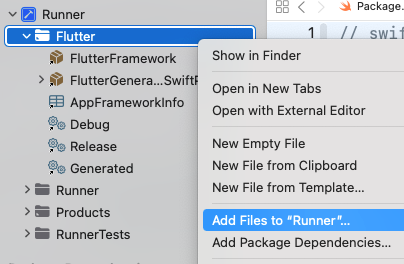
1. Right click **Flutter** > **Add Files to “Runner”**.
1. Select `my_plugin/ios/my_plugin`
(or `macos` or `darwin`, as appropriate).
1. Make sure “Reference files in place” is selected
(it should be the default), and click **Finish**.
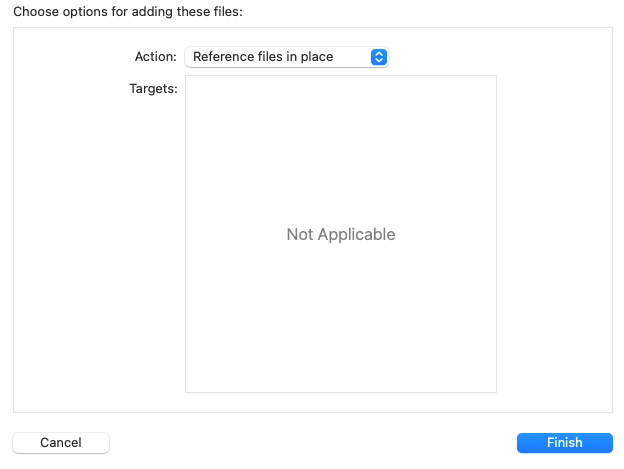
This adds the plugin as a local package,
but it's referenced by absolute path,
which isn't desirable for distribution.
To change it to a relative path, use the following instructions.
### Change to relative path
1. Copy “Full Path” for plugin from the File Inspector.

1. In terminal:
`open -a Xcode example/ios/Runner.xcodeproj/project.pbxproj`
1. Find the following:
```text
path = [COPIED FULL PATH]; sourceTree = ""
```
For example:
```text
path = /Users/username/path/to/my_plugin/ios/my_plugin; sourceTree = ""
```
1. And replace with relative path:
```text
path = ../../ios/my_plugin; sourceTree = ""
```
(Adjust `ios` to `macos` or `darwin` as needed).
## How to update unit tests in a plugin's example app
If your plugin has native XCTests,
you might need to update them to work with
Swift Package Manager if one of the following is true:
* You're using a CocoaPod dependency for the test.
* Your plugin is explicitly set to `type: .dynamic` in its `Package.swift` file.
To update your unit tests:
1. In Xcode, open your `example/ios/Runner.xcworkspace`.
1. If you were using a CocoaPod dependency for tests, such as `OCMock`,
you'll want to remove it from your `Podfile` file.
```ruby title="ios/Podfile" diff
target 'RunnerTests' do
inherit! :search_paths
- pod 'OCMock', '3.5'
end
```
Then in the terminal, run `pod install` in the `plugin_name_ios/example/ios`
directory.
1. Navigate to **Package Dependencies** for the project.
1. Click the **+** button and add any test-only dependencies by searching for
them in the top right search bar.
:::note
OCMock uses unsafe build flags and can only be used if targeted by commit.
`fe1661a3efed11831a6452f4b1a0c5e6ddc08c3d` is the commit for the 3.9.3
version.
:::
1. Ensure the dependency is added to the `RunnerTests` Target.
1. Click the **Add Package** button.
1. If you've explicitly set your plugin's library type to `.dynamic` in its
`Package.swift` file
([not recommended by Apple][library type recommendations]),
you'll also need to add it as a dependency to the `RunnerTests` target.
1. Ensure `RunnerTests` **Build Phases** has a **Link Binary With Libraries**
build phase:
If the build phase doesn't exist already, create one.
Click the button and
then click **New Link Binary With Libraries Phase**.
1. Navigate to **Package Dependencies** for the project.
1. Click the button.
1. In the dialog that opens, click the **Add Local...** button.
1. Navigate to `plugin_name/plugin_name_ios/ios/plugin_name_ios` and click
the **Add Package** button.
1. Ensure that it's added to the `RunnerTests` target and click the
**Add Package** button.
1. Ensure tests pass **Product > Test**.
[library type recommendations]: https://developer.apple.com/documentation/packagedescription/product/library(name:type:targets:)