# Impeller anti-aliasing
> How does Impeller perform anti-aliasing?
Aliasing is the visual artifacts that result from drawing geometry to a grid of
pixels (rasterization). The artifacts show up as jagged or rough edges on
shapes. Impeller employs a couple techniques to smooth out the mapping to raster
graphics (anti-aliasing).
## Techniques
### Multisample anti-aliasing (MSAA)
[MSAA][] is a global anti-aliasing technique that operates on the whole contents
of the screen. It is an optimization over rendering the whole screen at a larger
scale and shrinking it down ([SSAA][]). Instead of doing the fragment operation
for each sub-sample, the calculation for the pixel is duplicated across the
sub-samples where a bounds check happens. This limits smoothing to edges. Mobile
phone GPUs have special hardware to optimize this process ( [Tiled
rendering][]). It comes in varying degrees of how many samples to consider.
On desktop and mobile 4x MSAA is used for all rendering calls.
### Signed distance fields ([SDFs][])
Typically, hardware accelerated computer graphics define a series of points and
edges (a [mesh][]) and [shaders][]. Instead, SDF renders shapes in the fragment
shader program as signed distance fields. Since the shape is defined in the
fragment shader the edges can be smoothed at the fragment level instead of
relying on the rasterization of a mesh.
On desktop, rendering with SDFs is enabled by default. On mobile platforms, SDFs
are an option that defaults to false.
This technique is prioritized on desktop because SDF rendering puts more demand
on the GPU and Flutter supports older mobile phones. Also, the physical pixel
sizes on desktop computers are typically bigger than those of mobile phones. So
any imperfection will be more evident there.
### Examples
| No AA | MSAA 4x | MSAA 4x + SDF |
| ------------------------------------------- | ---------------------------------------------- | ------------------------------------------------------- |
|  | 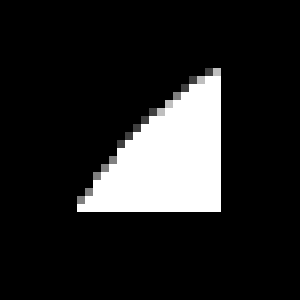 |  |
## Working with anti-aliasing
### SDFs with the FragmentShader API
Standard primitive shapes in Flutter are drawn by default with SDFs. If a
Flutter developer wants to define their own custom graphics with SDFs they can
do so with the [FragmentShader API][]. Using the [drawPath()][] is sufficient
for most use cases without resorting to high quality SDF rendering. Not all
drawn paths are guaranteed to result in SDF rendering though.
An example of rendering SDFs with the FragmentShader API can be found at
[`simple_sdf`][].
### Enabling SDFs on iOS
SDFs can be enabled on iOS by adding a new field to the `Info.plist` for the
project.
```xml
FLTEnableSDFs
```
[MSAA]: https://en.wikipedia.org/wiki/Multisample_anti-aliasing
[SSAA]: https://en.wikipedia.org/wiki/Supersampling
[Tiled rendering]: https://en.wikipedia.org/wiki/Tiled_rendering
[SDFs]: https://en.wikipedia.org/wiki/Signed_distance_function
[mesh]: https://en.wikipedia.org/wiki/Polygon_mesh
[shaders]: https://en.wikipedia.org/wiki/Shader
[FragmentShader API]: /ui/design/graphics/fragment-shaders
[drawPath()]: https://api.flutter.dev/flutter/dart-ui/Canvas/drawPath.html
[`simple_sdf`]: https://github.com/flutter/samples/tree/main/simple_sdf