# Run DevTools from Android Studio
> Learn how to launch and use DevTools from Android Studio.
## Install the Flutter plugin
Add the Flutter plugin if you don't already have it installed.
This can be done using the normal **Plugins** page in the IntelliJ
and Android Studio settings. Once that page is open,
you can search the marketplace for the Flutter plugin.
## Start an app to debug {: #run-and-debug}
To open DevTools, you first need to run a Flutter app.
This can be accomplished by opening a Flutter project,
ensuring that you have a device connected,
and clicking the **Run** or **Debug** toolbar buttons.
## Launch DevTools from the toolbar/menu
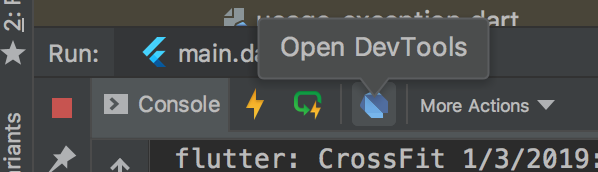
Once an app is running,
you can start DevTools using one of the following techniques:
* Select the **Open DevTools** toolbar action in the Run view.
* Select the **Open DevTools** toolbar action in the Debug view.
(if debugging)
* Select the **Open DevTools** action from the **More Actions**
menu in the Flutter Inspector view.
{:width="100%"}
## Launch DevTools from an action
You can also open DevTools from an IntelliJ action.
Open the **Find Action...** dialog
(on macOS, press Cmd + Shift + A),
and search for the **Open DevTools** action.
When you select that action, the DevTools server
launches and a browser instance opens pointing to the DevTools app.
When opened with an IntelliJ action, DevTools is not connected
to a Flutter app. You'll need to provide a service protocol port
for a currently running app. You can do this using the inline
**Connect to a running app** dialog.