The memory view provides insights into details
of the application's memory allocation and
tools to detect and debug specific issues.
:::note
This page is up to date for DevTools 2.23.0.
:::
For information on how to locate DevTools screens in different IDEs,
check out the [DevTools overview](/tools/devtools).
To better understand the insights found on this page,
the first section explains how Dart manages memory.
If you already understand Dart's memory management,
you can skip to the [Memory view guide](#memory-view-guide).
## Reasons to use the memory view
Use the memory view for preemptive memory optimization or when
your application experiences one of the following conditions:
* Crashes when it runs out of memory
* Slows down
* Causes the device to slow down or become unresponsive
* Shuts down because it exceeded the memory limit, enforced by operating system
* Exceeds memory usage limit
* This limit can vary depending on the type of devices your app targets.
* Suspect a memory leak
## Basic memory concepts
Dart objects created using a class constructor
(for example, by using `MyClass()`) live in a
portion of memory called the _heap_. The memory
in the heap is managed by the Dart VM (virtual machine).
The Dart VM allocates memory for the object at the moment of the object creation,
and releases (or deallocates) the memory when the object
is no longer used (see [Dart garbage collection][]).
[Dart garbage collection]: https://medium.com/flutter/flutter-dont-fear-the-garbage-collector-d69b3ff1ca30
### Object types
#### Disposable object
A disposable object is any Dart object that defines a `dispose()` method.
To avoid memory leaks, invoke `dispose` when the object isn't needed anymore.
#### Memory-risky object
A memory-risky object is an object that _might_ cause a memory leak,
if it is not disposed properly or disposed but not GCed.
### Root object, retaining path, and reachability
#### Root object
Every Dart application creates a _root object_ that references,
directly or indirectly, all other objects the application allocates.
#### Reachability
If, at some moment of the application run,
the root object stops referencing an allocated object,
the object becomes _unreachable_,
which is a signal for the garbage collector (GC)
to deallocate the object's memory.
#### Retaining path
The sequence of references from root to an object
is called the object's _retaining_ path,
as it retains the object's memory from the garbage collection.
One object can have many retaining paths.
Objects with at least one retaining path are
called _reachable_ objects.
#### Example
The following example illustrates the concepts:
```dart
class Child{}
class Parent {
Child? child;
}
Parent parent1 = Parent();
void myFunction() {
Child? child = Child();
// The `child` object was allocated in memory.
// It's now retained from garbage collection
// by one retaining path (root …-> myFunction -> child).
Parent? parent2 = Parent()..child = child;
parent1.child = child;
// At this point the `child` object has three retaining paths:
// root …-> myFunction -> child
// root …-> myFunction -> parent2 -> child
// root -> parent1 -> child
child = null;
parent1.child = null;
parent2 = null;
// At this point, the `child` instance is unreachable
// and will eventually be garbage collected.
…
}
```
### Shallow size vs retained size
**Shallow size** includes only the size of the object
and its references, while **retained size** also includes
the size of the retained objects.
The **retained size** of the root object includes
all reachable Dart objects.
In the following example, the size of `myHugeInstance`
isn't part of the parent's or child's shallow sizes,
but is part of their retained sizes:
```dart
class Child{
/// The instance is part of both [parent] and [parent.child]
/// retained sizes.
final myHugeInstance = MyHugeInstance();
}
class Parent {
Child? child;
}
Parent parent = Parent()..child = Child();
```
In DevTools calculations, if an object has more
than one retaining path, its size is assigned as
retained only to the members of the shortest retaining path.
In this example the object `x` has two retaining paths:
```console
root -> a -> b -> c -> x
root -> d -> e -> x (shortest retaining path to `x`)
```
Only members of the shortest path (`d` and `e`) will include
`x` into their retaining size.
### Memory leaks happen in Dart?
Garbage collector cannot prevent all types of memory leaks, and developers
still need to watch objects to have leak-free lifecycle.
#### Why can't the garbage collector prevent all leaks?
While the garbage collector takes care of all
unreachable objects, it's the responsibility
of the application to ensure that unneeded objects
are no longer reachable (referenced from the root).
So, if non-needed objects are left referenced
(in a global or static variable,
or as a field of a long-living object),
the garbage collector can't recognize them,
the memory allocation grows progressively,
and the app eventually crashes with an `out-of-memory` error.
#### Why closures require extra attention
One hard-to-catch leak pattern relates to using closures.
In the following code, a reference to the
designed-to-be short-living `myHugeObject` is implicitly
stored in the closure context and passed to `setHandler`.
As a result, `myHugeObject` won't be garbage collected
as long as `handler` is reachable.
```dart
final handler = () => print(myHugeObject.name);
setHandler(handler);
```
#### Why `BuildContext` requires extra attention
An example of a large, short-living object that
might squeeze into a long-living area and thus cause leaks,
is the `context` parameter passed to Flutter's
`build` method.
The following code is leak prone,
as `useHandler` might store the handler
in a long-living area:
```dart
// BAD: DO NOT DO THIS
// This code is leak prone:
@override
Widget build(BuildContext context) {
final handler = () => apply(Theme.of(context));
useHandler(handler);
…
```
#### How to fix leak prone code?
The following code is not leak prone,
because:
1. The closure doesn't use the large and short-living `context` object.
2. The `theme` object (used instead) is long-living. It is created once and
shared between `BuildContext` instances.
```dart
// GOOD
@override
Widget build(BuildContext context) {
final theme = Theme.of(context);
final handler = () => apply(theme);
useHandler(handler);
…
```
#### General rule for `BuildContext`
In general, use the following rule for a
`BuildContext`: if the closure doesn't outlive
the widget, it's ok to pass the context to the closure.
Stateful widgets require extra attention.
They consist of two classes: the [widget and the
widget state][interactive],
where the widget is short living,
and the state is long living. The build context,
owned by the widget, should never be referenced
from the state's fields, as the state won't be garbage
collected together with the widget, and can significantly outlive it.
[interactive]: /ui/interactivity#creating-a-stateful-widget
### Memory leak vs memory bloat
In a memory leak, an application progressively uses memory,
for example, by repeatedly creating a listener,
but not disposing it.
Memory bloat uses more memory than is necessary for
optimal performance, for example, by using overly large
images or keeping streams open through their lifetime.
Both leaks and bloats, when large,
cause an application to crash with an `out-of-memory` error.
However, leaks are more likely to cause memory issues,
because even a small leak,
if repeated many times, leads to a crash.
## Memory view guide
The DevTools memory view helps you investigate
memory allocations (both in the heap and external),
memory leaks, memory bloat, and more. The view
has the following features:
[**Expandable chart**](#expandable-chart)
: Get a high-level trace of memory allocation,
and view both standard events (like garbage collection)
and custom events (like image allocation).
[**Profile Memory** tab](#profile-memory-tab)
: See current memory allocation listed by class and
memory type.
[**Diff Snapshots** tab](#diff-snapshots-tab)
: Detect and investigate a feature's memory management issues.
[**Trace Instances** tab](#trace-instances-tab)
: Investigate a feature's memory management for
a specified set of classes.
### Expandable chart
The expandable chart provides the following features:
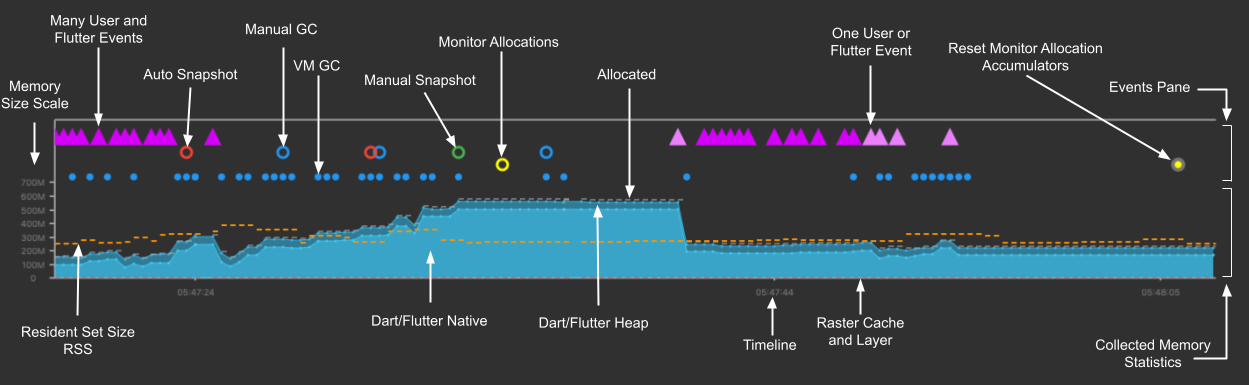
#### Memory anatomy
A timeseries graph visualizes the state of
Flutter memory at successive intervals of time.
Each data point on the chart corresponds to the
timestamp (x-axis) of measured quantities (y-axis)
of the heap. For example, usage, capacity, external,
garbage collection, and resident set size are captured.
{:width="100%"}
#### Memory overview chart
The memory overview chart is a timeseries graph
of collected memory statistics. It visually presents
the state of the Dart or Flutter heap and Dart's
or Flutter's native memory over time.
The chart's x-axis is a timeline of events (timeseries).
The data plotted in the y-axis all has a timestamp of
when the data was collected. In other words,
it shows the polled state (capacity, used, external,
RSS (resident set size), and GC (garbage collection))
of the memory every 500 ms. This helps provide a live
appearance on the state of the memory as the application is running.
Clicking the **Legend** button displays the
collected measurements, symbols, and colors
used to display the data.
{:width="100%"}
The **Memory Size Scale** y-axis automatically
adjusts to the range of data collected in the
current visible chart range.
The quantities plotted on the y-axis are as follows:
**Dart/Flutter Heap**
: Objects (Dart and Flutter objects) in the heap.
**Dart/Flutter Native**
: Memory that isn't in the Dart/Flutter heap
but is still part of the total memory footprint.
Objects in this memory would be native objects
(for example, from reading a file into memory,
or a decoded image). The native objects are exposed
to the Dart VM from the native OS (such as Android,
Linux, Windows, iOS) using a Dart embedder.
The embedder creates a Dart wrapper with a finalizer,
allowing Dart code to communicate with these native resources.
Flutter has an embedder for Android and iOS.
For more information, see [Command-line and server apps][],
[Dart on the server with Dart Frog][frog],
[Custom Flutter Engine Embedders][],
[Dart web server deployment with Heroku][heroku].
**Timeline**
: The timestamps of all collected memory statistics
and events at a particular point in time (timestamp).
**Raster Cache**
: The size of the Flutter engine's raster cache
layer(s) or picture(s), while performing the
final rendering after compositing.
For more information, see the
[Flutter architectural overview][]
and [DevTools Performance view][].
**Allocated**
: The current capacity of the heap is typically
slightly larger than the total size of all heap objects.
**RSS - Resident Set Size**
: The resident set size displays the amount of memory
for a process.
It doesn't include memory that is swapped out.
It includes memory from shared libraries that are
loaded, as well as all stack and heap memory.
For more information, see [Dart VM internals][].
[Command-line and server apps]: https://dart.dev/server
[Custom Flutter engine embedders]: https://github.com/flutter/flutter/blob/main/engine/src/flutter/docs/Custom-Flutter-Engine-Embedders.md
[Dart VM internals]: https://mrale.ph/dartvm/
[DevTools Performance view]: /tools/devtools/performance
[Flutter architectural overview]: /resources/architectural-overview
[frog]: https://dartfrog.vgv.dev/
[heroku]: https://www.youtube.com/watch?v=nkTUMVNelXA
### Profile Memory tab
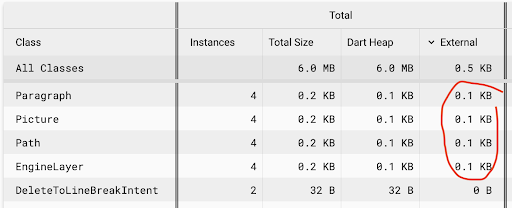
Use the **Profile Memory** tab to see current memory
allocation by class and memory type. For a
deeper analysis in Google Sheets or other tools,
download the data in CSV format.
Toggle **Refresh on GC**, to see allocation in real time.
{:width="100%"}
### Diff Snapshots tab
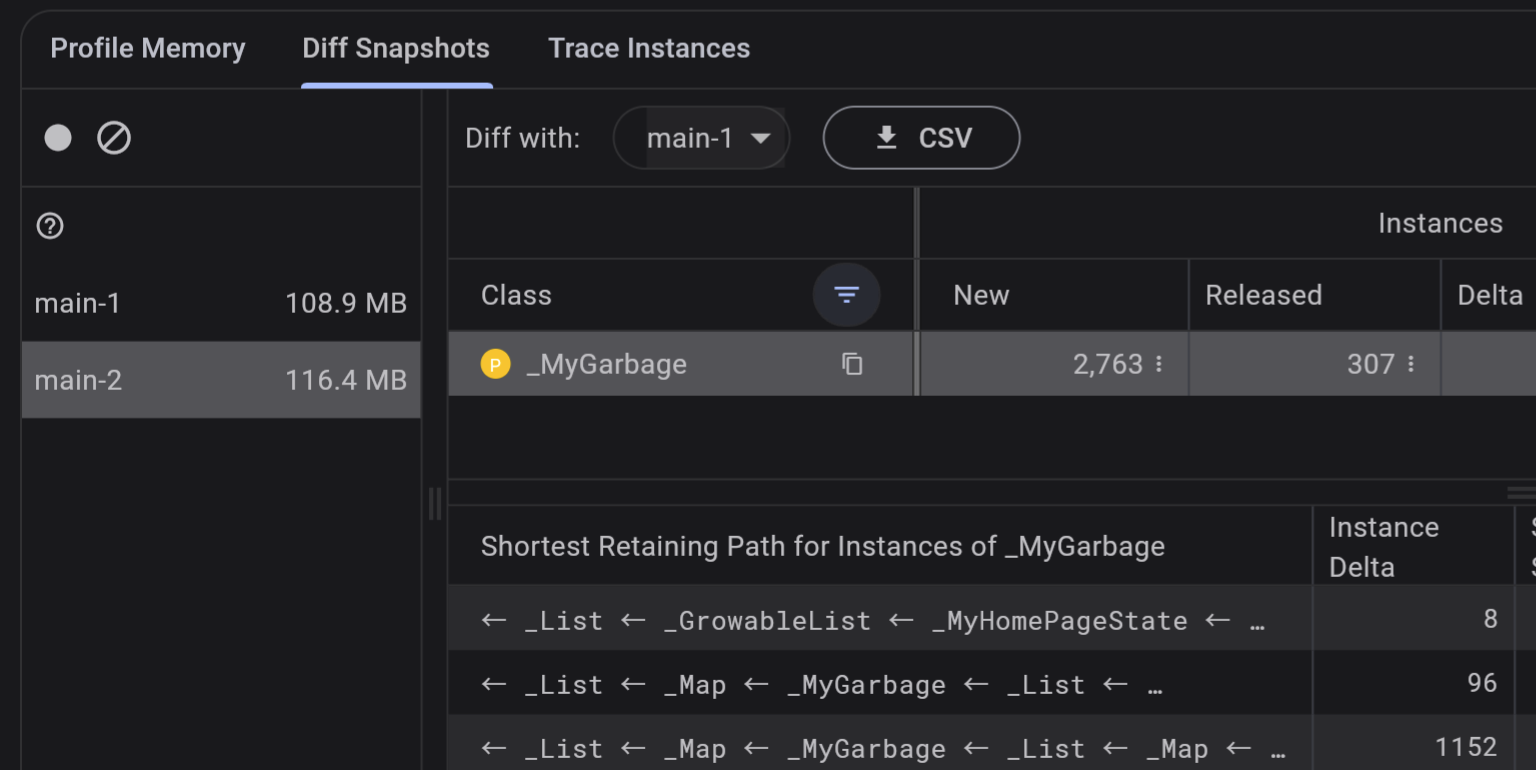
Use the **Diff Snapshots** tab to investigate a feature's
memory management. Follow the guidance on the tab
to take snapshots before and after interaction
with the application, and diff the snapshots:
{:width="100%"}
Tap the **Filter classes and packages** button,
to narrow the data:
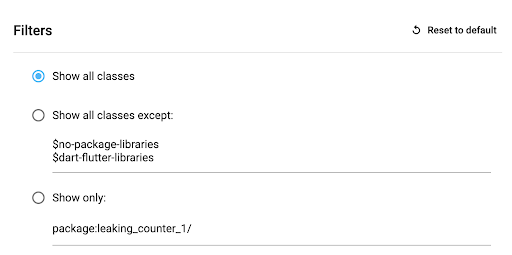
For a deeper analysis in Google Sheets
or other tools, download the data in CSV format.
### Trace Instances tab
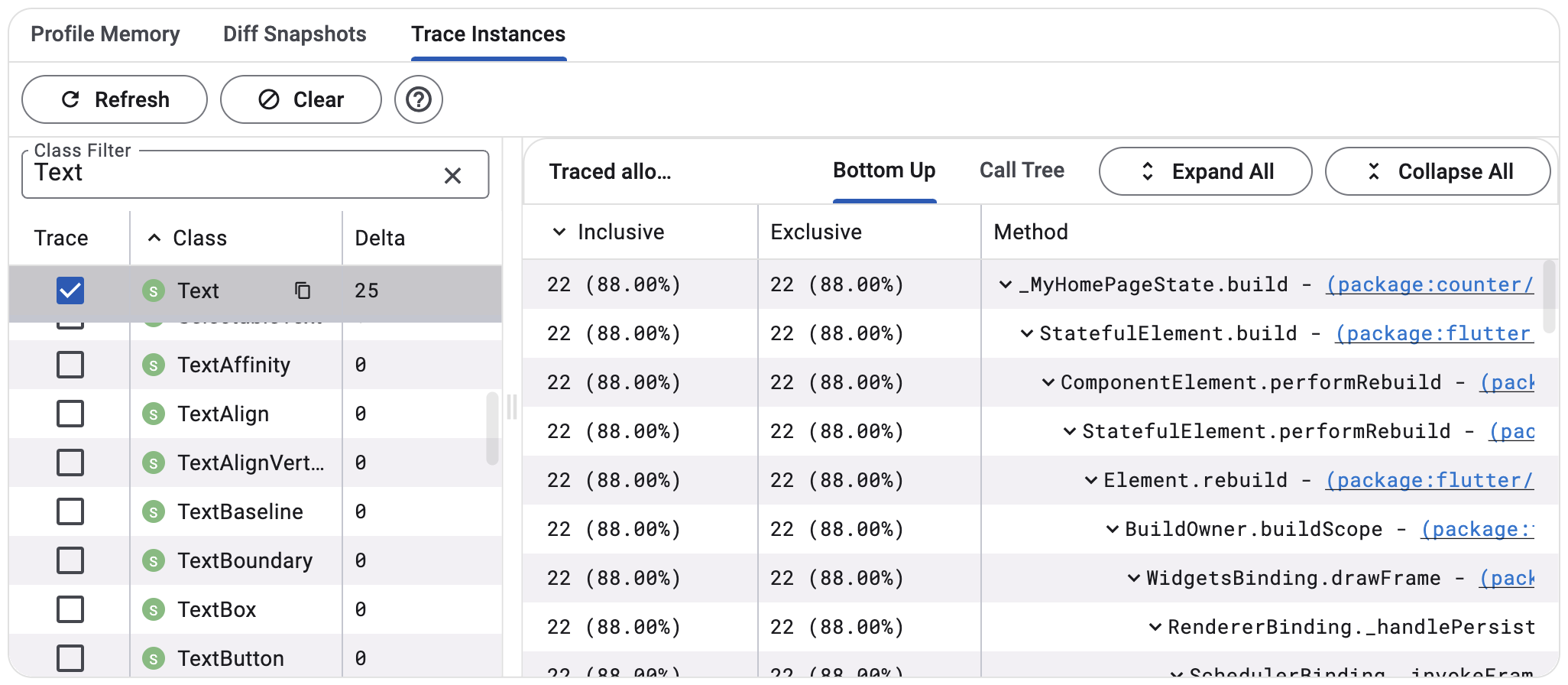
Use the **Trace Instances** tab to investigate what methods
allocate memory for a set of classes during feature execution:
1. Select classes to trace
1. Interact with your app to trigger the code
you are interested in
1. Tap **Refresh**
1. Select a traced class
1. Review the collected data
{:width="100%"}
#### Bottom up vs call tree view
Switch between bottom-up and call tree views
depending on specifics of your tasks.
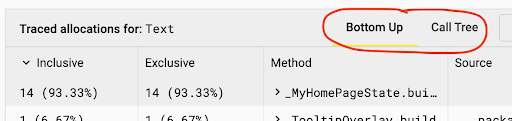
The call tree view shows the method allocations
for each instance. The view is a top-down representation
of the call stack, meaning that a method can be expanded
to show its callees.
The bottom-up view shows the list of different
call stacks that have allocated the instances.
## Other resources
For more information, check out the following resources:
* To learn how to monitor an app's memory usage
and detect memory leaks using DevTools,
check out a guided [Memory View tutorial][memory-tutorial].
* To understand Android memory structure,
check out [Android: Memory allocation among processes][].
[memory-tutorial]: https://medium.com/@fluttergems/mastering-dart-flutter-devtools-memory-view-part-7-of-8-e7f5aaf07e15
[Android: Memory allocation among processes]: https://developer.android.com/topic/performance/memory-management