# Flutter's fonts and typography
> Learn about Flutter's support for typography.
[_Typography_][] covers the style and appearance of
type or fonts: it specifies how heavy the font is,
the slant of the font, the spacing between
the letters, and other visual aspects of the text.
All fonts are _not_ created the same.
A font style is defined by, at minimum, a typeface, representing the set of
common character rules describing fonts in the same type family, such as
**Roboto** or **Noto**, a font weight (for example, Regular, Bold, or a
numeric value), and a style (like Regular, _Italic_, etc). All of these
and additional pre-set attributes come together to make up
what we would call a static font.
Variable fonts allow some of these attributes to be modified at runtime and
store what would normally be multiple static fonts in a single file.
[_Typography_]: https://en.wikipedia.org/wiki/Typography
## Typographic Scale
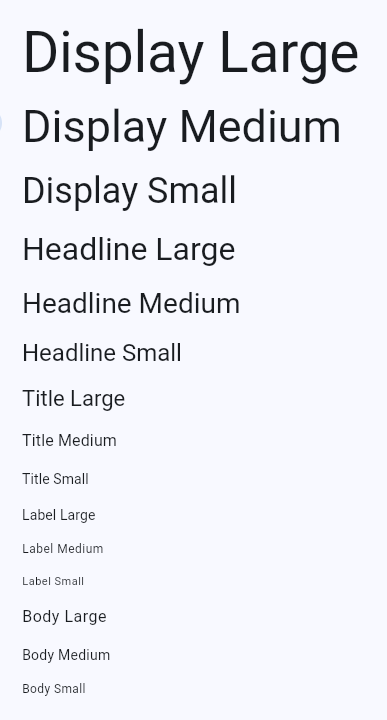
A typographical scale is a set of related text styles to provide balance,
cohesion, and visual variety in your apps.
The common type scale in Flutter, provided by [`TextTheme`][], includes five
categories of text indicating the function:
* Display
* Headline
* Title
* Label
* Body
There are also three size variations for each:
* Small
* Medium
* Large
Each of these fifteen combinations of a category and text size are represented
by a single [`TextStyle`][].
 All the platform specific typographical scales that Flutter exposes are
contained in the [`Typography`][] class. Usually, you will not need to
reference this class directly as the `TextTheme` will be localized to your target platform.
[`TextTheme`]: https://api.flutter.dev/flutter/material/TextTheme-class.html
[`TextStyle`]: https://api.flutter.dev/flutter/painting/TextStyle-class.html
[`Typography`]: https://api.flutter.dev/flutter/material/Typography-class.html
## Variable fonts
[Variable fonts][]
allow you to control pre-defined aspects of text styling.
Variable fonts support specific axes, such as width,
weight, slant (to name a few).
The user can select _any value along the continuous axis_
when specifying the type.
[Variable fonts]: https://fonts.google.com/knowledge/introducing_type/introducing_variable_fonts
### Using the Google Fonts type tester
A growing number of fonts on Google Fonts offer some variable font capabilities.
You can see the range of options by using the Type Tester and see how you
might vary a single font.
All the platform specific typographical scales that Flutter exposes are
contained in the [`Typography`][] class. Usually, you will not need to
reference this class directly as the `TextTheme` will be localized to your target platform.
[`TextTheme`]: https://api.flutter.dev/flutter/material/TextTheme-class.html
[`TextStyle`]: https://api.flutter.dev/flutter/painting/TextStyle-class.html
[`Typography`]: https://api.flutter.dev/flutter/material/Typography-class.html
## Variable fonts
[Variable fonts][]
allow you to control pre-defined aspects of text styling.
Variable fonts support specific axes, such as width,
weight, slant (to name a few).
The user can select _any value along the continuous axis_
when specifying the type.
[Variable fonts]: https://fonts.google.com/knowledge/introducing_type/introducing_variable_fonts
### Using the Google Fonts type tester
A growing number of fonts on Google Fonts offer some variable font capabilities.
You can see the range of options by using the Type Tester and see how you
might vary a single font.
 In real time, move the slider on any of the axes to
see how it affects the font. When programming a variable font,
use the [`FontVariation`][] class to modify the font's design axes.
The `FontVariation` class conforms to the
[OpenType font variables spec][].
[`FontVariation`]: https://api.flutter.dev/flutter/dart-ui/FontVariation-class.html
[Google Fonts]: https://fonts.google.com/
[OpenType font variables spec]: https://learn.microsoft.com/en-us/typography/opentype/spec/otvaroverview
## Static fonts
Google Fonts also contains static fonts. As with variable fonts,
you need to know how the font is designed to know what options
are available to you.
Once again, the Google Fonts site can help.
### Using the Google Fonts package
While you can download fonts from the site and install them manually in your apps,
you can elect to use theme directly from the [google_fonts][] package on [pub.dev][].
They can be used as is by referencing simply the font name:
```dart
Text(
'This is Google Fonts',
style: GoogleFonts.lato(),
),
```
or customized by setting properties on the resulting `TextStyle`:
```dart
Text(
'This is Google Fonts',
style: GoogleFonts.lato(
textStyle: Theme.of(context).textTheme.displayLarge,
fontSize: 48,
fontWeight: FontWeight.w700,
fontStyle: FontStyle.italic,
),
),
```
### Modifying fonts
Use the following API to programmatically alter a static font
(but remember that this only works if the font was _designed_
to support the feature):
* [`FontFeature`][] to select glyphs
* [`FontWeight`][] to modify weight
* [`FontStyle`][] to italicize
* [`FontVariation`][] to specify a range of values for a specific property.
A `FontFeature` corresponds to an [OpenType feature tag][]
and can be thought of as a boolean flag to enable or disable
a feature of a given font.
[`FontFeature`]: https://api.flutter.dev/flutter/dart-ui/FontFeature-class.html
[`FontStyle`]: https://api.flutter.dev/flutter/dart-ui/FontStyle.html
[`FontWeight`]: https://api.flutter.dev/flutter/dart-ui/FontWeight-class.html
[OpenType feature tag]: https://learn.microsoft.com/en-us/typography/opentype/spec/featuretags
[pub.dev]: https://pub.dev
[google_fonts]: https://pub.dev/packages/google_fonts
## Other resources
The following video shows you some of the capabilities
of Flutter's typography and combines it with the Material
_and_ Cupertino look and feel (depending on the platform
the app runs on), animation, and custom fragment shaders:
To read one engineer's experience
customizing variable fonts and animating them as they
morph (and was the basis for the above video),
check out [Playful typography with Flutter][article],
a free article on Medium. The associated example also
uses a custom shader.
[article]: https://blog.flutter.dev/playful-typography-with-flutter-f030385058b4
In real time, move the slider on any of the axes to
see how it affects the font. When programming a variable font,
use the [`FontVariation`][] class to modify the font's design axes.
The `FontVariation` class conforms to the
[OpenType font variables spec][].
[`FontVariation`]: https://api.flutter.dev/flutter/dart-ui/FontVariation-class.html
[Google Fonts]: https://fonts.google.com/
[OpenType font variables spec]: https://learn.microsoft.com/en-us/typography/opentype/spec/otvaroverview
## Static fonts
Google Fonts also contains static fonts. As with variable fonts,
you need to know how the font is designed to know what options
are available to you.
Once again, the Google Fonts site can help.
### Using the Google Fonts package
While you can download fonts from the site and install them manually in your apps,
you can elect to use theme directly from the [google_fonts][] package on [pub.dev][].
They can be used as is by referencing simply the font name:
```dart
Text(
'This is Google Fonts',
style: GoogleFonts.lato(),
),
```
or customized by setting properties on the resulting `TextStyle`:
```dart
Text(
'This is Google Fonts',
style: GoogleFonts.lato(
textStyle: Theme.of(context).textTheme.displayLarge,
fontSize: 48,
fontWeight: FontWeight.w700,
fontStyle: FontStyle.italic,
),
),
```
### Modifying fonts
Use the following API to programmatically alter a static font
(but remember that this only works if the font was _designed_
to support the feature):
* [`FontFeature`][] to select glyphs
* [`FontWeight`][] to modify weight
* [`FontStyle`][] to italicize
* [`FontVariation`][] to specify a range of values for a specific property.
A `FontFeature` corresponds to an [OpenType feature tag][]
and can be thought of as a boolean flag to enable or disable
a feature of a given font.
[`FontFeature`]: https://api.flutter.dev/flutter/dart-ui/FontFeature-class.html
[`FontStyle`]: https://api.flutter.dev/flutter/dart-ui/FontStyle.html
[`FontWeight`]: https://api.flutter.dev/flutter/dart-ui/FontWeight-class.html
[OpenType feature tag]: https://learn.microsoft.com/en-us/typography/opentype/spec/featuretags
[pub.dev]: https://pub.dev
[google_fonts]: https://pub.dev/packages/google_fonts
## Other resources
The following video shows you some of the capabilities
of Flutter's typography and combines it with the Material
_and_ Cupertino look and feel (depending on the platform
the app runs on), animation, and custom fragment shaders:
To read one engineer's experience
customizing variable fonts and animating them as they
morph (and was the basis for the above video),
check out [Playful typography with Flutter][article],
a free article on Medium. The associated example also
uses a custom shader.
[article]: https://blog.flutter.dev/playful-typography-with-flutter-f030385058b4