Learn how to set up your development environment
to run, build, and deploy Flutter apps for iOS devices.
:::note
If you haven't set up Flutter already,
visit and follow the [Get started with Flutter][] guide first.
If you've already installed Flutter,
ensure that it's [up to date][].
:::
[Get started with Flutter]: /get-started
[up to date]: /install/upgrade
## Set up iOS tooling {: #set-up-tooling}
With Xcode, you can run Flutter apps on
an iOS physical device or on the iOS Simulator.
1. Install Xcode
If you haven't done so already,
[install and set up the latest version of Xcode][xcode].
If you've already installed Xcode,
update it to the latest version using the
same installation method you used originally.
1. Set up Xcode command-line tools
To configure the Xcode command-line tools to use
the version of Xcode you installed,
run the following command in your preferred terminal:
```console
$ sudo sh -c 'xcode-select -s /Applications/Xcode.app/Contents/Developer && xcodebuild -runFirstLaunch'
```
If you downloaded Xcode elsewhere or need to use a different version,
replace `/Applications/Xcode.app` with the path to there instead.
1. Agree to the Xcode licenses
After you've set up Xcode and configured its command-line tools,
agree to the Xcode licenses.
1. Open your preferred terminal.
1. Run the following command to review and sign the Xcode licenses.
```console
$ sudo xcodebuild -license
```
1. Read and agree to all necessary licenses.
Before agreeing to the terms of each license,
read each with care.
1. Download prerequisite tooling
To download iOS platform support and
the latest iOS Simulator runtimes,
run the following command in your preferred terminal.
```console
$ xcodebuild -downloadPlatform iOS
```
1. Install Rosetta
If you're developing on an [Apple Silicon][] (ARM) Mac,
[install Rosetta 2][]:
```console
$ sudo softwareupdate --install-rosetta --agree-to-license
```
1. Install CocoaPods
To support [Flutter plugins][] that use native iOS or macOS code,
install the latest version of [CocoaPods][].
Install CocoaPods by following the
[CocoaPods installation guide][].
If you've already installed CocoaPods,
update it by following the [CocoaPods update guide][].
{: .steps}
[xcode]: https://developer.apple.com/xcode/
[Apple Silicon]: https://support.apple.com/en-us/116943
[install Rosetta 2]: https://support.apple.com/en-us/102527
[cocoapods]: https://guides.cocoapods.org/using/getting-started.html#installation
[Flutter plugins]: /packages-and-plugins/developing-packages#types
[CocoaPods installation guide]: https://guides.cocoapods.org/using/getting-started.html#installation
[CocoaPods update guide]: https://guides.cocoapods.org/using/getting-started.html#updating-cocoapods
## Set up an iOS device {: #set-up-devices}
We recommend starting with the iOS Simulator as
it's easier to get set up than a physical iOS device.
However, you should also test your app on an actual
physical device.
Start the iOS Simulator with the following command:
```console
$ open -a Simulator
```
If you need to install a simulator for a different OS version,
check out [Downloading and installing additional Xcode components][]
on the Apple Developer site.
[Downloading and installing additional Xcode components]: https://developer.apple.com/documentation/xcode/downloading-and-installing-additional-xcode-components
:::warning
An upcoming change to iOS has caused a temporary break in Flutter's debug mode
on physical devices running iOS 26 (currently in beta).
If your physical device is already on iOS 26, we recommend switching to the
**Simulator** tab and following the instructions.
See [Flutter on latest iOS][] for details.
:::
[Flutter on latest iOS]: /platform-integration/ios/ios-latest
Set up each iOS device on which you want to test.
1. Configure your physical iOS device
1. Attach your iOS device to the USB port on your Mac.
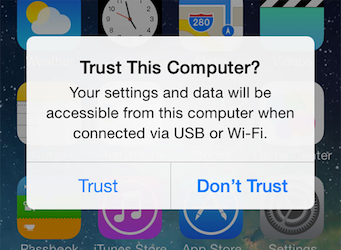
1. On first connecting an iOS device to your Mac,
your device displays the **Trust this computer?** dialog.
1. Click **Trust**.
1. Configure your physical iOS device
Apple requires enabling **[Developer Mode][]**
on the device to protect against malicious software.
1. Tap on **Settings** >
**Privacy & Security** >
**Developer Mode**.
1. Tap to toggle **Developer Mode** to **On**.
1. Restart the device.
1. When the **Turn on Developer Mode?** dialog appears,
tap **Turn On**.
1. Create a developer code signing certificate
To send your app to a physical iOS device,
_even_ for testing, you must establish trust
between your Mac and the device.
In addition to trusting the device when that
popup appears, you must upload a signed
developer certificate to your device.
To create a signed development certificate,
you need an Apple ID.
If you don't have one, [create one][apple-account-new].
You must also enroll in the [Apple Developer program][]
and create an [Apple Developer account][].
If you're just _testing_ your app on an iOS device,
a personal Apple Developer account is free and works.
:::note Apple Developer program
When you want to _deploy_ your app to the App Store,
you'll need to upgrade your personal Apple Developer account to
a professional account.
:::
1. Prepare the device
1. Find the **VPN & Device Management** menu under **Settings**.
Toggle your certificate to **Enable**.
:::note
If you can't find the **VPN & Device Management** menu,
run your app on your iOS device once, then try again.
:::
1. Under the **Developer App** heading,
you should find your certificate.
1. Tap the certificate.
1. Tap **Trust "<certificate>"**.
1. When the dialog displays, tap **Trust**.
If the **codesign wants to access key...** dialog appears:
1. Enter your macOS password.
1. Tap **Always Allow**.
{: .steps}
[apple-account-new]: https://support.apple.com/en-us/108647
[Developer Mode]: https://developer.apple.com/documentation/xcode/enabling-developer-mode-on-a-device
[Apple Developer program]: https://developer.apple.com/programs/
[Apple Developer account]: https://developer.apple.com/account
---
## Start developing for iOS {: #start-developing}
**Congratulations.**
Now that you've set up iOS development for Flutter,
you can continue your Flutter learning journey while testing on iOS
or begin improving integration with iOS.