Create widgets
Learn about stateless widgets and how to build your own.
Learn to create custom widgets and use the most common SDK widgets like Container, Center, and Text.
What you'll accomplish
Steps
1
Before you start
Before you start
This app relies on a bit of game logic that isn't UI-related, and thus is outside the scope of this tutorial. Before you move on, you need to add this logic to your app.
-
Download the file below and save it
as
lib/game.dartin your project directory. - Import the file in your
lib/main.dartfile.
import 'dart:collection';
import 'dart:math';
const List<String> allLegalGuesses = [...legalWords, ...legalGuesses];
const defaultNumGuesses = 5;
enum HitType { none, hit, partial, miss, removed }
typedef Letter = ({String char, HitType type});
const legalWords = <String>["aback", "abase", "abate", "abbey", "abbot"];
/// Legal guesses minus legal wordles
const legalGuesses = <String>[
"aback",
"abase",
"abate",
"abbey",
"abbot",
"abhor",
"abide",
"abled",
"abode",
"abort",
];
/// This class holds game state for a single round of Bulls and Cows,
/// and exposes methods that a UI would need to manage the game state.
///
/// On it's own, this class won't manage a game. For example, it won't
/// call [startGame] on it's own. It assumes that a client will use it's
/// methods to progress through a game.
class Game {
Game({this.numAllowedGuesses = defaultNumGuesses, this.seed}) {
_wordToGuess = seed == null ? Word.random() : Word.fromSeed(seed!);
_guesses = List<Word>.filled(numAllowedGuesses, Word.empty());
}
late final int numAllowedGuesses;
late List<Word> _guesses;
late Word _wordToGuess;
int? seed;
Word get hiddenWord => _wordToGuess;
UnmodifiableListView<Word> get guesses => UnmodifiableListView(_guesses);
Word get previousGuess {
final index = _guesses.lastIndexWhere((word) => word.isNotEmpty);
return index == -1 ? Word.empty() : _guesses[index];
}
int get activeIndex {
return _guesses.indexWhere((word) => word.isEmpty);
}
int get guessesRemaining {
if (activeIndex == -1) return 0;
return numAllowedGuesses - activeIndex;
}
void resetGame() {
_wordToGuess = seed == null ? Word.random() : Word.fromSeed(seed!);
_guesses = List.filled(numAllowedGuesses, Word.empty());
}
// Most common entry-point for handling guess logic.
// For finer control over logic, use other methods such as [isGuessLegal]
// and [matchGuess]
Word guess(String guess) {
final result = matchGuessOnly(guess);
addGuessToList(result);
return result;
}
bool get didWin {
if (_guesses.first.isEmpty) return false;
for (var letter in previousGuess) {
if (letter.type != HitType.hit) return false;
}
return true;
}
bool get didLose => guessesRemaining == 0 && !didWin;
// UIs can call this method before calling [guess] if they want
// to show users messages based incorrect words
bool isLegalGuess(String guess) {
return Word.fromString(guess).isLegalGuess;
}
// Doesn't move the game forward, only executes match logic.
Word matchGuessOnly(String guess) {
// The hidden word will be used by subsequent guesses.
var hiddenCopy = Word.fromString(_wordToGuess.toString());
return Word.fromString(guess).evaluateGuess(hiddenCopy);
}
void addGuessToList(Word guess) {
final i = _guesses.indexWhere((word) => word.isEmpty);
_guesses[i] = guess;
}
}
class Word with IterableMixin<Letter> {
Word(this._letters);
factory Word.empty() {
return Word(List.filled(5, (char: '', type: HitType.none)));
}
factory Word.fromString(String guess) {
var list = guess.toLowerCase().split('');
var letters = list
.map((String char) => (char: char, type: HitType.none))
.toList();
return Word(letters);
}
factory Word.random() {
var rand = Random();
var nextWord = legalWords[rand.nextInt(legalWords.length)];
return Word.fromString(nextWord);
}
factory Word.fromSeed(int seed) {
return Word.fromString(legalWords[seed % legalWords.length]);
}
final List<Letter> _letters;
/// Loop over the Letters in this word
@override
Iterator<Letter> get iterator => _letters.iterator;
@override
bool get isEmpty {
return every((letter) => letter.char.isEmpty);
}
@override
bool get isNotEmpty => !isEmpty;
Letter operator [](int i) => _letters[i];
operator []=(int i, Letter value) => _letters[i] = value;
@override
String toString() {
return _letters.map((Letter c) => c.char).join().trim();
}
// Used to play game in the CLI implementation
String toStringVerbose() {
return _letters.map((l) => '${l.char} - ${l.type.name}').join('\n');
}
}
// Domain specific methods that contain word related logic.
extension WordUtils on Word {
bool get isLegalGuess {
if (!allLegalGuesses.contains(toString())) {
return false;
}
return true;
}
/// Compares two [Word] objects and returns a new [Word] that
/// has the same letters as the [this], but each [Letter]
/// has new a [HitType] of either [HitType.hit],
/// [HitType.partial], or [HitType.miss].
Word evaluateGuess(Word other) {
assert(isLegalGuess);
// Find exact hits. Mark them as hits, and mark letters in the hidden word
// as removed.
for (var i = 0; i < length; i++) {
if (other[i].char == this[i].char) {
this[i] = (char: this[i].char, type: HitType.hit);
other[i] = (char: other[i].char, type: HitType.removed);
}
}
// Find the partial matches
// The outer loop is through the hidden word
for (var i = 0; i < other.length; i++) {
// If a letter in the hidden word is already marked as "removed",
// then it's already an exact match, so skip it
Letter targetLetter = other[i];
if (targetLetter.type != HitType.none) continue;
// loop through the guessed word onces for each letter in the hidden word
for (var j = 0; j < length; j++) {
Letter guessedLetter = this[j];
// skip letters that have already been marked as exact matches
if (guessedLetter.type != HitType.none) continue;
// If this letter, which must not be in the same position, is the same,
// it's a partial match
if (guessedLetter.char == targetLetter.char) {
this[j] = (char: guessedLetter.char, type: HitType.partial);
other[i] = (char: targetLetter.char, type: HitType.removed);
break;
}
}
}
// Mark remaining letters in guessed word as misses
for (var i = 0; i < length; i++) {
if (this[i].type == HitType.none) {
this[i] = (char: this[i].char, type: HitType.miss);
}
}
return this;
}
}
2
Anatomy of a stateless widget
Anatomy of a stateless widget
A Widget is a Dart class that extends one of the Flutter widget classes,
in this case StatelessWidget.
Open your main.dart file and add this code below the MainApp class,
which defines a new widget called Tile.
class Tile extends StatelessWidget {
const Tile(this.letter, this.hitType, {super.key});
final String letter;
final HitType hitType;
@override
Widget build(BuildContext context) {
return Container();
}
}
Constructor
#
The Tile class has a constructor that defines
what data needs to be passed into the widget to render the widget.
In this case, the constructor accepts two parameters:
- A
Stringrepresenting the guessed letter of the tile. -
A
HitTypeenum value represent the guess result and used to determine the color of the tile. For example,HitType.hitresults in a green tile.
Passing data into widget constructors is at the core of making widgets reusable.
Build method
#
Finally, there's the all important build method, which must be defined on
every widget, and will always return another widget.
class Tile extends StatelessWidget {
const Tile(this.letter, this.hitType, {super.key});
final String letter;
final HitType hitType;
@override
Widget build(BuildContext context) {
// TODO: Replace Container with widgets.
return Container();
}
}
3
Use the custom widget
Use the custom widget
When the app is finished,
there will be 25 instances of this widget on the screen.
For now, though, display just one so you can see the updates as they're made.
In the MainApp.build method, replace the Text widget with the following:
class MainApp extends StatelessWidget {
const MainApp({super.key});
@override
Widget build(BuildContext context) {
return const MaterialApp(
home: Scaffold(
body: Center(
child: Tile('A', HitType.hit), // NEW
),
),
);
}
}
At the moment, your app will be blank,
because the Tile widget returns an empty Container,
which doesn't display anything by default.
4
The Container widget
The Container widget
The Tile widget consists of three of the most common core widgets:
Container, Center, and Text.
Container
is a convenience widget that wraps several core styling widgets,
such as Padding,
ColoredBox,
SizedBox, and
DecoratedBox.
Because the finished UI contains 25 Tile widgets in neat columns and rows,
it should have an explicit size.
Set the width and height properties on the Container.
(You could also do this with a SizedBox widget, but you'll use
more properties of the Container next.)
class Tile extends StatelessWidget {
const Tile(this.letter, this.hitType, {super.key});
final String letter;
final HitType hitType;
@override
Widget build(BuildContext context) {
// NEW
return Container(
width: 60,
height: 60,
// TODO: Add needed widgets
);
}
}
5
BoxDecoration
BoxDecoration
Next, add a Border
to the box with the following code:
class Tile extends StatelessWidget {
const Tile(this.letter, this.hitType, {super.key});
final String letter;
final HitType hitType;
@override
Widget build(BuildContext context) {
// NEW
return Container(
width: 60,
height: 60,
decoration: BoxDecoration(
border: Border.all(color: Colors.grey.shade300),
// TODO: add background color
),
);
}
}
BoxDecoration is an object that knows how to
add any number of decorations to a widget, from
background color to borders to box shadows and more.
In this case, you've added a border.
When you hot reload, there should be
a lightly colored border around the white square.
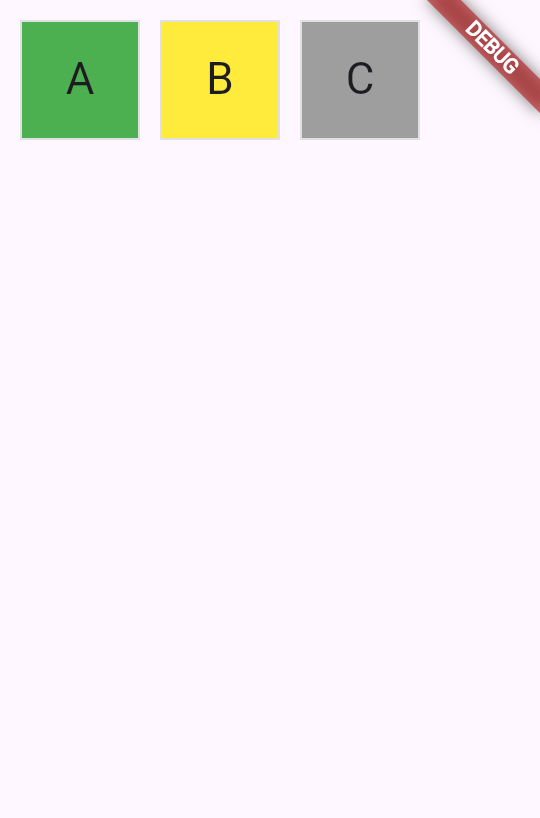
When this game is complete, the color of the tile will depend on the user's guess. The tile will be green when the user has guessed correctly, yellow when the letter is correct but the position is incorrect, and gray if the guess is wrong in both respects.
The following figure shows all three possibilities.
To achieve this in UI, use a switch expression
to
set the color of the BoxDecoration.
class Tile extends StatelessWidget {
const Tile(this.letter, this.hitType, {super.key});
final String letter;
final HitType hitType;
@override
Widget build(BuildContext context) {
return Container(
width: 60,
height: 60,
decoration: BoxDecoration(
border: Border.all(color: Colors.grey.shade300),
color: switch (hitType) {
HitType.hit => Colors.green,
HitType.partial => Colors.yellow,
HitType.miss => Colors.grey,
_ => Colors.white,
},
// TODO: add children
),
);
}
}
6
Child widgets
Child widgets
Finally, add the Center and Text widgets to the Container.child
property.
Most widgets in the Flutter SDK have a child or children property that's
meant to be passed a widget or a list of widgets, respectively.
It's the best practice to use the same naming convention in
your own custom widgets.
class Tile extends StatelessWidget {
const Tile(this.letter, this.hitType, {super.key});
final String letter;
final HitType hitType;
@override
Widget build(BuildContext context) {
return Container(
width: 60,
height: 60,
decoration: BoxDecoration(
border: Border.all(color: Colors.grey.shade300),
color: switch (hitType) {
HitType.hit => Colors.green,
HitType.partial => Colors.yellow,
HitType.miss => Colors.grey,
_ => Colors.white,
},
),
child: Center(
child: Text(
letter.toUpperCase(),
style: Theme.of(context).textTheme.titleLarge,
),
),
);
}
}
Hot reload and a green box appears. To toggle the color,
update and hot reload the HitType passed into the Tile
you created:
// main.dart line ~16
// green
Tile('A', HitType.hit);
// grey
Tile('A', HitType.miss);
// yellow
Tile('A', HitType.partial);
Soon, this small box will be one of many widgets on the screen. In the next lesson, you'll start building the game grid itself.
7
Review
Review
What you accomplished
Here's a summary of what you built and learned in this lesson.Built a custom StatelessWidget
You created a new Tile widget by extending StatelessWidget. Every widget has a constructor to accept data and a
build method that returns other widgets. This pattern is fundamental to building user interfaces with Flutter.
Made widgets reusable with constructor parameters
By accepting letter and hitType as constructor parameters, your Tile
widget can display different content and colors. Passing data through constructors is how you can create flexible, reusable components.
Styled widgets using Container and BoxDecoration
You used Container to set the widget's size and BoxDecoration to add borders and background colors. Then to conditional style the tile's color, you used a switch expression on the
hitType value.
8
Test yourself
Test yourself
Widget Fundamentals Quiz
1 / 2-
Null if there's nothing to display.
Not quite
The `build` method cannot return null; it must return a valid widget.
-
Another widget.
That's right!
The `build` method always returns another widget, which forms part of the widget tree.
-
A String describing the widget.
Not quite
The `build` method returns a widget, not a String.
-
A boolean indicating success or failure.
Not quite
Widgets don't indicate success; they return other widgets to be rendered.
-
ThemeData
Not quite
ThemeData is for app-wide styling, not individual container decorations.
-
BoxDecoration
That's right!
BoxDecoration can add borders, background colors, gradients, shadows, and more to a Container.
-
EdgeInsets
Not quite
EdgeInsets is for specifying padding or margin, not visual decorations.
-
TextStyle
Not quite
TextStyle is for text formatting, not container decorations.
Unless stated otherwise, the documentation on this site reflects Flutter 3.41.5. Page last updated on 2026-03-07. View source or report an issue.