Build custom tooling in Flutter and Dart DevTools
Have you ever wanted to build developer tooling for Dart and Flutter but didn’t know where to start? Or maybe you didn’t want to go through all the work of establishing a connection to a running Dart or Flutter application to access debugging data? Then, even if you did create a development tool, how would you deploy it or give users easy access to it? You can create developer tooling without all these hurdles.
With the Dart & Flutter DevTools extensions framework, you can easily build developer tooling that is tightly integrated with the existing DevTools tooling suite. Extensions are built using Flutter web and leverage existing frameworks and utilities from DevTools to simplify the developer tool authoring experience.
How do DevTools extensions work?
#Extensions are shipped as part of a pub package. You can add a DevTools extension to an existing pub package, or you can create a new package that provides a DevTools extension only. In both these scenarios, the end-user must list a dependency on the package providing the DevTools extension in order to see the extension in DevTools.
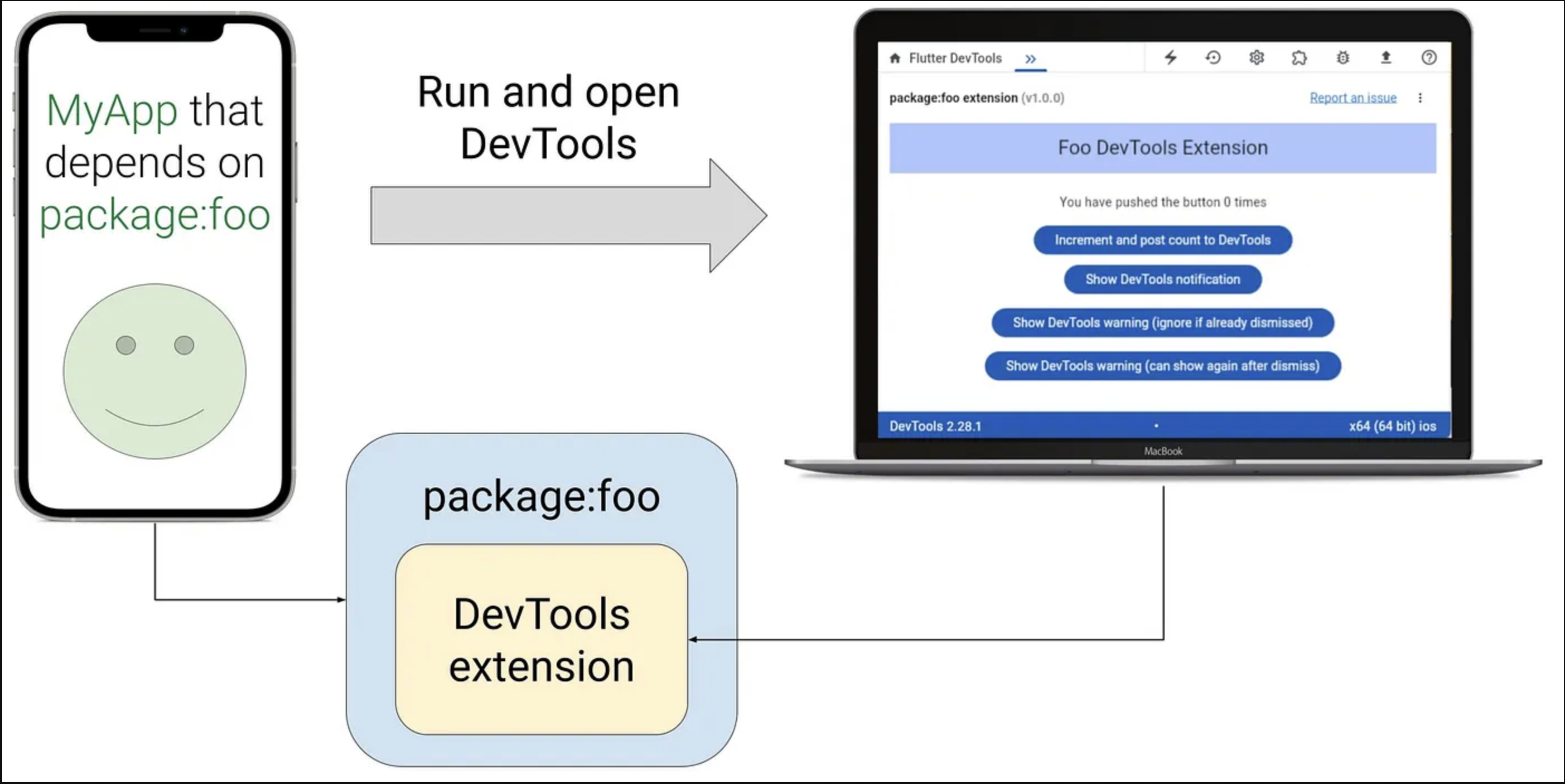
For example, imagine we have some package:foo,
and this package provides a DevTools extension.
When a user depends on package:foo in their app,
they automatically get access to the DevTools extension
provided by this package. When DevTools detects the
package:foo extension is available, based on information
from the user’s app or from their IDE,
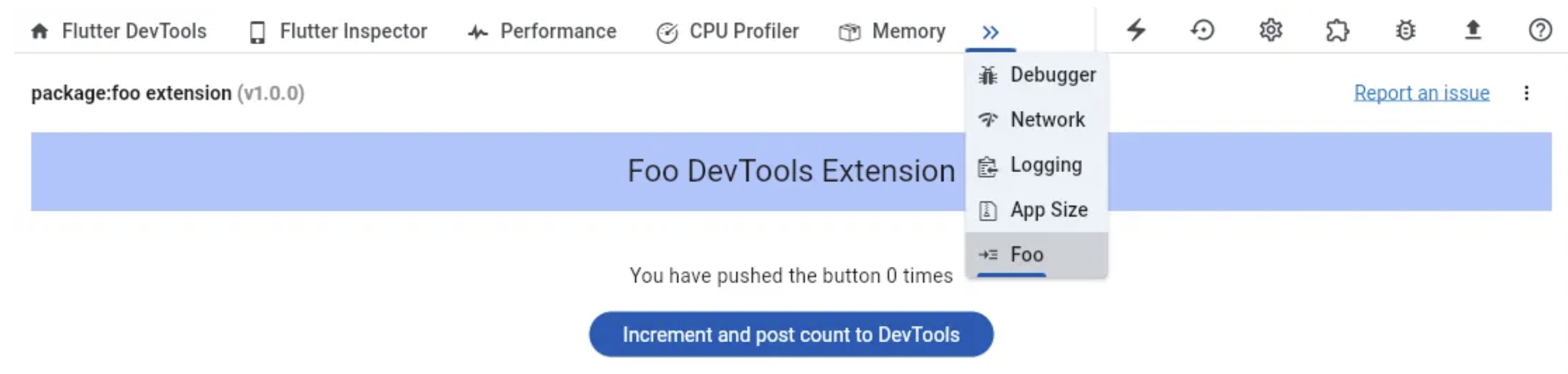
a new tab "Foo" will be added to DevTools that contains
the developer tools provided by package:foo.
Some examples of packages that have added a DevTools extension
to an existing package are package:shared_preferences,
package:provider, package:patrol, and
package:drift.
What types of tools are supported?
#With the DevTools extensions framework you can build many types of tools, including:
- Companion tools for existing packages.
- New tools that are shipped as their own package.
- Tools that interact with a running application.
- Tools that interact with project files opened in the IDE.
- Tools that interact with the Analysis server.
The DevTools Extensions framework comes with out-of-the-box features that make distributing your extension to users seamless. For example, users can:
- Use your tool from DevTools in the browser.
- Use your tool embedded directly in their IDE.
- Discover and open your tool from Dart and Flutter supported IDEs.
Next, learn how to write a DevTools extension.
Write a DevTools extension
#Before you get started, you need:
- Flutter SDK >= 3.17 & Dart SDK >= 3.2.
- A pub package that (in your opinion) needs a custom DevTools extension.
Set up your package hierarchy
#You will provide either a standalone extension or a companion extension.
Standalone extension
#For a standalone extension (that isn't being shipped as part of an existing pub package), your extension can include source code in the same package that the extension is shipped with. This simplifies development, and since users of your package will add your package as a dev_dependency, the size of your package won't affect the user's app size. Your package structure will look like the following:
my_new_tool
  extension/
    devtools/
      build/
        ...  # pre-compiled output of the Flutter web app under lib/
      config.yaml
  lib/  # source code for your extension Flutter web app
    src/
      ...
Since the extension is built as a Flutter web app,
use flutter create to generate the package:
flutter create --template app --platforms web my_new_tool
Next, use the my_new_tool package to configure your extension
in the next step.
Companion extensions
#For a companion extension (that is shipped as part of an existing pub package), consider placing your extension source code outside of your pub package. This keeps your package size as small as possible, to avoid inflating the size of user apps that depend on your package. Here is the recommended package structure:
foo/  # formerly the repository root of your pub package
  packages/
    foo/  # your pub package
      extension/
        devtools/
          build/
            ...  # pre-compiled output of foo_devtools_extension/lib
          config.yaml
    foo_devtools_extension/
      lib/  # source code for your extension Flutter web app
Configure your extension
#In the Dart package that provides the DevTools extension to users, add a top-level extension directory:
foo/
  extension/
  lib/
  ...
Under the extension directory,
create the following structure exactly as shown:
extension/
  devtools/
    build/
    config.yaml
The config.yaml file contains metadata that DevTools
needs to load the extension:
name: foo
version: 0.0.1
issueTracker: <link_to_your_issue_tracker.com>
materialIconCodePoint: '0xe0b1'
requiresConnection: true  # optional field - defaults to true
Copy the config.yaml file content as shown and
paste it into the config.yaml file you just created in your package.
It's important that you use the exact file name and field names as shown,
or else your extension might fail to load in DevTools.
For each key, fill in the appropriate value for your package.
-
name: The package name for this DevTools extension. The value of this field is used in the extension page title bar. [required] -
version: The version of your DevTools extension. This version number should evolve over time as you ship new features for your extension. The value of this field is used in the extension page title bar. [required] -
issueTracker: The URL for your issue tracker. When a user clicks the Report an issue link in the DevTools UI, they are directed to this URL. [required]

-
materialIconCodePoint: Corresponds to the codepoint value of an icon frommaterial/icons.dart. This icon is used for the extension’s tab in the top-level DevTools tab bar. [required]
-
requiresConnection: Indicates whether the extension requires a connected Dart or Flutter app to use. This is an optional field that will default totrueif unspecified. [optional]
For the most up-to-date documentation on the config.yaml spec,
visit extension_config_spec.md.
Build your extension
#Use the following steps to build an extension.
Create the Flutter web app
#
From the directory where you want your extension source code to live,
run the following command, replacing foo_devtools_extension with
<your_package_name>_devtools_extension:
flutter create --template app --platforms web foo_devtools_extension
Add the package:devtools_extensions dependency
#
flutter pub add devtools_extensions
You will likely also want to add a dependency on package:devtools_app_shared,
which contains shared services, utilities, and UI components to use
while building your extension.
Visit devtools_app_shared/example
for sample usages.
flutter pub add devtools_app_shared
Add the DevToolsExtension widget
#
In lib/main.dart, add the following imports:
import 'package:devtools_extensions/devtools_extensions.dart';
import 'package:material_ui/material_ui.dart';
void main() {
runApp(const FooDevToolsExtension());
}
class FooDevToolsExtension extends StatelessWidget {
const FooDevToolsExtension({super.key});
@override
Widget build(BuildContext context) {
return const DevToolsExtension(
child: Placeholder(), // Build your extension here
);
}
}
The DevToolsExtension widget automatically initializes all extensions
required to interact with DevTools.
From anywhere in your extension web app, you can access the following globals:
extensionManager: a manager for interacting with DevTools or the extensions framework.serviceManager: a manager for interacting with the connected vm service, if present.dtdManager: a manager for interacting with the Dart Tooling Daemon, if present.
Debug your extension
#When developing and maintaining your DevTools extension, you’ll want to run, debug, and test your extension Flutter web app. You have a couple of different options for this, outlined below.
Option A: Use the Simulated DevTools Environment (recommended for development)
#For debugging purposes, you will likely want to use the "simulated DevTools environment". This is a simulated environment that allows you to build your extension without having to develop it as an embedded iFrame in DevTools. Running your extension this way will wrap your extension with an environment that simulates the DevTools-to-DevTools extension connection. It also gives you access to hot restart and a faster development cycle.
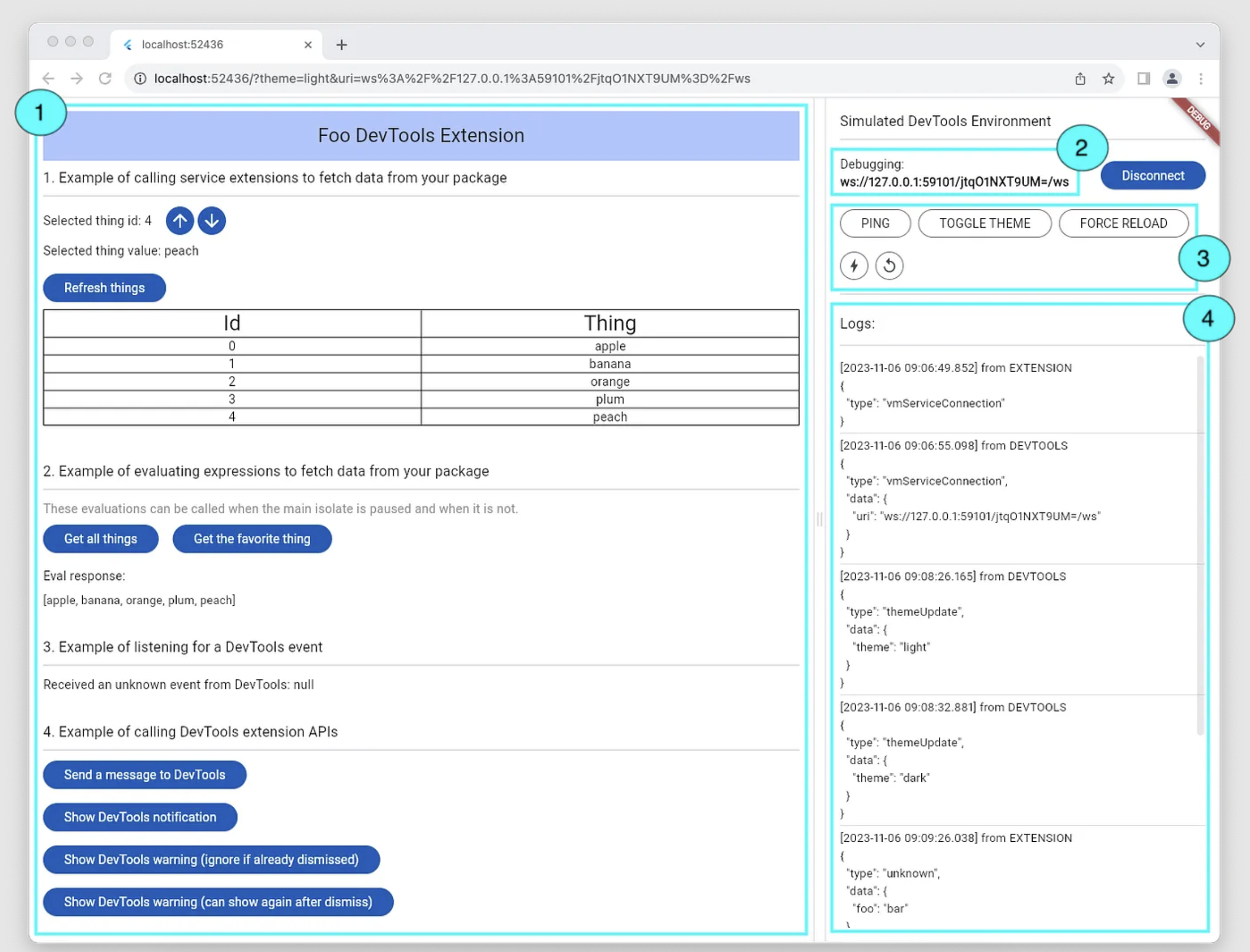
- Your DevTools extension.
-
The VM service URI for a test app that your DevTools extension will interact with.
This app should depend on your extension’s parent package (
package:fooin this example). - Buttons to perform actions that a user may trigger from DevTools.
- Logs showing the messages that will be sent between your extension and DevTools.
The simulated environment is enabled by the environment parameter use_simulated_environment.
To run your extension web app with this flag enabled,
add a configuration to your launch.json file in VS code:
{
    ...
    "configurations": [
        ...
        {
            "name": "foo_devtools_extension + simulated environment",
            "cwd": "packages/foo_devtools_extension",
            "request": "launch",
            "type": "dart",
            "args": [
                "--dart-define=use_simulated_environment=true"
            ],
        },
    ]
}
or launch your app from the command line with the added flag:
flutter run -d chrome -dart-define=use_simulated_environment=true
Option B: Use a real DevTools environment
#Once you develop your extension to a point where you are ready to test your changes in a real DevTools environment, you need to perform a series of setup steps:
- Develop your extension to a point where you are ready to test
your changes in a real DevTools environment.
Build your flutter web app and copy the built assets from
`your_extension_web_app/build/web` to your pub package's
`extension/devtools/build directory`.
Use the
build_and_copycommand frompackage:devtools_extensionsto help with this step.console cd your_extension_web_app; flutter pub get; dart run devtools_extensions build_and_copy --source=. --dest=path/to/your_pub_package/extension/devtoolsTo ensure that your extension is setup properly for loading in DevTools, run the
validatecommand frompackage:devtools_extensions. The--packageargument should point to the root of the Dart package that this extension will be published with.console cd your_extension_web_app; flutter pub get; dart run devtools_extensions validate --package=path/to/your_pub_package - Prepare a test environment with a dependency on your pub package
that is providing the extension.
In the Dart or Flutter project where you are adding a dependency on your package, add a
pathdependency that points to your local package source code (the package that contains theextension/devtools/directory with your extension's assets). Once you have done this, runpub geton the package.* If your extension requires a running application, then you’ll need to run the app that depends on your extension. * If your extension does not require a running application, then you will need to open the test Dart or Flutter project that depends on your package in a supported IDE (VS Code or IntelliJ / Android Studio).
- Start DevTools
Use one of the following ways to start DevTools:
* If your extension requires a running application, you can open DevTools either from the URI that was printed to the command line when you ran the test app, or from the IDE where you ran your test app. * If your extension does not require a running application, you can open your Dart or Flutter project that depends on your package in a supported IDE (VS Code or IntelliJ / Android Studio). Open DevTools from the IDE to view your extension in the browser. * If you need local or unreleased changes from DevTools, you’ll need to build and run DevTools from source. See the DevTools CONTRIBUTING.md for a guide on how to do this. You’ll need to build DevTools with the server and the front end to test extensions (instructions).
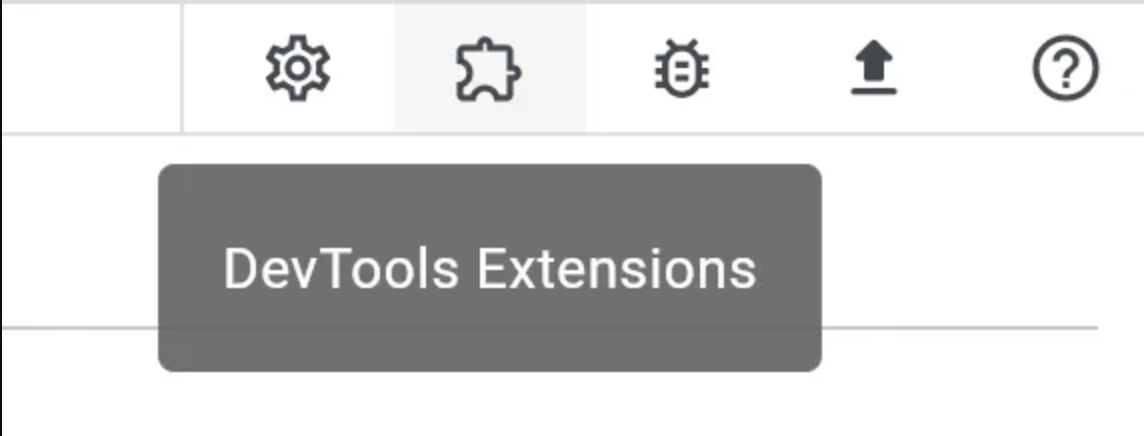
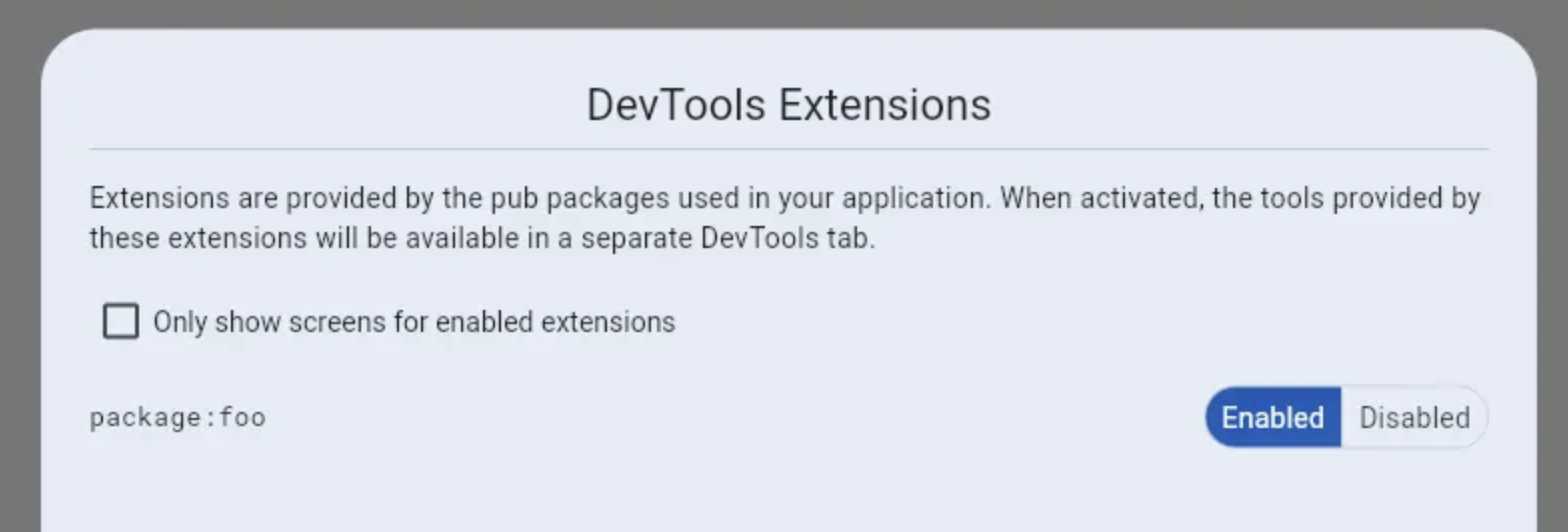
- Connect your test app to DevTools if it is not connected already, and you should see a tab in the DevTools app bar for your extension. The enabled or disabled state of your extension is managed by DevTools, which is exposed from an **Extensions** menu in DevTools, available from the action buttons in the upper right corner of the screen.
Once you've opened DevTools, a tab in the DevTools app bar should appear for your extension. The enabled or disabled state of your extension is managed by DevTools, which is exposed from an "Extensions" menu, available from the action buttons in the upper right corner of the screen.
Publish your package with a DevTools extension
#
For a package to provide a DevTools extension to its users,
it must be published with the expected content in the
your_pub_package/extension/devtools/ directory
(as described in the preceding setup instructions).
- Ensure the `extension/devtools/config.yaml` file exists
and is configured per the specifications above.
You can run the `validate` command from
`package:devtools_extensions` to verify.
cd your_extension_web_app; flutter pub get; dart run devtools_extensions validate --package=path/to/pkg_providing_your_extension_assets - Use the `build_and_copy` command provided by
`package:devtools_extensions` to build your extension
and copy the output to the `extension/devtools` directory:
console cd your_extension_web_app; flutter pub get; dart run devtools_extensions build_and_copy --source=. --dest=path/to/your_pub_package/extension/devtools
Then, publish your package on pub.dev:
flutter pub publish
When running pub publish,
you will see a warning if you do not have the config.yaml file
and a non-empty build directory as required.
For additional guidance around publishing your package,
visit the package:devtools_extensions publishing guide.
That’s it! Now, when a user depends on the latest version of your package, they will automatically get access to the tools you provide in your DevTools extension.
You might find the following links useful:
- For the latest info on this feature, visit the DevTools Extensions README on GitHub.
- For issues and feature requests, file an issue on the DevTools issue tracker.
- For general support and access to the community of DevTools extension authors, check out the #devtools-extension-authors Discord channel (you will first need to join the Flutter Discord server).
Unless stated otherwise, the documentation on this site reflects Flutter 3.47. Page last updated on 2026-09-29. View source or report an issue.