Package dependency management
Learn how Flutter and Dart resolve package dependencies, and how to handle version conflicts.
When you build a Flutter app, you often use external packages to add functionality. Each package can depend on other packages, creating a tree of dependencies. Understanding how Dart and Flutter manage these dependencies helps you resolve version conflicts and keep your app stable.
How dependency resolution works
#
Your Flutter project specifies dependencies in the pubspec.yaml file.
When you run flutter pub get,
the package manager resolves the dependencies and
records the exact versions in the pubspec.lock file.
Direct and transitive dependencies
#A dependency can be direct or transitive:
- Direct dependencies
-
The packages you explicitly list under the
dependenciesordev_dependenciessection in yourpubspec.yamlfile. - Transitive dependencies
-
The packages that your direct dependencies depend on. You don't list these packages in your
pubspec.yamlfile, but your project requires them to compile.
The pubspec.lock file
#
The pubspec.lock file contains the exact version of every direct and
transitive dependency used in your project.
This file ensures that every developer on your team, and your build servers,
use the exact same package versions.
Commit the pubspec.lock file to version control for application projects,
but not for package projects.
The role of the version solver
#
Unlike some package managers,
the Dart package manager (pub) allows only a
single version of any package in your app's compilation tree.
This constraint exists for several reasons:
-
Type safety:
If your app uses two versions of the same package,
you can get type mismatch errors.
For example, if
v1andv2of a package both define aUserclass, the Dart compiler treats them as two distinct types. You can't pass av1.Userto a method expecting av2.User. - Binary size: Including multiple versions of the same package increases the size of your application.
- Global state: Many packages use global variables or singletons. Having multiple copies of the package can lead to inconsistent state or bugs.
The version solver's job is to look at all version constraints for your direct and transitive dependencies and find a single concrete version for each package that satisfies all constraints.
Understand version constraints
#
When you declare a dependency in pubspec.yaml,
you specify a version constraint.
Dart packages use Semantic Versioning
(SemVer).
A version number has three parts: major.minor.patch (for example, 2.1.4).
You can define version constraints in your pubspec.yaml file
using different syntaxes:
Caret syntax
#
The caret syntax (^) is the most common way to define a version constraint.
It tells the solver to use any version that is
compatible with the specified version.
-
For stable versions (1.0.0 and higher),
the caret allows updates that don't change the major version:
^1.2.3is equivalent to>=1.2.3 <2.0.0
-
For pre-release/pre-1.0.0 versions,
any change in the minor or patch version can introduce breaking changes.
Therefore, the caret constraint is more restrictive:
^0.8.0is equivalent to>=0.8.0 <0.9.0^0.0.3is equivalent to>=0.0.3 <0.0.4
Traditional ranges
#You can define explicit version ranges using comparison operators:
dependencies:
  url_launcher: '>=5.4.0 <6.0.0'
Any version
#
If you don't specify a version constraint or use any,
the solver can choose any version:
dependencies:
  url_launcher: any
Understand dependency conflicts
#A dependency conflict occurs when two packages in your dependency tree require incompatible versions of the same transitive dependency.
Consider this example scenario:
- Your app depends on two direct dependencies:
package_aandpackage_b. -
package_adepends onfoo: ^1.0.0. -
package_bdepends onfoo: ^2.0.0.
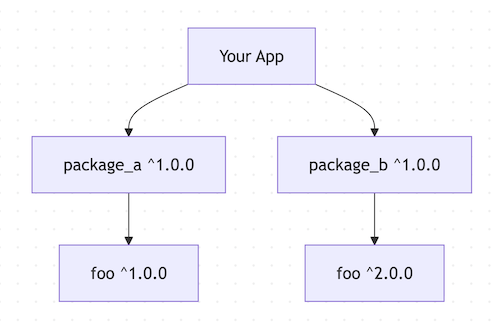
Because foo can't be both ^1.0.0 (which is <2.0.0) and
^2.0.0 (which is >=2.0.0), the version solver fails.
When you run flutter pub get or try to build the app,
the solver prints an error message:
Because every version of package_a depends on foo ^1.0.0 and
every version of package_b depends on foo ^2.0.0,
package_a is incompatible with package_b.
So, because my_app depends on both package_a ^1.0.0
and package_b ^1.0.0, version solving failed.
To read this error message, trace the conflict from the bottom up in the dependency graph:
- Identify the conflicting package (
foo). -
Find which packages require conflicting versions.
For example,
package_arequiresfoo: ^1.0.0andpackage_brequiresfoo: ^2.0.0. -
Check which direct dependencies pull in those conflicting packages.
For example,
my_appdepends on bothpackage_a: ^1.0.0andpackage_b: ^1.0.0.
Resolve dependency conflicts
#You can use the following steps to resolve dependency conflicts.
Upgrade package versions
#
Before making manual changes, check if newer,
compatible versions of your dependencies exist.
Run the following command to upgrade your packages to the
latest versions allowed by your pubspec.yaml constraints:
flutter pub upgrade
To see which packages have newer versions available beyond your current constraints, run:
flutter pub outdated
To upgrade to newer major versions,
run flutter pub upgrade --major-versions.
This command upgrades the constraints in your pubspec.yaml file
to allow the latest resolvable versions, and then
runs flutter pub get to retrieve those upgraded dependencies.
Use dependency overrides
#
If no compatible versions exist because one of the packages hasn't been updated,
you can force the version solver to use a specific version.
Add a dependency_overrides section to your pubspec.yaml file:
dependencies:
package_a: ^1.0.0
package_b: ^1.0.0
dependency_overrides:
foo: ^2.0.0
This overrides all constraints for foo and
forces the version solver to use ^2.0.0.
Support the ecosystem
#If a package is unmaintained or slow to update, you can help resolve the issue:
-
File an issue: Search the package's repository for existing issues or file a new issue to notify the maintainer.
-
Submit a pull request: If you can fix the conflict, fork the package repository, update the constraints, and submit a pull request.
-
Use a git or path dependency: While waiting for the maintainer to merge your pull request, you can point your
pubspec.yamlto your fork or a local copy:yamldependencies: package_a: git: url: https://github.com/your-username/package_a.git ref: update-foo-dependency
Learn more
#For more information on how Dart manages dependencies, see the following resources:
- Package versioning on dart.dev
- Pub dependencies on dart.dev
- Dependency overrides on dart.dev
Unless stated otherwise, the documentation on this site reflects Flutter 3.47. Page last updated on 2026-07-28. View source or report an issue.