Prompting
Learn how to build and optimize generative AI prompts in Flutter using system instructions, dynamic parameters, and versioning techniques.
Assuming you've configured your Flutter app with the Firebase project and configuration you need to use the Firebase AI Logic SDK (which you can learn about in the README), you're all set to start using generative AI. Generative AI is the branch of Machine Learning (ML) that uses a neural network trained on a large set of human language to produce a Large Language Model (LLM). At this point, the best models (like Google Gemini) are trained on what is essentially the entire internet.
At that scale, a model trained with that much data has created models that can interpret human language and produce useful human language outputs. By now I'm sure you've used the Gemini chat app (or ChatGPT or Claude or other chat apps), so you know that if you talk to an LLM using vague language, you're likely to get vague, often incorrect, results. If you want to get good results, you'll have to use good prompts.
Prompt construction
#A prompt is the input you provide to an LLM to get the output you want. It will include text as well zero or more files, like images or PDF files. If you're building chat into your app, then the user will be entering the prompts (and the Flutter AI Toolkit is useful for building the chat UI). If you're using an LLM to implement the features of your app, like parsing an image for crossword puzzle data, then you're going to be building the prompts yourself. How you build them matters.
As an example, in building the Crossword Companion, the original clue solving prompt looked like this:
You are a crossword puzzle solver. Your goal is to solve the puzzle by filling in the grid with the correct answers. Given the current state of the crossword grid and a single clue, provide the answer for that clue. The answer should be a single word, returned in a JSON object that matches the following schema: '{"type": "object", "properties": {"answer": {"type": "string"}}}'.
# Puzzle Information
## Grid Layout
The grid is (${grid.width}x${grid.height}):
${_getGridStateAsString(grid)}
## Clue
${clue.number} ${clue.direction == ClueDirection.across ? 'Across' : 'Down'}: ${clue.text}
This prompt isn't all bad – it has some useful pieces:
- Persona: the phrase "You are a crossword puzzle solver" narrows the model's focus
- Context: the current state of the puzzle
- Query: asking for a solution to a clue
- Format: provide the output in JSON so the result could be parsed programmatically
However, because of the two-dimensional nature of the data, this is a hard prompt for some models to solve. The results from Gemini 2.5 Flash (the more efficient of the models available at the time) were inconsistent. The quality of the results from Gemini 2.5 Pro were excellent, but they were slower and more expensive to obtain. Debugging revealed that Pro was essentially solving the entire puzzle every time it was called, responding with just the solution to a single clue.
What was needed was the efficiency of Flash with the quality of Pro. To do that required some work on the prompt:
Your task is to solve the following crossword clue.
**Clue:** "${clue.text}"
**Constraints:**
- The answer is a **$length-letter** word.
- The current letter pattern is `$pattern`, where `_` represents an unknown letter.
Return your answer and confidence score in the required JSON format.
This prompt asks to solve the clue, provides the important context, and
specifies the output format. Instead of handing in the entire state of the
two-dimensional grid, the input was narrowed to the length requirement and a
pattern, such as "_ R _ Y". These simplifications produce high quality results
from Flash that come back quickly enough to make it fun to
watch.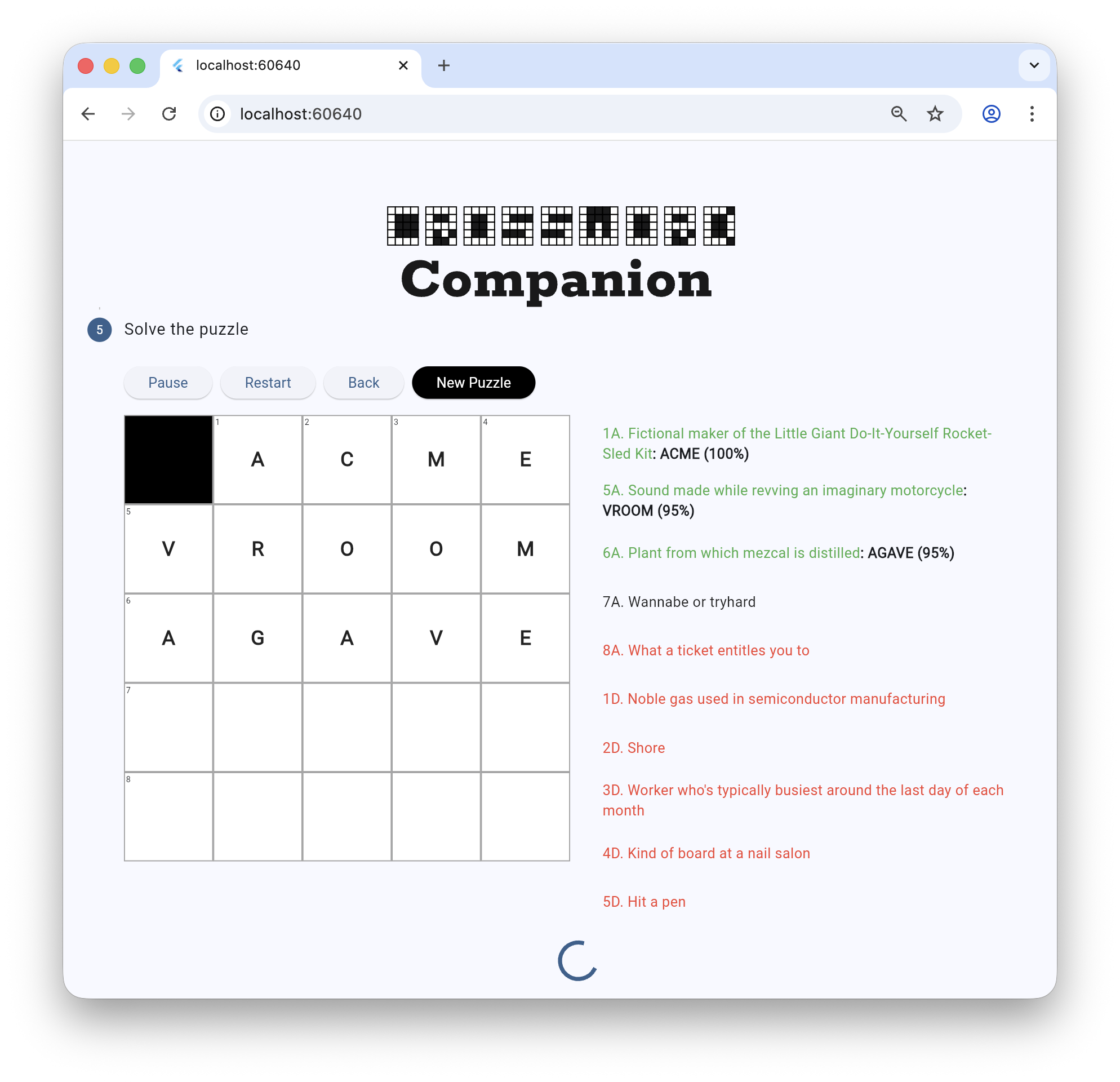
Layering your prompts
#The prompt used to solve the clues is not the only prompt the model sees. It also has the system instruction (also known as the system message or the system prompt) which is set as part of model instance creation. Think of the system instruction as "this is what you do" while the individual prompts are "now do this."
Here is the partial system instruction for the clue solver model (you'll see the rest later):
final clueSolverSystemInstruction =
'''
You are an expert crossword puzzle solver.
**Follow these rules at all times:**
1. **Prefer Common Words:** Prioritize common English words and proper nouns. Avoid obscure, archaic, or highly technical terms unless the clue strongly implies them.
2. **Match the Clue:** Ensure your answer strictly matches the clue's tense, plurality (singular vs. plural), and part of speech.
3. **Verify Grammatically:** If a clue implies a specific part of speech (e.g., it's a verb, adverb, or plural), it's a good idea to use the `getWordMetadata` tool to verify your candidate answer matches. However, avoid using it for every clue.
4. **Be Confident:** Provide a confidence score from 0.0 to 1.0 indicating your certainty.
5. **Trust the Clue Over the Pattern:** The provided letter pattern is only a suggestion based on other potentially incorrect answers. Your primary goal is to find the best word that fits the **clue text**. If you are confident in an answer that contradicts the provided pattern, you should use that answer.
6. **Format Correctly:** You must return your answer in the specified JSON format.
...
''';
Given the model we want to use and the system instruction, we now have everything we need to create an instance:
// The model for solving clues.
_clueSolverModel = FirebaseAI.googleAI().generativeModel(
  model: 'gemini-2.5-flash',
  systemInstruction: Content.text(clueSolverSystemInstruction),
  ...
);
While the system instruction is often static, the individual prompts are usually created dynamically based on data.
Parameterizing your prompts
#Each clue solver prompt is created using the text from the clue, the target length of the answer and the pattern so far given previously solved clues, such as "_R_Y":
String getSolverPrompt(Clue clue, int length, String pattern) =>
'''
Your task is to solve the following crossword clue.
**Clue:** "${clue.text}"
**Constraints:**
- The answer is a **$length-letter** word.
- The current letter pattern is `$pattern`, where `_` represents an unknown letter.
Return your answer and confidence score in the required JSON format.
''';
With the prompt in hand, we can pass it along to the model for our clue answer:
final result = await _clueSolverModel.generateContent(
  prompt: getSolverPrompt(clue, length, pattern),
);
Prompt versioning
#
This basic app keeps the prompt strings in code.
This makes them hard to track down and update.
For production apps, it's better to keep your prompts separated from the code,
perhaps bundled as Flutter assets.
One way to arrange prompt files is to
use the Google dotprompt format,
which allows you to write .prompt files that look like this:
---
model: googleai/gemini-2.5-flash
input:
schema:
text: string
output:
format: json
schema:
title?: string, the title of the article if it has one
summary: string, a 3-sentence summary of the text
tags?(array, a list of string tag category for the text): string
---
Extract the requested information from the given text. If a piece of information is not present, omit that field from the output.
Text:
To expand a .prompt file for use in your Dart and Flutter projects, you can
use the dotprompt_dart package.
Unless stated otherwise, the documentation on this site reflects Flutter 3.47. Page last updated on 2026-08-19. View source or report an issue.