Flutter Widget Previewer
Learn how to use the Flutter Widget Previewer to see your widgets render in real-time, separate from your full app.
In this guide, you will learn how to use the Flutter Widget Previewer.
Overview
#With the Flutter Widget Previewer, you can instantly render, inspect, and iterate on individual UI components in real-time, separate from a full app, in your IDE or browser.
The following sections explain how to open the previewer, preview your widgets, search and filter previews, and customize preview configurations.
Opening the previewer
#IDEs
#Android Studio, IntelliJ, and Visual Studio Code automatically start the Flutter Widget Previewer on launch.
Android Studio and IntelliJ
#To open the Widget Previewer in Android Studio or IntelliJ, open the "Flutter Widget Preview" tab in the sidebar:

Visual Studio Code
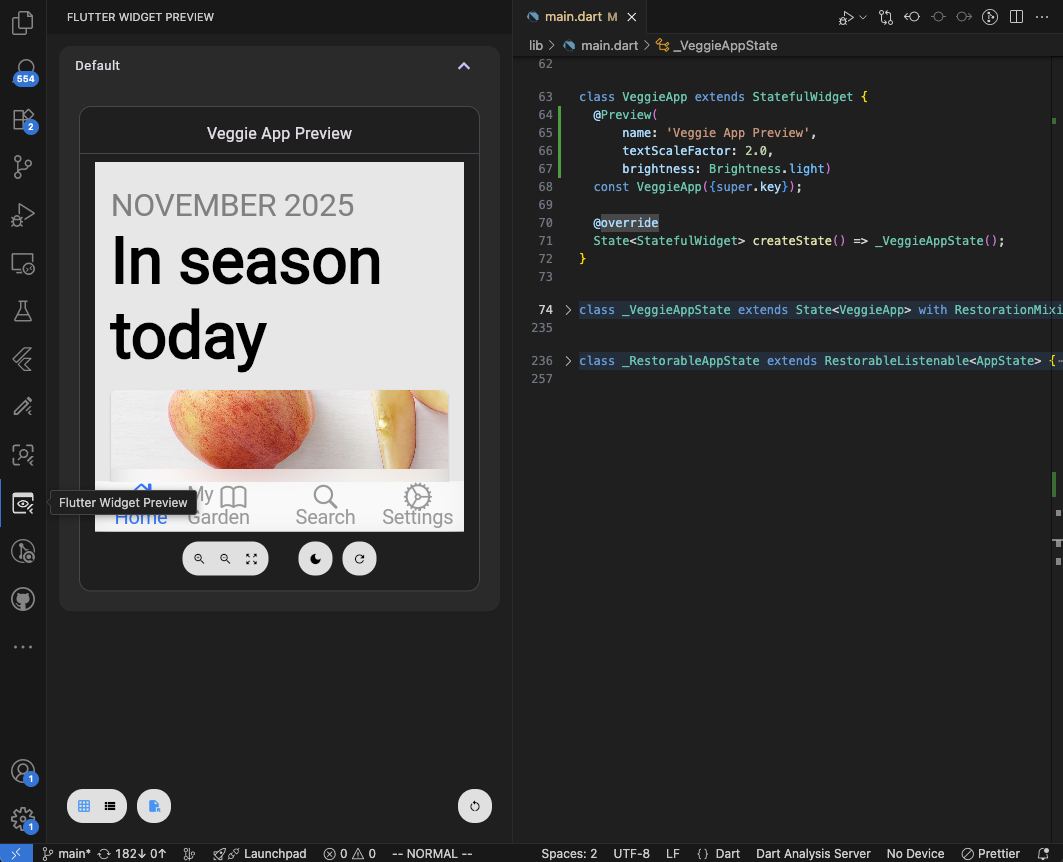
#To open the Widget Previewer in Visual Studio Code, open the "Flutter Widget Preview" tab in the sidebar:
Command line
#To start the Flutter Widget Previewer from your terminal, navigate to your Flutter project's root directory and run the following command:
flutter widget-preview start
This launches a local server and opens a real-time preview environment in your browser.
To optimize startup times, the previewer automatically caches project builds
in a .widget_preview/ folder in your project root.
Preview a widget
#
After you've started the previewer, to look at a widget,
you must use the @Preview
annotation defined in
package:flutter/widget_previews.dart. This annotation
can be applied to:
-
Top-level functions that return a
WidgetorWidgetBuilder. -
Static methods within a class that return a
WidgetorWidgetBuilder. - Public Widget constructors and factories with no required arguments.
Here is a basic example of how to use the
@Preview annotation to preview a Text widget:
import 'package:flutter/widget_previews.dart';
import 'package:material_ui/material_ui.dart'; // For Material widgets
@Preview(name: 'My Sample Text')
Widget mySampleText() {
return const Text('Hello, World!');
}
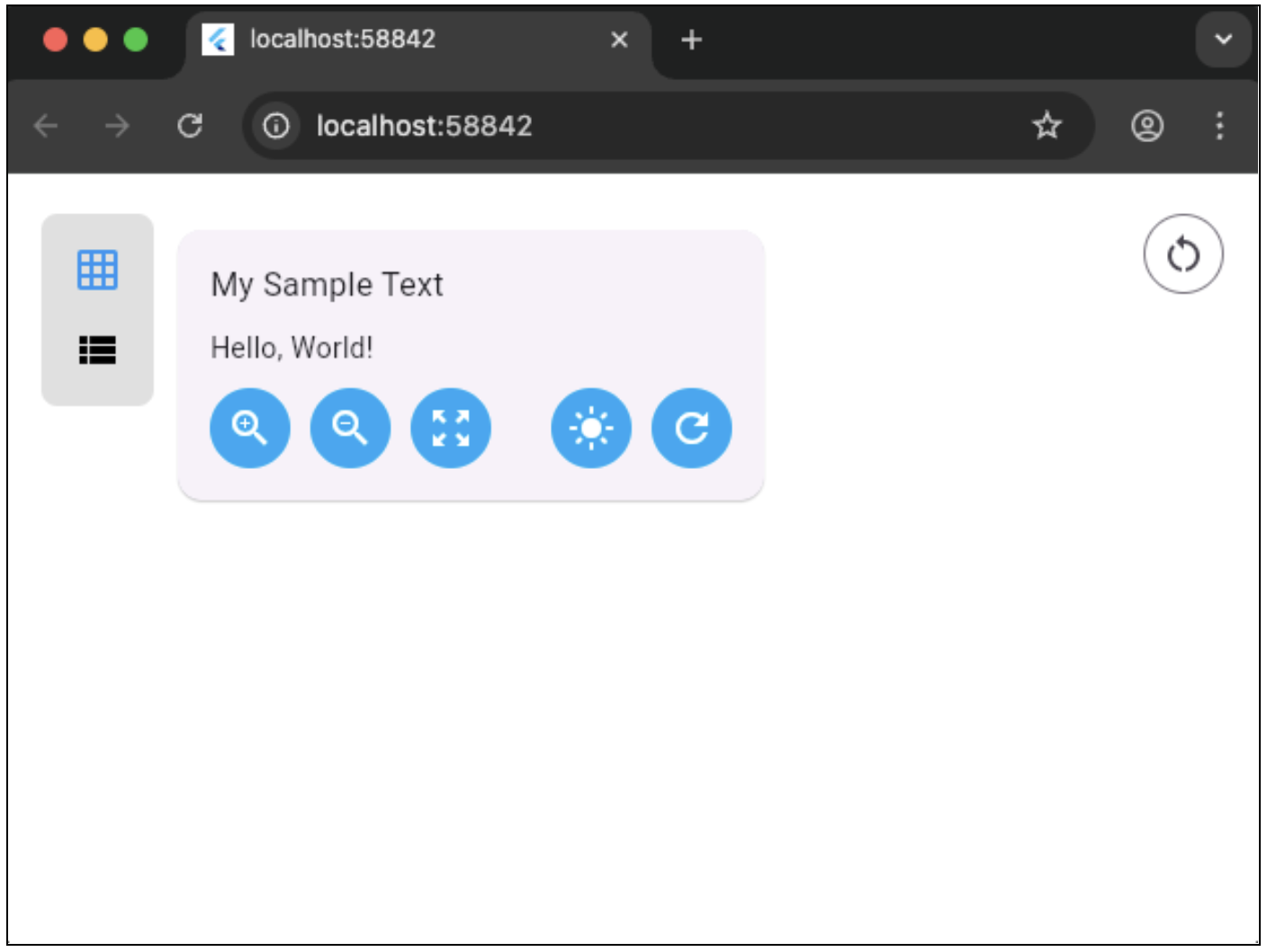 Each preview instance provides various controls for
interacting with the previewed widget. From left to right:
Each preview instance provides various controls for
interacting with the previewed widget. From left to right:
Zoom in: Magnifies the widget in the preview.
-
Zoom out: Reduces the magnification of the widget in the preview.
-
Reset zoom: Returns the widget preview to its default zoom level.
-
Toggle between light and dark mode: Switches the preview's theme between a light and dark color scheme.
-
Perform a hot restart for the individual preview: Restarts only the specific widget preview, allowing changes to be applied quickly without restarting the entire application.
For the case where global state has been modified (for example, a static initializer has been changed), you can hot restart the entire widget previewer using the button at the bottom right of the environment.
Search and filter previews
#The Widget Previewer environment includes search and filtering capabilities to help navigate projects with many annotated previews.
Search bar and filtering criteria
#Use the search bar at the top of the environment to filter previews in real-time. Click the filter dropdown next to the search field to choose which criteria to match against:
-
Preview name: Filters by the descriptive name set in the
@Previewannotation. -
Group name: Filters by the group name specified in the
@Preview(group: ...)parameter. - Containing script: Filters by the URI of the Dart file containing the preview.
- Containing package: Filters by the package name containing the preview.
For example, the parameters in the following preview annotation match against
the Preview name ('Submit Button') and Group name
('Form Controls') filters:
@Preview(name: 'Submit Button', group: 'Form Controls')
Widget submitButtonPreview() => const SubmitButton();
Filter previews by selected file in IDEs
#When viewing previews within an IDE, the widget previewer can also filter previews based on the currently selected file:

To toggle this behavior, select the Filter previews by selected file option at the bottom of the environment.
Customize a preview
#
The @Preview
annotation has several parameters you can
use to customize the preview:
name: A descriptive name for the preview.-
group: A name used to group related previews together in the widget previewer. -
size: Artificial size constraints using aSizeobject. textScaleFactor: A custom font scale.-
wrapper: A function that wraps your previewed widget in a specific widget tree (for example, to inject application state into the widget tree with anInheritedWidget). -
theme: A function returning aPreviewThemeDatainstance to provide custom and generic theming data with sequential theme layering support for complex matrix testing. brightness: The initial theme brightness.-
localizations: A function to apply a localization configuration.
Create custom preview annotations
#
To reduce the amount of boilerplate needed to define previews with
a common set of properties, the Preview
annotation class can be
extended to create custom preview annotations tailored for your project.
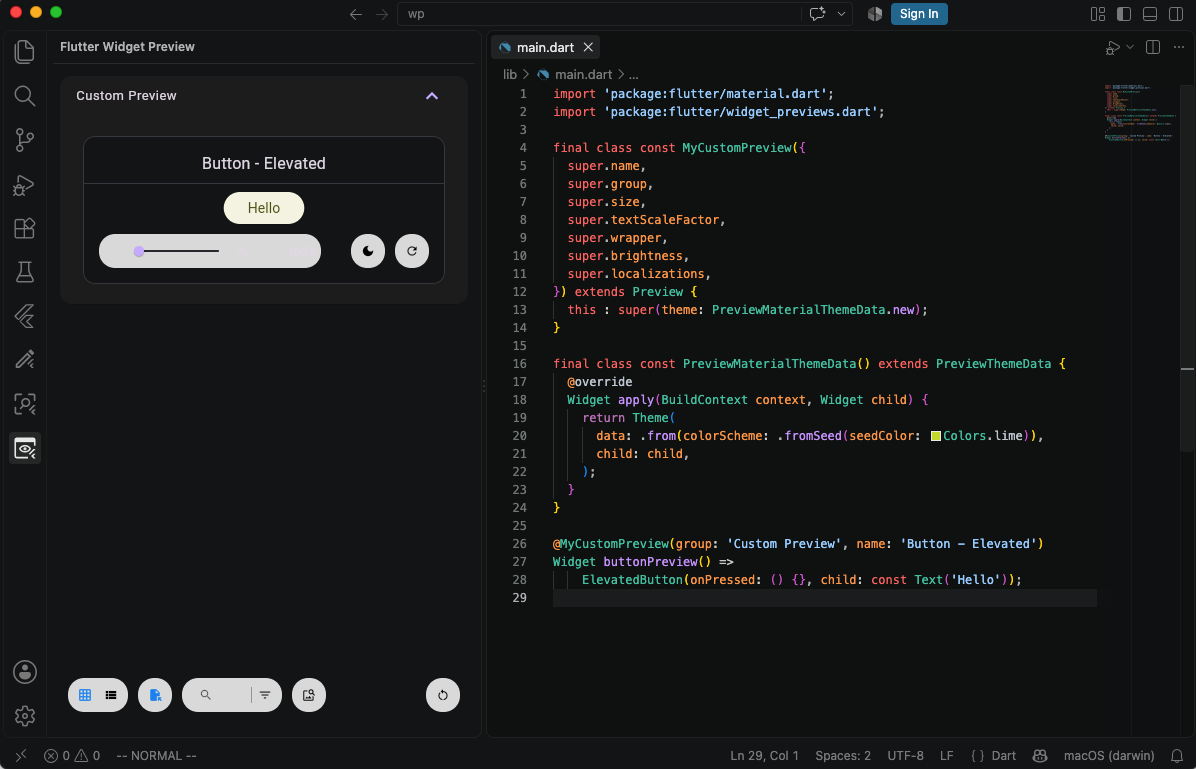
Here's an example of a custom preview annotation that provides custom theming data to material widgets:
final class const MyCustomPreview({
super.name,
super.group,
super.size,
super.textScaleFactor,
super.wrapper,
super.brightness,
super.localizations,
}) extends Preview {
this : super(theme: PreviewMaterialThemeData.new);
}
final class const PreviewMaterialThemeData() extends PreviewThemeData {
@override
Widget apply(BuildContext context, Widget child) => Theme(
data: .from(colorScheme: .fromSeed(seedColor: Colors.lime)),
child: child,
);
}

Extending the Preview
annotation class also allows for overriding
the Preview.transform()
method. This method is invoked by the widget previewer
and can be used to modify the preview at runtime, allowing for preview
configurations that would not otherwise be possible in a const context:
final class const TransformativePreview({
super.name,
super.group,
super.size,
super.textScaleFactor,
super.wrapper,
super.brightness,
super.localizations,
}) extends Preview {
PreviewThemeData _themeBuilder() =>
PreviewMaterialThemeData(brightness: brightness);
@override
Preview transform() {
final originalPreview = super.transform();
final themeVariant = switch (brightness) {
null => 'Responsive',
final b => b.name,
};
// Creates a PreviewBuilder that can be used to modify
// the preview contents.
final builder = originalPreview.toBuilder();
builder
..name = 'Transformed - ${originalPreview.name}[$themeVariant]'
..theme = _themeBuilder;
// Returns the updated Preview instance.
return builder.build();
}
}
final class const PreviewMaterialThemeData({final Brightness? _brightness})
extends PreviewThemeData {
@override
Widget apply(BuildContext context, Widget child) {
return Theme(
data: .from(
colorScheme: .fromSeed(
seedColor: Colors.lime,
brightness: _brightness ?? MediaQuery.platformBrightnessOf(context),
),
),
child: child,
);
}
}
Creating multiple preview configurations
#
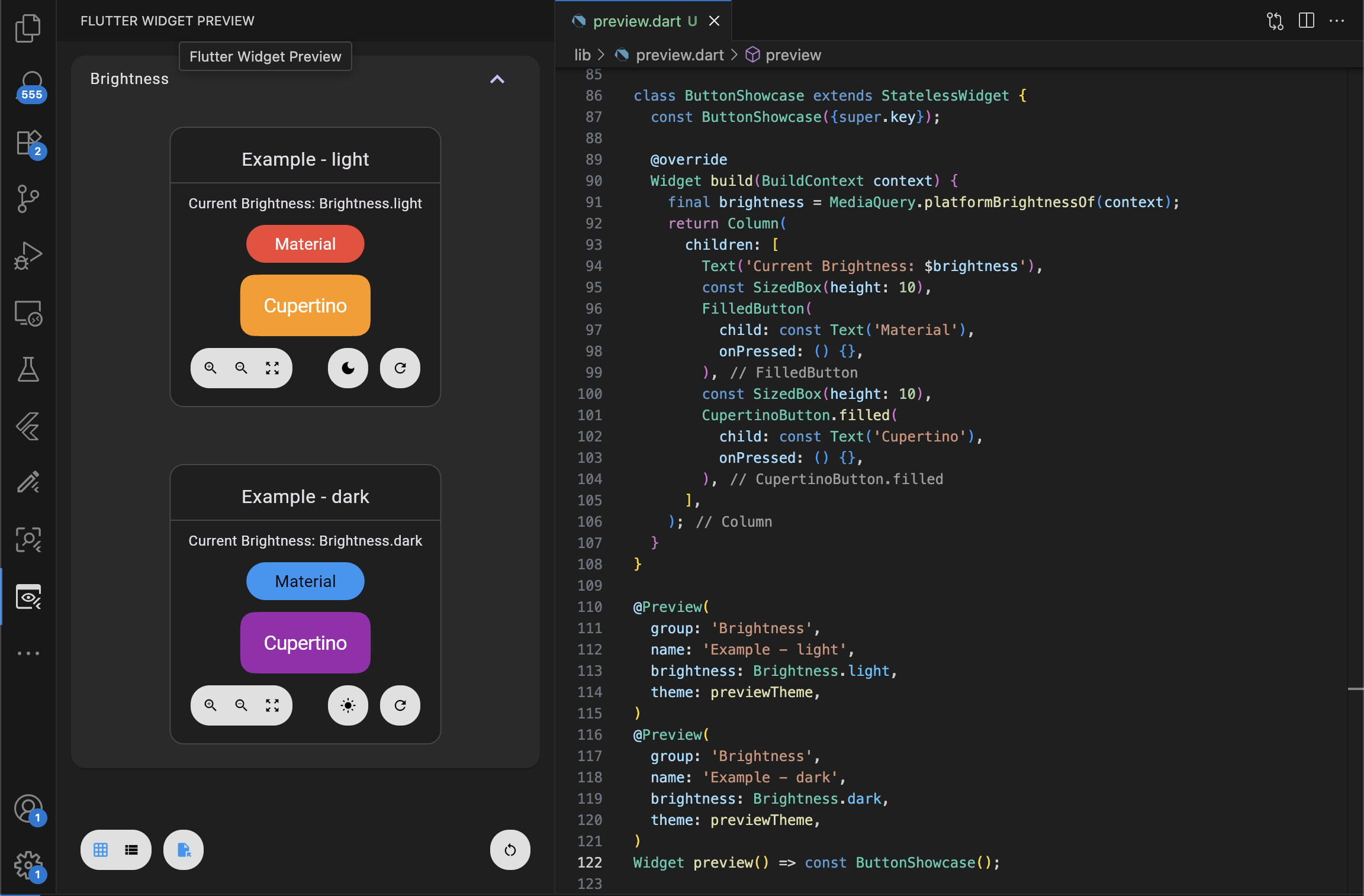
Creating multiple previews with different configurations can be as
simple as applying multiple @Preview
annotations to a single
function or constructor:
@Preview(
  group: 'Brightness',
  name: 'Example - light',
  brightness: Brightness.light,
)
@Preview(
  group: 'Brightness',
  name: 'Example - dark',
  brightness: Brightness.dark,
)
Widget buttonPreview() => const ButtonShowcase();
To simplify creating multiple previews with common configurations, you
can extend the MultiPreview
to define a custom annotation that creates
multiple previews. The following MultiPreview
creates
the same two previews as the previous example:
/// Creates light and dark mode previews.
final class MultiBrightnessPreview extends MultiPreview {
const MultiBrightnessPreview();
@override
List<Preview> get previews => const [
Preview(
group: 'Brightness',
name: 'Example - light',
brightness: Brightness.light,
),
Preview(
group: 'Brightness',
name: 'Example - dark',
brightness: Brightness.dark,
),
];
}
@MultiBrightnessPreview()
Widget buttonPreview() => const ButtonShowcase();
Like Preview,
MultiPreview
also provides a
MultiPreview.transform()
method to perform transformations
on each preview at runtime:
/// Creates light and dark mode previews.
final class MultiBrightnessPreview extends MultiPreview {
const MultiBrightnessPreview({required this.name});
final String name;
@override
List<Preview> get previews => const [
Preview(brightness: Brightness.light),
Preview(brightness: Brightness.dark),
];
@override
List<Preview> transform() {
final previews = super.transform();
return previews.map((preview) {
final builder = preview.toBuilder()
..group = 'Brightness'
// Building names based on values provided to the annotation
// isn't possible within a constant constructor. However,
// there's no such restriction when building a Preview at
// runtime.
..name = '$name - ${preview.brightness!.name}';
return builder.toPreview();
}).toList();
}
}
@MultiBrightnessPreview(name: 'Example')
Widget buttonPreview() => const ButtonShowcase();
Restrictions and limitations
#The Flutter Widget Previewer has certain restrictions you should be aware of:
-
Public callback names: All callback arguments provided to preview annotations must be public and constant. This is required for the previewer's code generation implementation to work correctly.
-
Unsupported APIs: Native plugins and any APIs from the
dart:ioordart:ffilibraries are not supported. This is because the widget previewer is built with Flutter Web, which doesn't have access to the underlying native platform APIs. While web plugins might work in your browser, there is no guarantee that they will work in your IDE.Widgets with transitive dependencies on
dart:ioordart:ffiwill load correctly, but all APIs from these libraries will throw an exception when invoked.See the Dart documentation on conditional imports for details on how to structure your application to cleanly support platform-specific libraries when targeting multiple platforms.
-
Asset paths: When using
fromAssetAPIs fromdart:uito load resources, you must use package-based paths instead of direct local paths. This ensures that the assets can be correctly located and loaded within the previewer's web environment. For example, use'packages/my_package_name/assets/my_image.png'instead of'assets/my_image.png'.When previewing web widgets, the previewer automatically synchronizes assets from your host project's
web/directory, applying custom theming orindex.htmlcustomizations. -
Unconstrained widgets: Unconstrained widgets are automatically constrained to approximately half the height and width of the widget previewer. This behavior is likely to change in the future, so constraints should be applied using the
sizeparameter when possible. -
Multi-project support in IDEs: The widget previewer currently only supports displaying previews contained within a single project or Pub workspace. We’re actively investigating options to support IDE sessions with multiple Flutter projects (#173550).
Unless stated otherwise, the documentation on this site reflects Flutter 3.47. Page last updated on 2026-09-29. View source or report an issue.