Advanced UI features
A gentle introduction into advanced UI features: adaptive layouts, slivers, scrolling, navigation.
Preview the Rolodex app you'll build and set up a Cupertino-based project with data models.
What you'll accomplish
Steps
1
Introduction
Introduction
In this third installment of the Flutter tutorial series, you'll use Flutter's Cupertino library to build a partial clone of the iOS Contacts app.
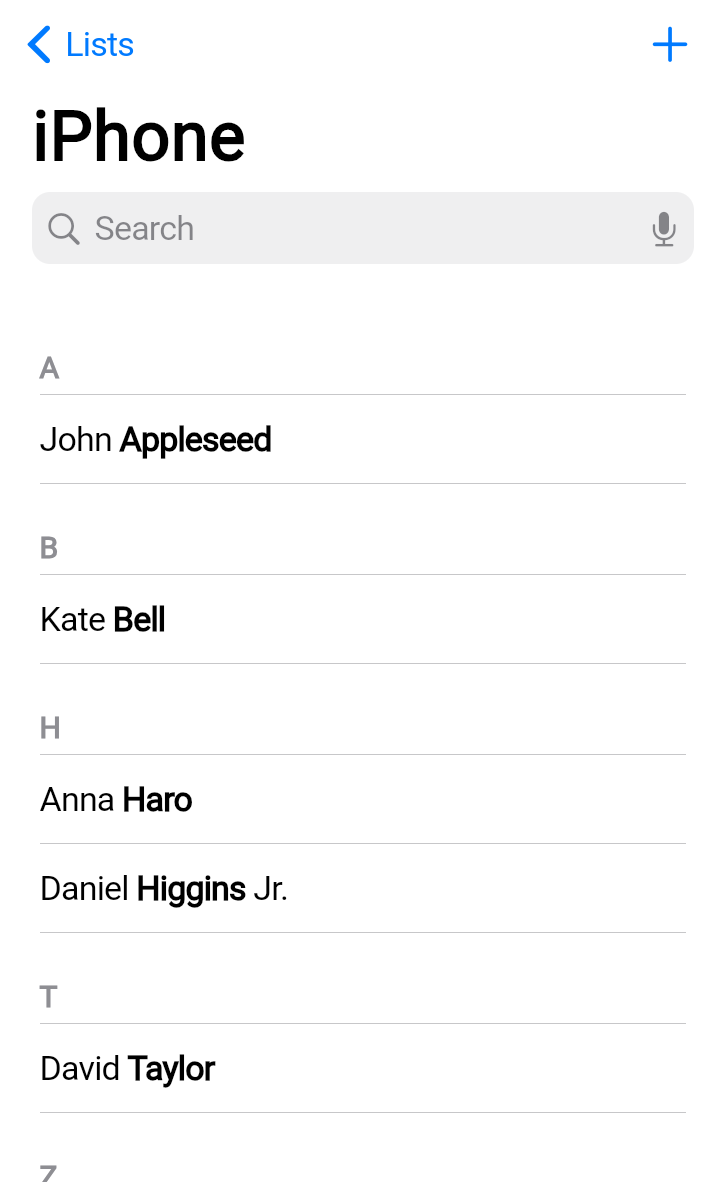
By the end of this tutorial, you'll have learned how to create adaptive layouts, implement comprehensive theming, build navigation patterns, and use advanced scrolling techniques.
What you'll learn
#This tutorial explores the following topics:
- Building responsive layouts with
LayoutBuilder. - Using advanced scrolling with slivers and search.
- Implementing stack-based navigation patterns.
- Creating comprehensive themes with
CupertinoThemeData. - Supporting both light and dark themes.
- Creating an iOS-style UI using Cupertino widgets.
This tutorial assumes that you've completed the previous Flutter tutorials and are comfortable with basic widget composition, state management, and the Flutter project structure.
2
Create a new Flutter project
Create a new Flutter project
To build a Flutter app, you first need a Flutter project. You can create a new app with the Flutter CLI tool, which is installed as part of the Flutter SDK.
Open your preferred terminal and run the following command to create a new Flutter project:
flutter create rolodex --empty
This command creates a new Flutter project that uses the minimal "empty" template.
3
Add the Cupertino Icons dependency
Add the Cupertino Icons dependency
This project uses the cupertino_icons package,
an official Flutter package.
Add it as a dependency by running the following command:
flutter pub add cupertino_icons
4
Set up the project structure
Set up the project structure
First, create the basic directory structure for your app.
In your project's lib directory, create the following folders:
cd rolodex
mkdir lib/data lib/screens lib/theme
This command creates folders to organize your code into logical sections: data models, screen widgets, and theme configuration.
5
Replace the starter code
Replace the starter code
In your IDE, open the lib/main.dart file, and replace its entire
contents with the following starter code:
import 'package:flutter/cupertino.dart';
void main() {
runApp(const RolodexApp());
}
class RolodexApp extends StatelessWidget {
const RolodexApp({super.key});
@override
Widget build(BuildContext context) {
return const CupertinoApp(
title: 'Rolodex',
theme: CupertinoThemeData(
barBackgroundColor: CupertinoDynamicColor.withBrightness(
color: Color(0xFFF9F9F9),
darkColor: Color(0xFF1D1D1D),
),
),
home: CupertinoPageScaffold(
child: Center(
child: Text('Hello Rolodex!'),
),
),
);
}
}
Unlike the previous two tutorials,
this app uses CupertinoApp instead of MaterialApp.
The Cupertino design system provides iOS-style widgets and styling,
which is perfect for building apps that feel native on Apple devices.
6
Run your app
Run your app
In your terminal at the root of your Flutter app, run the following command:
flutter run -d chrome
The app builds and launches in a new instance of Chrome. It displays "Hello Rolodex!" in the center of the screen.
7
Create the data models
Create the data models
Before building the UI, create the data structures and sample data that the app will use. This section is lightly explained because it's not the focus of this tutorial.
Contact data
#
Create a new file, lib/data/contact.dart, and add the basic Contact class:
class Contact {
Contact({
required this.id,
required this.firstName,
this.middleName,
required this.lastName,
this.suffix,
});
final int id;
final String firstName;
final String lastName;
final String? middleName;
final String? suffix;
}
final johnAppleseed = Contact(id: 0, firstName: 'John', lastName: 'Appleseed');
final kateBell = Contact(id: 1, firstName: 'Kate', lastName: 'Bell');
final annaHaro = Contact(id: 2, firstName: 'Anna', lastName: 'Haro');
final danielHiggins = Contact(
id: 3,
firstName: 'Daniel',
lastName: 'Higgins',
suffix: 'Jr.',
);
final davidTaylor = Contact(id: 4, firstName: 'David', lastName: 'Taylor');
final hankZakroff = Contact(
id: 5,
firstName: 'Hank',
middleName: 'M.',
lastName: 'Zakroff',
);
final alexAnderson = Contact(id: 6, firstName: 'Alex', lastName: 'Anderson');
final benBrown = Contact(id: 7, firstName: 'Ben', lastName: 'Brown');
final carolCarter = Contact(id: 8, firstName: 'Carol', lastName: 'Carter');
final dianaDevito = Contact(id: 9, firstName: 'Diana', lastName: 'Devito');
final emilyEvans = Contact(id: 10, firstName: 'Emily', lastName: 'Evans');
final frankFisher = Contact(id: 11, firstName: 'Frank', lastName: 'Fisher');
final graceGreen = Contact(id: 12, firstName: 'Grace', lastName: 'Green');
final henryHall = Contact(id: 13, firstName: 'Henry', lastName: 'Hall');
final isaacIngram = Contact(id: 14, firstName: 'Isaac', lastName: 'Ingram');
final juliaJackson = Contact(id: 15, firstName: 'Julia', lastName: 'Jackson');
final kevinKelly = Contact(id: 16, firstName: 'Kevin', lastName: 'Kelly');
final lindaLewis = Contact(id: 17, firstName: 'Linda', lastName: 'Lewis');
final michaelMiller = Contact(id: 18, firstName: 'Michael', lastName: 'Miller');
final nancyNewman = Contact(id: 19, firstName: 'Nancy', lastName: 'Newman');
final oliverOwens = Contact(id: 20, firstName: 'Oliver', lastName: 'Owens');
final penelopeParker = Contact(
id: 21,
firstName: 'Penelope',
lastName: 'Parker',
);
final quentinQuinn = Contact(id: 22, firstName: 'Quentin', lastName: 'Quinn');
final rachelReed = Contact(id: 23, firstName: 'Rachel', lastName: 'Reed');
final samuelSmith = Contact(id: 24, firstName: 'Samuel', lastName: 'Smith');
final tessaTurner = Contact(id: 25, firstName: 'Tessa', lastName: 'Turner');
final umbertoUpton = Contact(id: 26, firstName: 'Umberto', lastName: 'Upton');
final victoriaVance = Contact(id: 27, firstName: 'Victoria', lastName: 'Vance');
final williamWilson = Contact(id: 28, firstName: 'William', lastName: 'Wilson');
final xavierXu = Contact(id: 29, firstName: 'Xavier', lastName: 'Xu');
final yasmineYoung = Contact(id: 30, firstName: 'Yasmine', lastName: 'Young');
final zacharyZimmerman = Contact(
id: 31,
firstName: 'Zachary',
lastName: 'Zimmerman',
);
final elizabethMJohnson = Contact(
id: 32,
firstName: 'Elizabeth',
middleName: 'M.',
lastName: 'Johnson',
);
final robertLWilliamsSr = Contact(
id: 33,
firstName: 'Robert',
middleName: 'L.',
lastName: 'Williams',
suffix: 'Sr.',
);
final margaretAnneDavis = Contact(
id: 34,
firstName: 'Margaret',
middleName: 'Anne',
lastName: 'Davis',
);
final williamJamesBrownIII = Contact(
id: 35,
firstName: 'William',
middleName: 'James',
lastName: 'Brown',
suffix: 'III',
);
final maryElizabethClark = Contact(
id: 36,
firstName: 'Mary',
middleName: 'Elizabeth',
lastName: 'Clark',
);
final drSarahWatson = Contact(
id: 37,
firstName: 'Dr. Sarah',
lastName: 'Watson',
);
final jamesRSmithEsq = Contact(
id: 38,
firstName: 'James',
middleName: 'R.',
lastName: 'Smith',
suffix: 'Esq.',
);
final mariaCruz = Contact(id: 39, firstName: 'Maria', lastName: 'Cruz');
final pierreMartin = Contact(id: 40, firstName: 'Pierre', lastName: 'Martin');
final yukiTanaka = Contact(id: 41, firstName: 'Yuki', lastName: 'Tanaka');
final hansSchmidt = Contact(id: 42, firstName: 'Hans', lastName: 'Schmidt');
final priyaPatel = Contact(id: 43, firstName: 'Priya', lastName: 'Patel');
final carlosGarcia = Contact(id: 44, firstName: 'Carlos', lastName: 'Garcia');
final ninaVolkova = Contact(id: 45, firstName: 'Nina', lastName: 'Volkova');
final jenniferAdams = Contact(id: 46, firstName: 'Jennifer', lastName: 'Adams');
final michaelBaker = Contact(id: 47, firstName: 'Michael', lastName: 'Baker');
final sarahCooper = Contact(id: 48, firstName: 'Sarah', lastName: 'Cooper');
final christopherDaniel = Contact(
id: 49,
firstName: 'Christopher',
lastName: 'Daniel',
);
final jessicaEdwards = Contact(
id: 50,
firstName: 'Jessica',
lastName: 'Edwards',
);
final Set<Contact> allContacts = <Contact>{
johnAppleseed,
kateBell,
annaHaro,
danielHiggins,
davidTaylor,
hankZakroff,
alexAnderson,
benBrown,
carolCarter,
dianaDevito,
emilyEvans,
frankFisher,
graceGreen,
henryHall,
isaacIngram,
juliaJackson,
kevinKelly,
lindaLewis,
michaelMiller,
nancyNewman,
oliverOwens,
penelopeParker,
quentinQuinn,
rachelReed,
samuelSmith,
tessaTurner,
umbertoUpton,
victoriaVance,
williamWilson,
xavierXu,
yasmineYoung,
zacharyZimmerman,
elizabethMJohnson,
robertLWilliamsSr,
margaretAnneDavis,
williamJamesBrownIII,
maryElizabethClark,
drSarahWatson,
jamesRSmithEsq,
mariaCruz,
pierreMartin,
yukiTanaka,
hansSchmidt,
priyaPatel,
carlosGarcia,
ninaVolkova,
jenniferAdams,
michaelBaker,
sarahCooper,
christopherDaniel,
jessicaEdwards,
};
This sample data includes contacts with and without middle names and suffixes. This gives you a variety of data to work with as you build the UI.
ContactGroup data
#
Now, create the contact groups that organize your contacts into lists.
Create a new lib/data/contact_group.dart file and
add the ContactGroup class:
import 'dart:collection';
import 'package:flutter/cupertino.dart';
import 'contact.dart';
class ContactGroup {
factory ContactGroup({
required int id,
required String label,
bool permanent = false,
String? title,
List<Contact>? contacts,
}) {
final contactsCopy = contacts ?? <Contact>[];
_sortContacts(contactsCopy);
return ContactGroup._internal(
id: id,
label: label,
permanent: permanent,
title: title,
contacts: contactsCopy,
);
}
ContactGroup._internal({
required this.id,
required this.label,
this.permanent = false,
String? title,
List<Contact>? contacts,
}) : title = title ?? label,
_contacts = contacts ?? const <Contact>[];
final int id;
final bool permanent;
final String label;
final String title;
final List<Contact> _contacts;
List<Contact> get contacts => _contacts;
AlphabetizedContactMap get alphabetizedContacts {
final AlphabetizedContactMap contactsMap = AlphabetizedContactMap();
for (final Contact contact in _contacts) {
final String lastInitial = contact.lastName[0].toUpperCase();
if (contactsMap.containsKey(lastInitial)) {
contactsMap[lastInitial]!.add(contact);
} else {
contactsMap[lastInitial] = [contact];
}
}
return contactsMap;
}
}
A ContactGroup represents a collection of contacts,
such as "All Contacts" or "Favorites".
Add the following helper code and sample data to the same file:
// ... ContactGroup class from above
typedef AlphabetizedContactMap = SplayTreeMap<String, List<Contact>>;
/// Sorts a list of contacts alphabetically by
/// last name, then first name, then middle name.
/// If names are identical, sorts by contact ID to ensure consistent ordering.
void _sortContacts(List<Contact> contacts) {
contacts.sort((Contact a, Contact b) {
final int checkLastName = a.lastName.compareTo(b.lastName);
if (checkLastName != 0) {
return checkLastName;
}
final int checkFirstName = a.firstName.compareTo(b.firstName);
if (checkFirstName != 0) {
return checkFirstName;
}
if (a.middleName != null && b.middleName != null) {
final int checkMiddleName = a.middleName!.compareTo(b.middleName!);
if (checkMiddleName != 0) {
return checkMiddleName;
}
} else if (a.middleName != null || b.middleName != null) {
return a.middleName != null ? 1 : -1;
}
// If both contacts have the exact same name, order by first created.
return a.id.compareTo(b.id);
});
}
final allPhone = ContactGroup(
id: 0,
permanent: true,
label: 'All iPhone',
title: 'iPhone',
contacts: allContacts.toList(),
);
final friends = ContactGroup(
id: 1,
label: 'Friends',
contacts: [allContacts.elementAt(3)],
);
final work = ContactGroup(id: 2, label: 'Work');
List<ContactGroup> generateSeedData() {
return [allPhone, friends, work];
}
This code creates three sample groups and a function to generate the initial data for the app.
Finally, add a class that manages state changes:
// ...
class ContactGroupsModel {
ContactGroupsModel() : _listsNotifier = ValueNotifier(generateSeedData());
final ValueNotifier<List<ContactGroup>> _listsNotifier;
ValueNotifier<List<ContactGroup>> get listsNotifier => _listsNotifier;
List<ContactGroup> get lists => _listsNotifier.value;
ContactGroup findContactList(int id) {
return lists[id];
}
void dispose() {
_listsNotifier.dispose();
}
}
If you aren't familiar with ValueNotifier,
you should complete the previous tutorial covering state
before continuing,
which covers state management.
8
Connect the data to your app
Connect the data to your app
Update your main.dart to include the global state and
import the new data file:
import 'package:flutter/cupertino.dart';
import 'package:rolodex/data/contact_group.dart';
final contactGroupsModel = ContactGroupsModel();
void main() {
runApp(const RolodexApp());
}
class RolodexApp extends StatelessWidget {
const RolodexApp({super.key});
@override
Widget build(BuildContext context) {
return CupertinoApp(
title: 'Rolodex',
theme: const CupertinoThemeData(
barBackgroundColor: CupertinoDynamicColor.withBrightness(
color: Color(0xFFF9F9F9),
darkColor: Color(0xFF1D1D1D),
),
),
home: CupertinoPageScaffold(child: Center(child: Text('Hello Rolodex!'))),
);
}
}
With all the extraneous code out of the way, in the next lesson, you'll start building the app in earnest.
9
Review
Review
What you accomplished
Here's a summary of what you built and learned in this lesson.Previewed the Rolodex app
You're starting a new tutorial section focused on advanced UI features. To make your app feel polished and native on any device, you'll learn adaptive layouts, slivers, navigation, and theming.
Set up a project with Cupertino widgets
Unlike the previous lessons, this app uses CupertinoApp instead of MaterialApp. The Cupertino design system provides iOS-style widgets that feel native on Apple devices.
Created data models for contacts and groups
You created Contact and ContactGroup classes with sample data, plus a ContactGroupsModel
for state management. This foundation supports the UI you'll build in the coming lessons.
10
Test yourself
Test yourself
Advanced UI Setup Quiz
1 / 2-
CupertinoApp provides iOS-style widgets and styling, while MaterialApp provides Material Design widgets.
That's right!
CupertinoApp uses Cupertino design system widgets that match the iOS look and feel.
-
CupertinoApp only works on iOS devices.
Not quite
CupertinoApp can run on any platform; it just provides iOS-style widgets.
-
CupertinoApp is lighter and has better performance.
Not quite
Both have similar performance; they differ in visual style, not speed.
-
MaterialApp requires more configuration to set up.
Not quite
Both have similar setup requirements; they just use different design systems.
-
To validate user input values.
Not quite
ValueNotifier holds and notifies about value changes, not validation.
-
To convert values between different data types.
Not quite
Type conversion is not the purpose of ValueNotifier.
-
To hold a single value and notify listeners when that value changes.
That's right!
ValueNotifier is a simple ChangeNotifier that wraps a single value and notifies listeners on change.
-
To store values permanently in local storage.
Not quite
ValueNotifier holds values in memory; persistence requires separate implementation.
Unless stated otherwise, the documentation on this site reflects Flutter 3.41.5. Page last updated on 2026-01-28. View source or report an issue.