Layout
Learn about common layout widgets in Flutter.
Learn how to build layouts with common widgets like Scaffold, AppBar, Column, and Row.
What you'll accomplish
Steps
1
Introduction
Introduction
Given that Flutter is a UI toolkit, you'll spend a lot of time creating layouts with Flutter widgets.
In this section, you'll learn how to build layouts with
some of the most common layout widgets.
This includes high-level widgets like
Scaffold
and AppBar, which lay out the structure of a screen,
as well as lower-level widgets like Column
or Row that
lay out widgets vertically or horizontally.
2
Scaffold and AppBar
Scaffold and AppBar
Mobile applications often have a bar at the top called an "app bar" that can display a title, navigation controls, and/or actions.
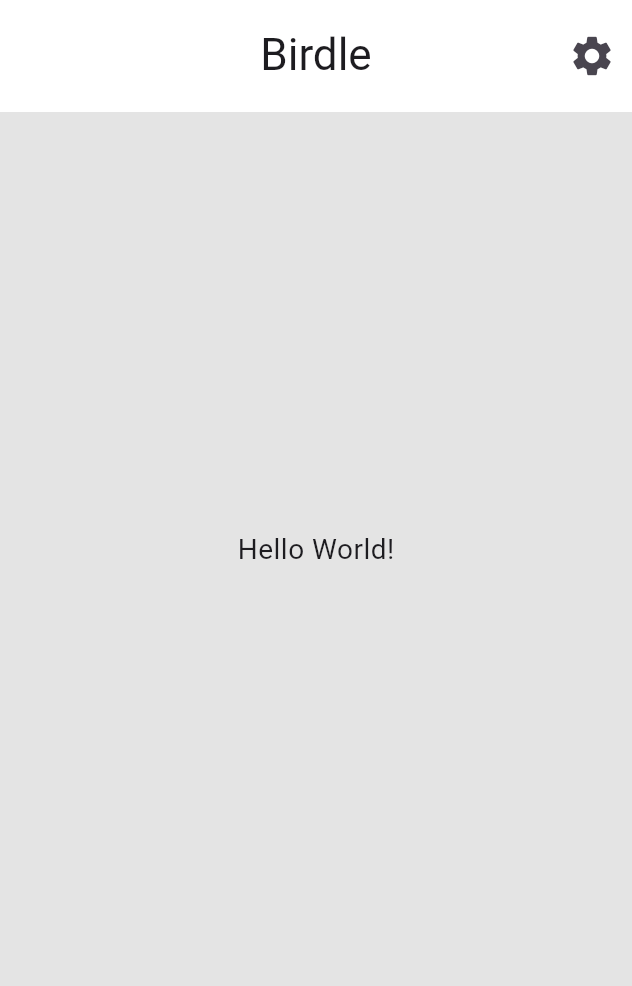
The simplest way to add an app bar to your app is by using two widgets:
Scaffold and AppBar.
Scaffold is a convenience widget that provides a Material-style page layout,
making it simple to add an app bar, drawer, navigation bar, and more to a page of
your app. AppBar is, of course, the app bar.
The code generated from the flutter create --empty command already
contains an AppBar widget and a Scaffold widget.
The following code updates it to use an additional layout widget: Align.
This positions the title to the left, which would be centered by default.
The Text widget contains the title itself.
Modify the Scaffold within your MainApp widget's build method:
class MainApp extends StatelessWidget {
const MainApp({super.key});
@override
Widget build(BuildContext context) {
return MaterialApp(
home: Scaffold(
appBar: AppBar(
title: Align(
alignment: Alignment.centerLeft,
child: Text('Birdle'),
),
),
body: Center(child: Text('Hello World!')),
),
);
}
}
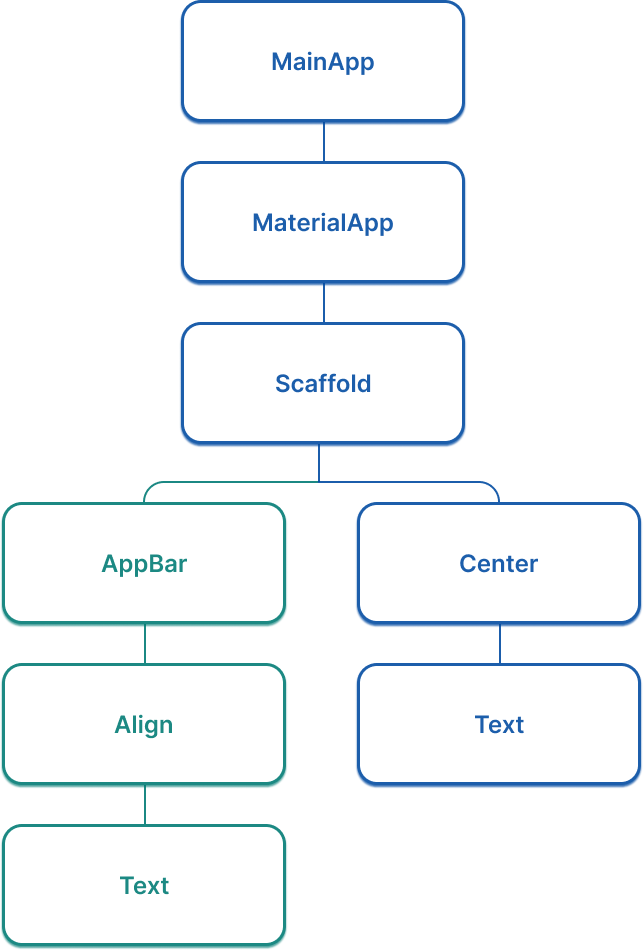
An updated widget tree
#Considering your app's widget tree gets more important as your app grows. At this point, there's a "branch" in the widget tree for the first time, and it now looks like the following figure:
3
Create a widget for the game page layout
Create a widget for the game page layout
Add the following code for a new widget,
called GamePage, to your main.dart file.
This widget will eventually display the UI elements needed for the game itself.
class GamePage extends StatelessWidget {
GamePage({super.key});
// This object is part of the game.dart file.
// It manages wordle logic, and is outside the scope of this tutorial.
final Game _game = Game();
@override
Widget build(BuildContext context) {
// TODO: Replace with screen contents
return Container();
}
}
Then update your MainPage widget to create and
display a GamePage widget instead of "Hello World!".
class MainApp extends StatelessWidget {
const MainApp({super.key});
@override
Widget build(BuildContext context) {
return MaterialApp(
home: Scaffold(
appBar: AppBar(
title: Align(alignment: Alignment.centerLeft, child: Text('Birdle')),
),
body: Center(child: GamePage()),
),
);
}
}
4
Arrange widgets with Column and Row
Arrange widgets with Column and Row
The GamePage layout contains the grid of tiles that display a user's guesses.
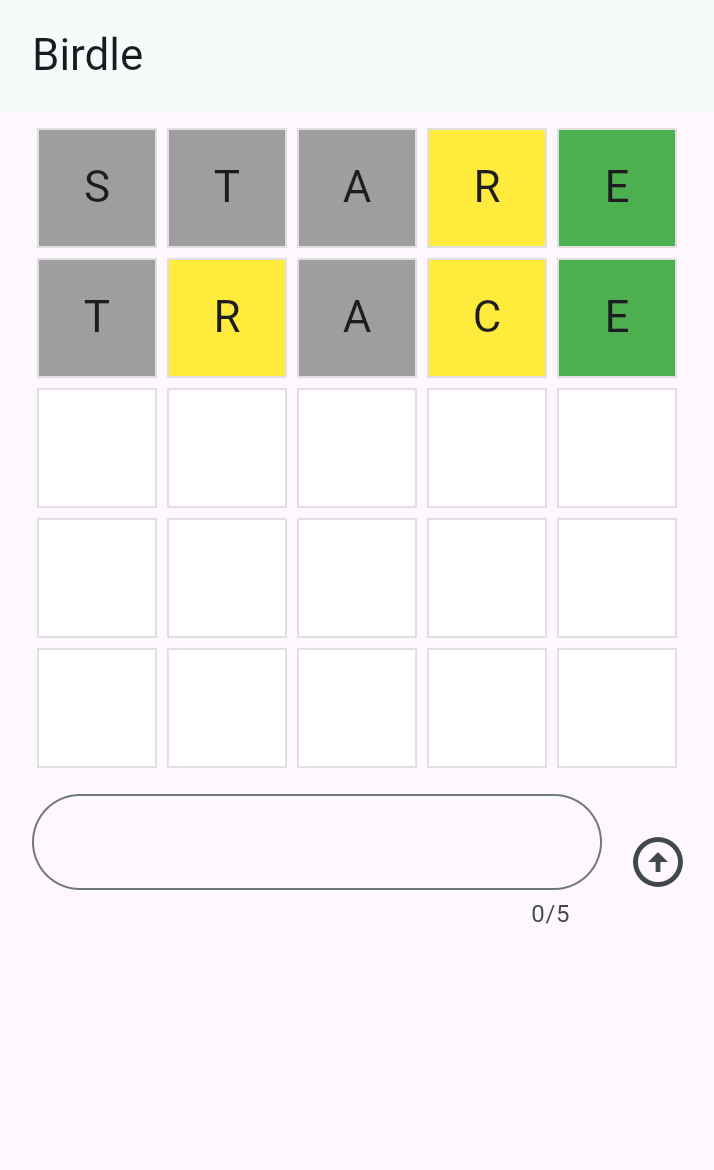
There are a number of ways you can build this layout.
The simplest is with the Column and Row widgets.
Each row contains five tiles that represent the five letters in a guess,
with five rows total.
So you'll need a single Column with five Row widgets as children,
where each row contains five children.
To get started, replace the Container in GamePage.build with a
Padding widget with a Column widget as its child:
class GamePage extends StatelessWidget {
GamePage({super.key});
// This manages game logic, and is out of scope for this lesson.
final Game _game = Game();
@override
Widget build(BuildContext context) {
return Padding(
padding: const EdgeInsets.all(8.0),
child: Column(
spacing: 5.0,
children: [
// Add children next.
],
),
);
}
}
The spacing property puts five pixels between each element on the main axis.
Within Column.children, for each element in the _game.guesses list,
add a Row widget as a child.
class GamePage extends StatelessWidget {
GamePage({super.key});
// This manages game logic, and is out of scope for this lesson.
final Game _game = Game();
@override
Widget build(BuildContext context) {
return Padding(
padding: const EdgeInsets.all(8.0),
child: Column(
spacing: 5.0,
children: [
for (var guess in _game.guesses)
Row(
spacing: 5.0,
children: [
// We'll add the tiles here later.
],
),
],
),
);
}
}
The for loop in the children list is called a collection for element,
a Dart syntax that allows you to iteratively add items to a collection
when it is built at runtime.
This syntactic sugar makes it easier for you to work
with collections of widgets,
providing a declarative alternative to the following:
[..._game.guesses.map((guess) => Row(/* ... */))],
In this case, it adds five Row widgets to the column,
one for each guess on the Game object.
An updated widget tree
#The widget tree for this app has expanded significantly in this lesson. Now, it looks more like the following (abridged) figure:
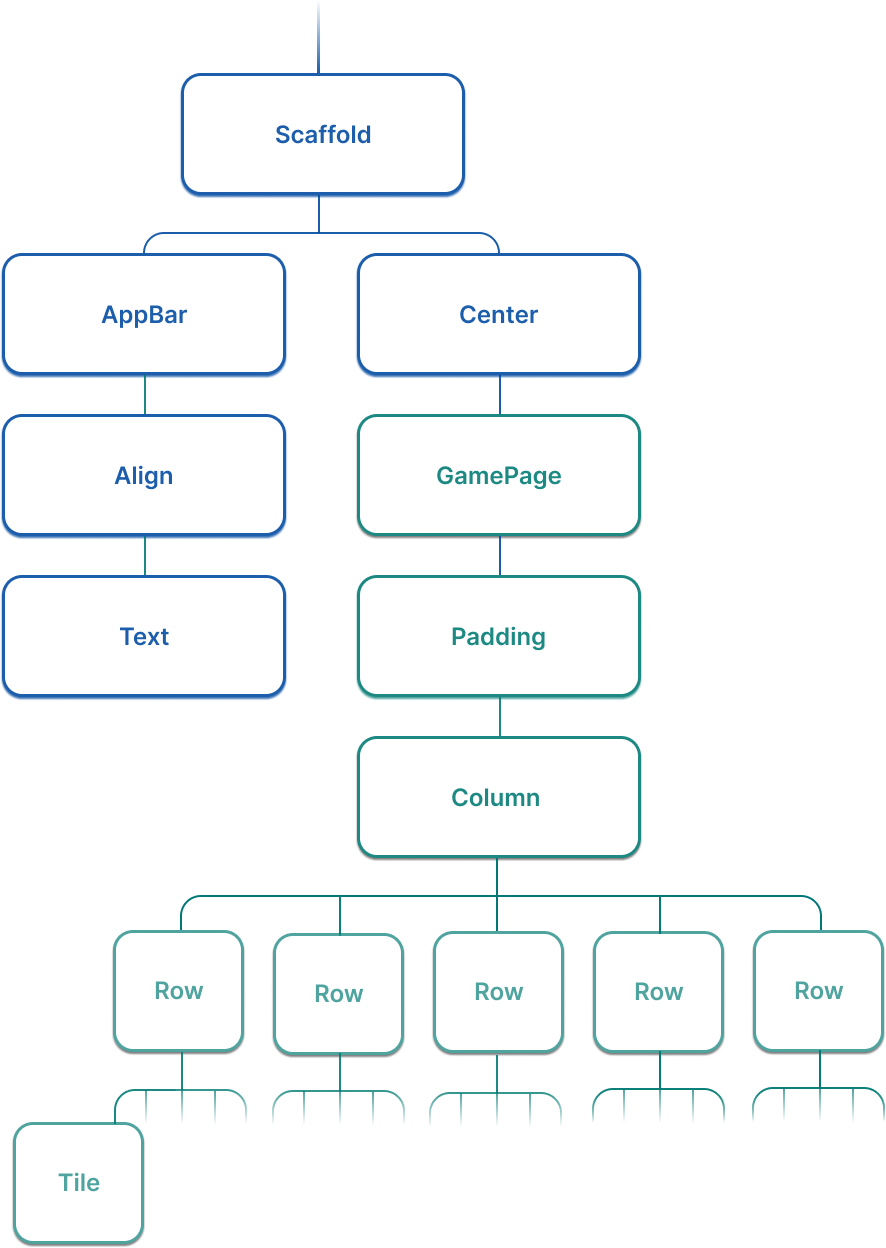
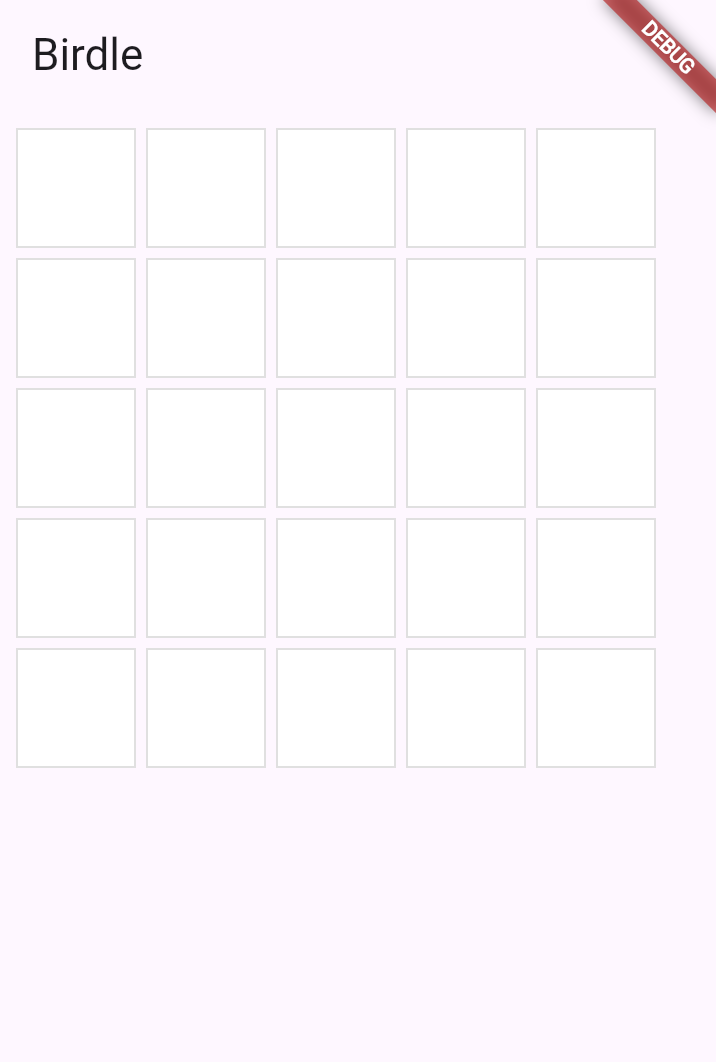
When you reload your app, you should see a 5x5 grid of white squares.
5
Review
Review
What you accomplished
Here's a summary of what you built and learned in this lesson.Structured your app with Scaffold and AppBar
You used Scaffold to provide a Material-style page layout and AppBar to add a title bar at the top of your app. These high-level widgets give your app a standard, yet polished structure.
Arranged widgets using Column and Row
Column arranges widgets vertically and Row arranges them horizontally. These are fundamental layout widgets you'll use constantly in Flutter. The
spacing property adds consistent gaps between children.
Generated widgets dynamically from data
You used a collection for element to build widgets from a list. This declarative approach lets you build user interfaces that automatically and visually reflect your data, a pattern central to Flutter development.
Built the game board grid
By nesting Row widgets inside a Column and using nested loops, you created a 5x5 grid of
Tile widgets. Your app now displays the complete game board layout!
6
Test yourself
Test yourself
Layout Quiz
1 / 2-
Column can have unlimited children; Row is limited to two.
Not quite
Both widgets can have any number of children.
-
Column is for scrolling content; Row is for static content.
Not quite
Both Column and Row are for layout, not scrolling. Use ListView or SingleChildScrollView for scrolling.
-
Column requires a Scaffold parent; Row does not.
Not quite
Neither widget requires a Scaffold as a parent.
-
Column arranges children vertically; Row arranges children horizontally.
That's right!
Column lays out its children along the vertical axis, while Row uses the horizontal axis.
-
Automatic state management for the page.
Not quite
Scaffold doesn't manage state; you use StatefulWidget or state management solutions for that.
-
A way to navigate between different pages.
Not quite
Navigation is handled by Navigator, not Scaffold.
-
Only a background color for the page.
Not quite
Scaffold provides much more, including structure for app bars, drawers, and more.
-
A Material-style page layout with slots for app bar, body, drawer, and more.
That's right!
Scaffold is a convenience widget that provides a standard Material page structure.
Unless stated otherwise, the documentation on this site reflects Flutter 3.41.5. Page last updated on 2026-03-13. View source or report an issue.