Stateful widgets
Learn about StatefulWidgets and rebuilding Flutter UI.
Learn when widgets need to be stateful and how to trigger UI updates with setState.
What you'll accomplish
Steps
1
Introduction
Introduction
So far, your app displays a grid and an input field, but the grid doesn't yet update to reflect the user's guesses. When this app is complete, each tile in the next unfilled row should update after each submitted user guess by:
- Displaying the correct letter.
- Changing color to reflect whether the letter is correct (green), is in the word but at an incorrect position (yellow), or doesn't appear in the word at all (grey).
To handle this dynamic behavior, you need to convert GamePage from a
StatelessWidget to a StatefulWidget.
2
Why stateful widgets?
Why stateful widgets?
When a widget's appearance or data needs to change during its lifetime,
you need a StatefulWidget and a companion State
object.
While the StatefulWidget itself is still immutable (its properties
can't change after creation), the State object is long-lived,
can hold mutable data, and can be rebuilt when that data changes,
causing the UI to update.
For example, the following widget tree imagines a simple app that uses a stateful widget with a counter that increases when the button is pressed.
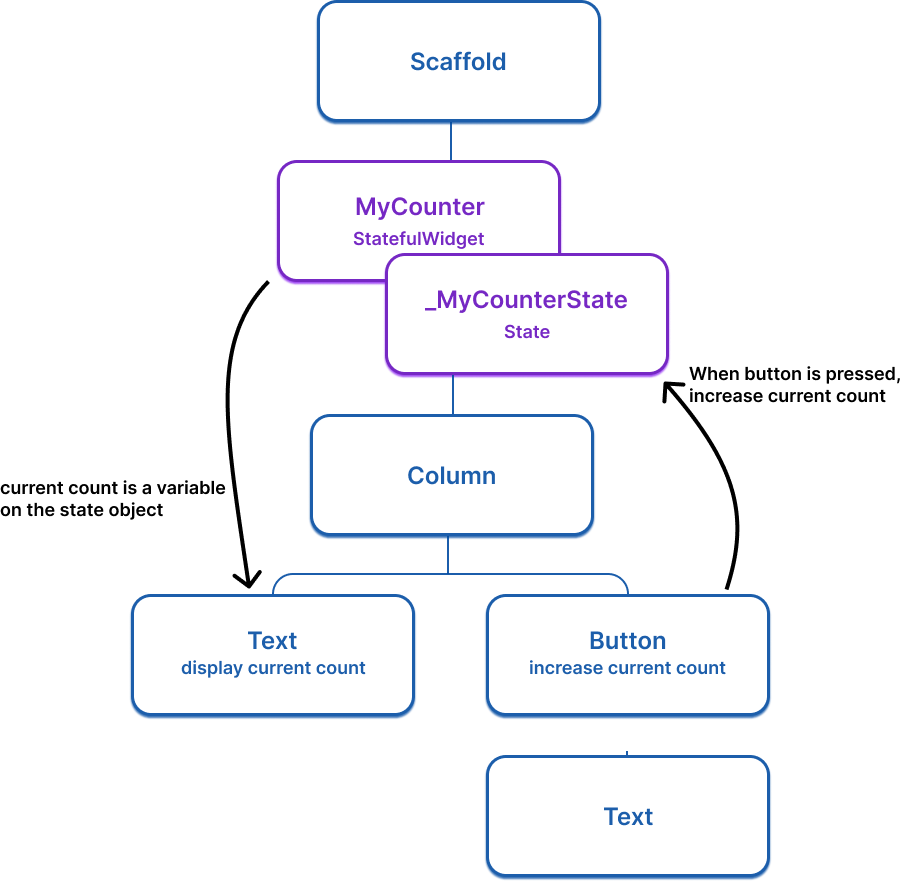
Here is the basic StatefulWidget structure (doesn't do anything yet):
class ExampleWidget extends StatefulWidget {
ExampleWidget({super.key});
@override
State<ExampleWidget> createState() => _ExampleWidgetState();
}
class _ExampleWidgetState extends State<ExampleWidget> {
@override
Widget build(BuildContext context) {
return Container();
}
}
3
Convert GamePage to a stateful widget
Convert GamePage to a stateful widget
To convert the GamePage (or any other) widget from
a stateless widget to a stateful widget, do the following steps:
-
Change
GamePageto extendStatefulWidgetinstead ofStatelessWidget. -
Create a new class named
_GamePageState, that extendsState<GamePage>. This new class will hold the mutable state and thebuildmethod. Move thebuildmethod and all properties instantiated on the widget fromGamePageto the state object. -
Implement the
createState()method inGamePage, which returns an instance of_GamePageState.
Your modified code should look like this:
class GamePage extends StatefulWidget {
GamePage({super.key});
@override
State<GamePage> createState() => _GamePageState();
}
class _GamePageState extends State<GamePage> {
final Game _game = Game();
@override
Widget build(BuildContext context) {
return Padding(
padding: const EdgeInsets.all(8.0),
child: Column(
children: [
for (var guess in _game.guesses)
Row(
mainAxisAlignment: MainAxisAlignment.center,
children: [
for (var letter in guess)
Padding(
padding: const EdgeInsets.symmetric(horizontal: 2.5, vertical: 2.5),
child: Tile(letter.char, letter.type),
)
],
),
GuessInput(
onSubmitGuess: (_) {
// TODO, handle guess
print(guess); // Temporary
},
),
],
),
);
}
}
4
Updating the UI with setState
Updating the UI with setState
Whenever you mutate a State object,
you must call setState
to signal the framework to
update the user interface and call the build method again.
In this app, when a user makes a guess, the word they guessed is
saved on the Game object, which is a property on the GamePage
class,
and therefore is state that might change and require the UI to update.
When this state is mutated, the grid should be
re-drawn to show the user's guess.
To implement this, update the callback function passed to GuessInput.
The function needs to call setState and, within setState,
it needs to execute the logic to determine whether the users guess was correct.
Update your code:
class GamePage extends StatefulWidget {
GamePage({super.key});
@override
State<GamePage> createState() => _GamePageState();
}
class _GamePageState extends State<GamePage> {
final Game _game = Game();
@override
Widget build(BuildContext context) {
return Padding(
padding: const EdgeInsets.all(8.0),
child: Column(
children: [
for (var guess in _game.guesses)
Row(
mainAxisAlignment: MainAxisAlignment.center,
children: [
for (var letter in guess)
Padding(
padding: const EdgeInsets.symmetric(horizontal: 2.5, vertical: 2.5),
child: Tile(letter.char, letter.type),
)
],
),
GuessInput(
onSubmitGuess: (String guess) {
setState(() { // NEW
_game.guess(guess);
});
},
),
],
),
);
}
}
Now, when you type a legal guess into the TextInput and submit it,
the application will reflect the user's guess.
If you were to call _game.guess(guess) without a calling
setState,
the internal game data would change, but Flutter wouldn't know it
needs to repaint the screen, and the user wouldn't see any updates.
5
Review
Review
What you accomplished
Here's a summary of what you built and learned in this lesson.Learned when widgets need to be stateful
When a widget's appearance or data needs to change during its lifetime, you need a StatefulWidget. The widget itself stays immutable, but its companion
State object holds mutable data and triggers rebuilds.
Converted GamePage to a StatefulWidget
You refactored GamePage to be stateful by creating a companion _GamePageState
class, moving the build method and mutable properties to it, and implementing createState(). Your IDE's support for quick assists can automate this conversion.
Made your app respond to user input with setState
Calling setState tells Flutter to rebuild the UI of a widget. When a user submits a guess, you call
setState to update the game state, and the grid automatically reflects the new data. Your app is now truly interactive!
6
Test yourself
Test yourself
Stateful Widgets Quiz
1 / 2-
When the widget needs to make HTTP requests.
Not quite.
HTTP requests can be made from either, but state changes require StatefulWidget.
-
When the widget's appearance or data needs to change during its lifetime.
That's right!
StatefulWidget is needed when the UI must update in response to data changes over time.
-
When the widget has more than three child widgets.
Not quite.
The number of children doesn't determine whether a widget is stateful.
-
When the widget is at the root of the widget tree.
Not quite.
Root widgets can be stateless; statefulness depends on whether data changes during the widget's lifetime.
-
The app will crash with an error.
Not quite.
The app won't crash, but the UI won't update.
-
The data changes internally, but Flutter won't rebuild the UI to reflect the change.
That's right!
Without calling setState, Flutter doesn't know it needs to repaint, so the user won't see updates.
-
Flutter automatically detects the change and rebuilds the UI.
Not quite.
Flutter requires setState to know when to rebuild; it doesn't auto-detect changes.
-
The widget is removed from the widget tree.
Not quite.
The widget remains; it just won't visually update without setState.
Unless stated otherwise, the documentation on this site reflects Flutter 3.44.0. Page last updated on 2026-06-08. View source or report an issue.