Simple animations
Learn the simplest way to implement animations in Flutter.
Flutter provides a rich set of animation APIs, and the simplest way to start using them is with implicit animations. "Implicit animations" refers to a group of widgets that automatically animate changes to their properties without you needing to manage any intermediate behavior.
What you'll accomplish
In this lesson, you'll learn about one of the most common and
versatile implicit animation widgets: AnimatedContainer.
With just two additional lines of code, the background color of each Tile
animates to a new color in about half a second.
Steps
1
Convert Container to AnimatedContainer
Convert Container to AnimatedContainer
Currently, the Tile.build method returns a Container to display a letter.
When the hitType changes, like from HitType.none
to HitType.hit,
the background color of the tile changes instantly.
For example, from white to green in the case of HitType.none
to HitType.hit.
For reference, here's the current implementation of the Tile widget:
class Tile extends StatelessWidget {
const Tile(this.letter, this.hitType, {super.key});
final String letter;
final HitType hitType;
@override
Widget build(BuildContext context) {
return Container(
height: 60,
width: 60,
decoration: BoxDecoration(
border: Border.all(color: Colors.grey.shade300),
color: switch (type) {
HitType.hit => Colors.green,
HitType.partial => Colors.yellow,
HitType.miss => Colors.grey,
_ => Colors.white,
},
),
child: Center(
child: Text(
letter.toUpperCase(),
style: Theme.of(context).textTheme.titleLarge,
),
),
);
}
}
To make the color change animate smoothly,
replace the Container widget with an AnimatedContainer.
An AnimatedContainer is like a Container, but it
automatically animates changes to its properties over a specified duration.
When properties such as
color, height, width, decoration, or
alignment change,
AnimatedContainer interpolates between the old and new values,
creating a smooth transition.
Modify your Tile widget as follows:
class Tile extends StatelessWidget {
const Tile(this.letter, this.hitType, {super.key});
final String letter;
final HitType hitType;
@override
Widget build(BuildContext context) {
return AnimatedContainer(
duration: Duration(milliseconds: 500),
height: 60,
width: 60,
decoration: BoxDecoration(
border: Border.all(color: Colors.grey.shade300),
color: switch (hitType) {
HitType.hit => Colors.green,
HitType.partial => Colors.yellow,
HitType.miss => Colors.grey,
_ => Colors.white,
},
),
child: Center(
child: Text(
letter.toUpperCase(),
style: Theme.of(context).textTheme.titleLarge,
),
),
);
}
}
duration is a required property that
specifies how long the animation should take.
In this example, passing Duration(milliseconds: 500) means
the color transition will take half a second.
You can also specify seconds, minutes, and many other units of time.
Now, when the hitType changes and the Tile widget rebuilds
(because setState was called in GamePage),
the color of the tile smoothly animates from its old color to
the new one over the specified duration.
2
Adjust the animation curve
Adjust the animation curve
To add a bit of customization to an implicit animation,
you can pass it a different Curve.
Different curves change the speed of the animation
at different points throughout the animation.
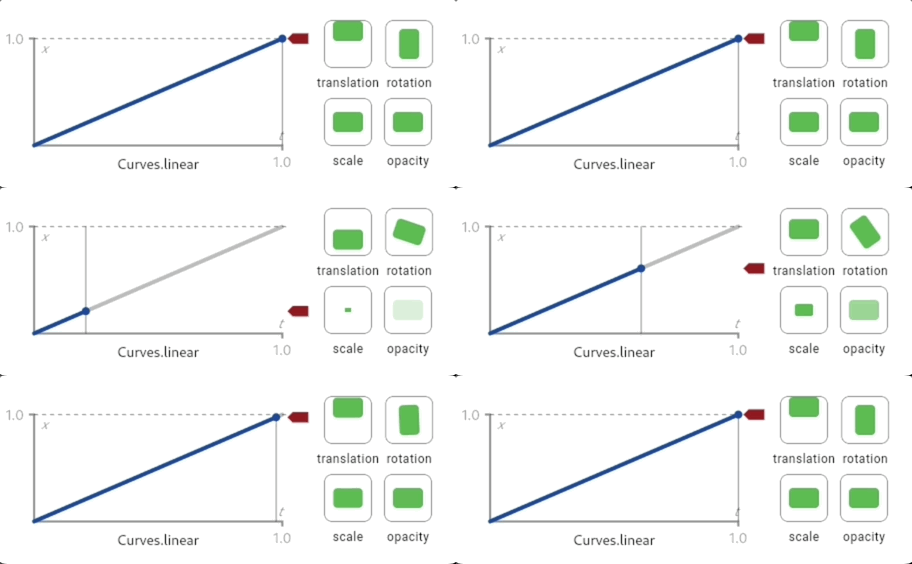
For example, the default curve for Flutter animations is Curves.linear. This gif shows how the animation curve behaves:
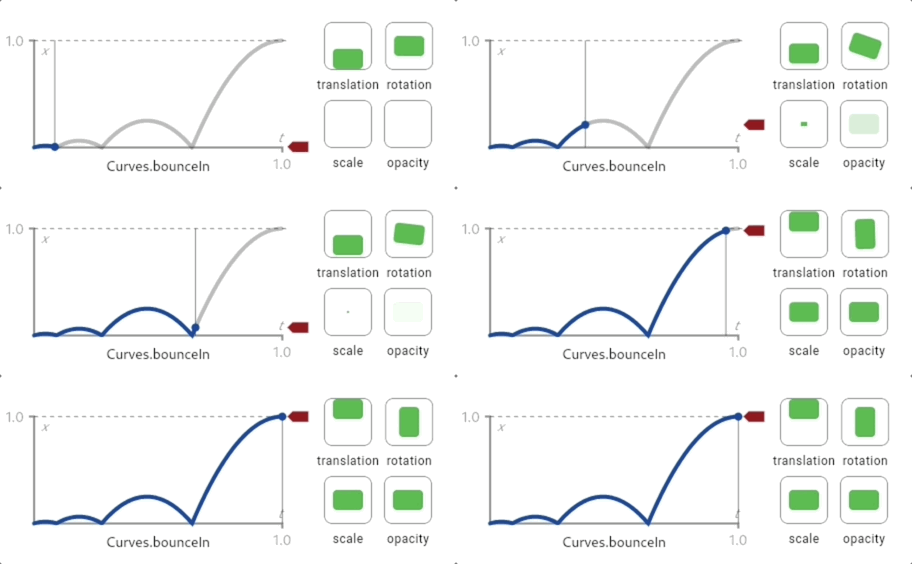
Compare that to Curve.bounceIn, another common curve:
To change the Curve of this animation, update the code to the following:
class Tile extends StatelessWidget {
const Tile(this.letter, this.hitType, {super.key});
final String letter;
final HitType hitType;
@override
Widget build(BuildContext context) {
return AnimatedContainer(
duration: Duration(milliseconds: 500),
curve: Curves.bounceIn, // NEW
height: 60,
width: 60,
decoration: BoxDecoration(
border: Border.all(color: Colors.grey.shade300),
color: switch (hitType) {
HitType.hit => Colors.green,
HitType.partial => Colors.yellow,
HitType.miss => Colors.grey,
_ => Colors.white,
},
),
child: Center(
child: Text(
letter.toUpperCase(),
style: Theme.of(context).textTheme.titleLarge,
),
),
);
}
}
There are many different curves provided by the Flutter SDK, so
feel free to try them out by passing different types to the curve
parameter.
Implicit animations like AnimatedContainer are powerful because
you just tell the widget what the new state should be, and
it handles the "how" of the animation.
For complex, custom animations, you can write your own animated widgets. If you're curious, try it out in the animations tutorial.
3
Review
Review
What you accomplished
Here's a summary of what you built and learned in this lesson.Discovered implicit animations
Implicit animations are widgets that automatically animate changes to their properties. You specify the new state, and the widget handles the animation for you without requiring manual animation management.
Animated the tiles with AnimatedContainer
By replacing Container with AnimatedContainer and adding a duration, your tiles now smoothly transition between colors. With just two lines of code, you added professional polish to your app!
Customized timing with duration and curves
The duration property controls how long the animation takes, while curve changes the animation's feel. You tried
Curves.decelerate, but you can also try other values like Curves.easeIn, Curves.bounceOut, or
Curves.elasticIn.
Completed the Birdle game
You've built a complete Wordle-style game with custom widgets, dynamic layouts, user input, state management, and smooth animations. You now have the foundational skills to build your own Flutter apps!
4
Test yourself
Test yourself
Implicit Animations Quiz
1 / 2-
AnimatedContainer
That's right!
AnimatedContainer automatically animates changes to its properties over the specified duration.
-
AnimationController
Not quite
AnimationController is for explicit animations; AnimatedContainer is simpler for basic animations.
-
Container
Not quite
Container doesn't animate; property changes happen instantly.
-
TransitionContainer
Not quite
There is no TransitionContainer widget; use AnimatedContainer for implicit animations.
-
The delay before the animation starts.
Not quite
Duration is about animation length; delays require separate configuration.
-
How many times the animation repeats.
Not quite
Implicit animations run once per state change; repetition requires explicit animation controllers.
-
How long the animation takes to transition from the old value to the new value.
That's right!
The duration specifies the time over which the property change is animated.
-
How long the widget stays on screen before disappearing.
Not quite
Duration controls animation time, not widget visibility.
Unless stated otherwise, the documentation on this site reflects Flutter 3.41.5. Page last updated on 2026-03-12. View source or report an issue.