User input
Accept input from the user with buttons and text fields.
Learn to build text inputs, manage text with controllers, and handle user actions with buttons.
What you'll accomplish
Steps
1
Introduction
Introduction
The app will display the user's guesses in the Tile widgets,
but it needs a way for the user to input those guesses.
In this lesson, build that functionality with two interaction widgets:
TextField
and IconButton.
2
Implement callback functions
Implement callback functions
To allow users to type in their guesses,
you'll create a dedicated widget named GuessInput.
First, create the basic structure for your GuessInput widget that
requires a callback function as an argument.
Name the callback function onSubmitGuess.
Add the following code to your main.dart file.
class GuessInput extends StatelessWidget {
GuessInput({super.key, required this.onSubmitGuess});
final void Function(String) onSubmitGuess;
@override
Widget build(BuildContext context) {
// You'll build the UI in the next steps.
return Container(); // Placeholder
}
}
The line final void Function(String) onSubmitGuess;
declares a final member of the class called onSubmitGuess
that has the type void Function(String).
This function takes a single String argument (the user's guess) and
doesn't return any value (denoted by void).
This callback tells us that the logic that actually handles the user's guess will be written elsewhere. It's a good practice for interactive widgets to use callback functions to keep the widget that handles interactions reusable and decoupled from any specific functionality.
By the end of this lesson, the passed-in onSubmitGuess function
is called when a user enters a guess.
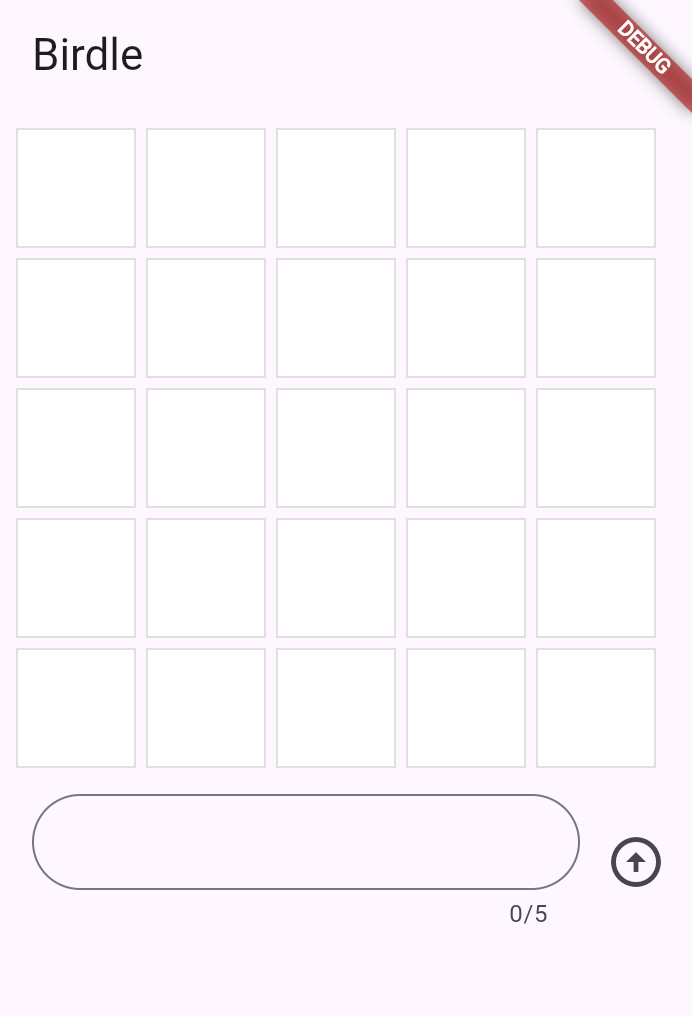
First, you'll need to build the visual parts of this widget.
This is what the widget will look like.
3
The TextField widget
The TextField widget
Given that the text field and button are displayed side-by-side,
create them as a Row widget.
Replace the Container placeholder in your build
method with
a Row containing an Expanded TextField:
class GuessInput extends StatelessWidget {
GuessInput({super.key, required this.onSubmitGuess});
final void Function(String) onSubmitGuess;
@override
Widget build(BuildContext context) {
return Row(
children: [
Expanded(
child: Padding(
padding: const EdgeInsets.all(8.0),
child: TextField(
maxLength: 5,
decoration: InputDecoration(
border: OutlineInputBorder(
borderRadius: BorderRadius.all(Radius.circular(35)),
),
),
),
),
),
],
);
}
}
You have seen some of these widgets in previous lessons:
Row and Padding. New, though, is the Expanded
widget.
When a child of a Row (or Column) is wrapped in
Expanded,
it tells that child to fill all the available space along the main axis
(horizontal forRow, vertical for Column) that
hasn't been taken by other children.
This makes the TextField stretch to take up all the space except
what's taken by other widgets in the row.
The TextField widget is also new in this lesson and is the star of the show.
This is the basic Flutter widget for text input.
Thus far, TextField has the following configuration.
-
It's decorated with a rounded border.
Notice that the decoration configuration is
very similar to how a
Containerand boxes are decorated. -
Its
maxLengthproperty is set to 5 because the game only allows guesses of 5-letter words.
4
Handle text with TextEditingController
Handle text with TextEditingController
Next, you need a way to manage the text that
the user types into the input field.
For this, use a TextEditingController.
class GuessInput extends StatelessWidget {
GuessInput({super.key, required this.onSubmitGuess});
final void Function(String) onSubmitGuess;
// NEW
final TextEditingController _textEditingController = TextEditingController();
@override
Widget build(BuildContext context) {
return Row(
children: [
Expanded(
child: Padding(
padding: const EdgeInsets.all(8.0),
child: TextField(
maxLength: 5,
decoration: InputDecoration(
border: OutlineInputBorder(
borderRadius: BorderRadius.all(Radius.circular(35)),
),
),
),
),
),
//
],
);
}
}
A TextEditingController is used to
read, clear, and modify the text in a TextField.
To use it, pass it into the TextField.
class GuessInput extends StatelessWidget {
GuessInput({super.key, required this.onSubmitGuess});
final void Function(String) onSubmitGuess;
final TextEditingController _textEditingController = TextEditingController();
@override
Widget build(BuildContext context) {
return Row(
children: [
Expanded(
child: Padding(
padding: const EdgeInsets.all(8.0),
child: TextField(
maxLength: 5,
decoration: const InputDecoration(
border: OutlineInputBorder(
borderRadius: BorderRadius.all(Radius.circular(35)),
),
),
controller: _textEditingController, // NEW
),
),
),
],
);
}
}
Now, when a user inputs text, you can
capture it with the _textEditingController, but
you'll need to know when to capture it.
The simplest way to react to input is by
using the TextField.onSubmitted argument.
This argument accepts a callback, and the callback is triggered whenever
the user presses the "Enter" key on the keyboard while the text field has focus.
For now, ensure that this works by
adding the following callback to TextField.onSubmitted:
class GuessInput extends StatelessWidget {
GuessInput({super.key, required this.onSubmitGuess});
final void Function(String) onSubmitGuess;
final TextEditingController _textEditingController = TextEditingController();
@override
Widget build(BuildContext context) {
return Row(
children: [
Expanded(
child: Padding(
padding: const EdgeInsets.all(8.0),
child: TextField(
maxLength: 5,
decoration: const InputDecoration(
border: OutlineInputBorder(
borderRadius: BorderRadius.all(Radius.circular(35)),
),
),
controller: _textEditingController,
onSubmitted: (input) {
// NEW
print(_textEditingController.text); // Temporary
},
),
),
),
],
);
}
}
In this case,
you could print the input passed to the onSubmitted
callback directly,
but a better user experience clears the text after each guess:
You need a TextEditingController to do that. Update the code as follows:
class GuessInput extends StatelessWidget {
GuessInput({super.key, required this.onSubmitGuess});
final void Function(String) onSubmitGuess;
final TextEditingController _textEditingController = TextEditingController();
@override
Widget build(BuildContext context) {
return Row(
children: [
Expanded(
child: Padding(
padding: const EdgeInsets.all(8.0),
child: TextField(
maxLength: 5,
decoration: const InputDecoration(
border: OutlineInputBorder(
borderRadius: BorderRadius.all(Radius.circular(35)),
),
),
controller: _textEditingController,
onSubmitted: (_) {
// UPDATED
print(_textEditingController.text); // Temporary
_textEditingController.clear(); // NEW
},
),
),
),
],
);
}
}
5
Gain input focus
Gain input focus
Often, you want a specific input or widget to
automatically gain focus without the user taking action.
In this app, for example, the only thing a user can do is enter a guess,
so the TextField should be focused automatically when the app launches.
And after the user enters a guess, the focus should stay
in the TextField so they can enter their next guess.
To resolve the first focus issue,
set up the autofocus property on the TextField.
class GuessInput extends StatelessWidget {
GuessInput({super.key, required this.onSubmitGuess});
final void Function(String) onSubmitGuess;
final TextEditingController _textEditingController = TextEditingController();
@override
Widget build(BuildContext context) {
return Row(
children: [
Expanded(
child: Padding(
padding: const EdgeInsets.all(8.0),
child: TextField(
maxLength: 5,
decoration: const InputDecoration(
border: OutlineInputBorder(
borderRadius: BorderRadius.all(Radius.circular(35)),
),
),
controller: _textEditingController,
autofocus: true, // NEW
onSubmitted: (input) {
print(input); // Temporary
_textEditingController.clear();
},
),
),
),
],
);
}
}
The second issue requires you to
use a FocusNode
to manage the keyboard focus.
You can use FocusNode to request that a TextField
gain focus,
(making the keyboard appear on mobile),
or to know when a field has focus.
First, create a FocusNode in the GuessInput class:
class GuessInput extends StatelessWidget {
GuessInput({super.key, required this.onSubmitGuess});
final void Function(String) onSubmitGuess;
final TextEditingController _textEditingController = TextEditingController();
final FocusNode _focusNode = FocusNode(); // NEW
@override
Widget build(BuildContext context) {
// ...
return Container();
}
}
Then, use the FocusNode to request focus whenever
the TextField is submitted after the controller is cleared:
class GuessInput extends StatelessWidget {
GuessInput({super.key, required this.onSubmitGuess});
final void Function(String) onSubmitGuess;
final TextEditingController _textEditingController = TextEditingController();
final FocusNode _focusNode = FocusNode();
@override
Widget build(BuildContext context) {
return Row(
children: [
Expanded(
child: Padding(
padding: const EdgeInsets.all(8.0),
child: TextField(
maxLength: 5,
decoration: const InputDecoration(
border: OutlineInputBorder(
borderRadius: BorderRadius.all(Radius.circular(35)),
),
),
controller: _textEditingController,
autofocus: true,
focusNode: _focusNode, // NEW
onSubmitted: (input) {
print(input); // Temporary
_textEditingController.clear();
_focusNode.requestFocus(); // NEW
},
),
),
),
],
);
}
}
Now, when you press Enter after inputting text, you can continue typing.
6
Use the input
Use the input
Finally, you need to handle the text that the user enters.
Recall that the constructor for GuessInput requires a
callback called onSubmitGuess.
In GuessInput, you need to use that callback.
Replace the print statement with a call to that function.
class GuessInput extends StatelessWidget {
GuessInput({super.key, required this.onSubmitGuess});
final void Function(String) onSubmitGuess;
final TextEditingController _textEditingController = TextEditingController();
final FocusNode _focusNode = FocusNode();
@override
Widget build(BuildContext context) {
return Row(
children: [
Expanded(
child: Padding(
padding: const EdgeInsets.all(8.0),
child: TextField(
maxLength: 5,
decoration: const InputDecoration(
border: OutlineInputBorder(
borderRadius: BorderRadius.all(Radius.circular(35)),
),
),
controller: _textEditingController,
autofocus: true,
focusNode: _focusNode,
onSubmitted: (input) {
onSubmitGuess(_textEditingController.text.trim());
_textEditingController.clear();
_focusNode.requestFocus();
},
),
),
),
],
);
}
}
The remaining functionality is handled in the parent widget, GamePage.
In the build method of that class,
under the Row widgets in the Column widget's children,
add the GuessInput widget:
class GamePage extends StatelessWidget {
GamePage({super.key});
final Game _game = Game();
@override
Widget build(BuildContext context) {
return Padding(
padding: const EdgeInsets.all(8.0),
child: Column(
spacing: 5.0,
children: [
for (final guess in _game.guesses)
Row(
spacing: 5.0,
children: [
for (final letter in guess) Tile(letter.char, letter.type),
],
),
GuessInput(
onSubmitGuess: (guess) {
// TODO, handle guess
print(guess); // Temporary
},
),
],
),
);
}
}
For the moment, this only prints the guess to
prove that it's wired up correctly.
Submitting the guess requires using the functionality of a StatefulWidget,
which you'll do in the next lesson.
7
Buttons
Buttons
To improve the UX on mobile and reflect well-known UI practices, there should also be a button that can submit the guess.
There are many button widgets built into Flutter, like TextButton,
ElevatedButton, and the button you'll use now:
IconButton.
All of these buttons (and many other interaction widgets) require two
arguments (in addition to their optional arguments):
- A callback function passed to
onPressed. - A widget that makes up the content of the button (often
Textor anIcon).
Add an icon button to the row widget's children list in the GuessInput widget,
and give it an Icon
widget to display.
The Icon widget requires configuration; in this case,
the padding property sets the padding between the
edge of the button and the icon it wraps to zero.
This removes the default padding and makes the button smaller.
class GuessInput extends StatelessWidget {
GuessInput({super.key, required this.onSubmitGuess});
final void Function(String) onSubmitGuess;
final TextEditingController _textEditingController = TextEditingController();
final FocusNode _focusNode = FocusNode();
@override
Widget build(BuildContext context) {
return Row(
children: [
Expanded(child: Container()),
IconButton(
padding: EdgeInsets.zero,
icon: const Icon(Icons.arrow_circle_up),
onPressed: null,
),
],
);
}
}
The IconButton.onPressed callback should look familiar:
class GuessInput extends StatelessWidget {
GuessInput({super.key, required this.onSubmitGuess});
final void Function(String) onSubmitGuess;
final TextEditingController _textEditingController = TextEditingController();
final FocusNode _focusNode = FocusNode();
@override
Widget build(BuildContext context) {
return Row(
children: [
Expanded(child: Container()),
IconButton(
padding: EdgeInsets.zero,
icon: const Icon(Icons.arrow_circle_up),
onPressed: () {
onSubmitGuess(_textEditingController.text.trim());
_textEditingController.clear();
_focusNode.requestFocus();
},
),
],
);
}
}
This method does the same as the onSubmitted callback on the TextField.
8
Review
Review
What you accomplished
Here's a summary of what you built and learned in this lesson.Built a text input widget with TextField
You created a GuessInput widget with a TextField for text entry. You configured it with a rounded border, character limit, and used
Expanded to make it fill available space in the row.
Managed text with TextEditingController
TextEditingController lets you read and modify text field content. You used it to capture the user's input with
.text and clear the field after submission with .clear().
Controlled input focus for a polished UX
You used autofocus to focus the text field on launch and FocusNode with requestFocus()
to maintain focus after each guess. These details make your app feel responsive and well-built.
Handled user actions with callbacks and buttons
To respond to user input, you specified callback functions like onSubmitted and onPressed. Passing callback functions as constructor arguments keeps your widgets reusable and decoupled from specific logic.
9
Test yourself
Test yourself
User Input Quiz
1 / 2-
Access the TextField's text property directly.
Not quite.
TextField doesn't expose a text property; you need a controller.
-
Use the TextEditingController attached to the TextField.
That's right!
TextEditingController provides the text property to read the value and clear() method to reset it.
-
Listen to the onChanged callback and store the value in a variable.
Not quite.
While onChanged works for reading, clearing requires a TextEditingController.
-
Call TextField.getText() method.
Not quite.
TextField doesn't have a getText method; use TextEditingController instead.
-
Call
TextField.focus()directly.Not quite.
TextField doesn't have a focus method; you use a FocusNode.
-
Set the
autofocusproperty to true at runtime.Not quite.
The 'autofocus' property only works on initial build, not for moving focus later.
-
Use a FocusNode and call
requestFocus()on it.That's right!
A FocusNode gives you control over focus, and calling
requestFocus()moves focus to its associated widget. -
Wrap the TextField in a GestureDetector and tap programmatically.
Not quite.
This is not how focus is managed; FocusNode is the proper approach.
Unless stated otherwise, the documentation on this site reflects Flutter 3.44.7. Page last updated on 2026-05-05. View source or report an issue.