Create an app
Instructions on how to create a new Flutter app.
Learn the first steps to building a Flutter app, from creating a project to understanding widgets and hot reload.
What you'll accomplish
Steps
1
What you'll build
What you'll build
In this first section of the Flutter tutorial, you'll build the core UI of an app called 'Birdle', a game similar to Wordle, the popular New York Times game.
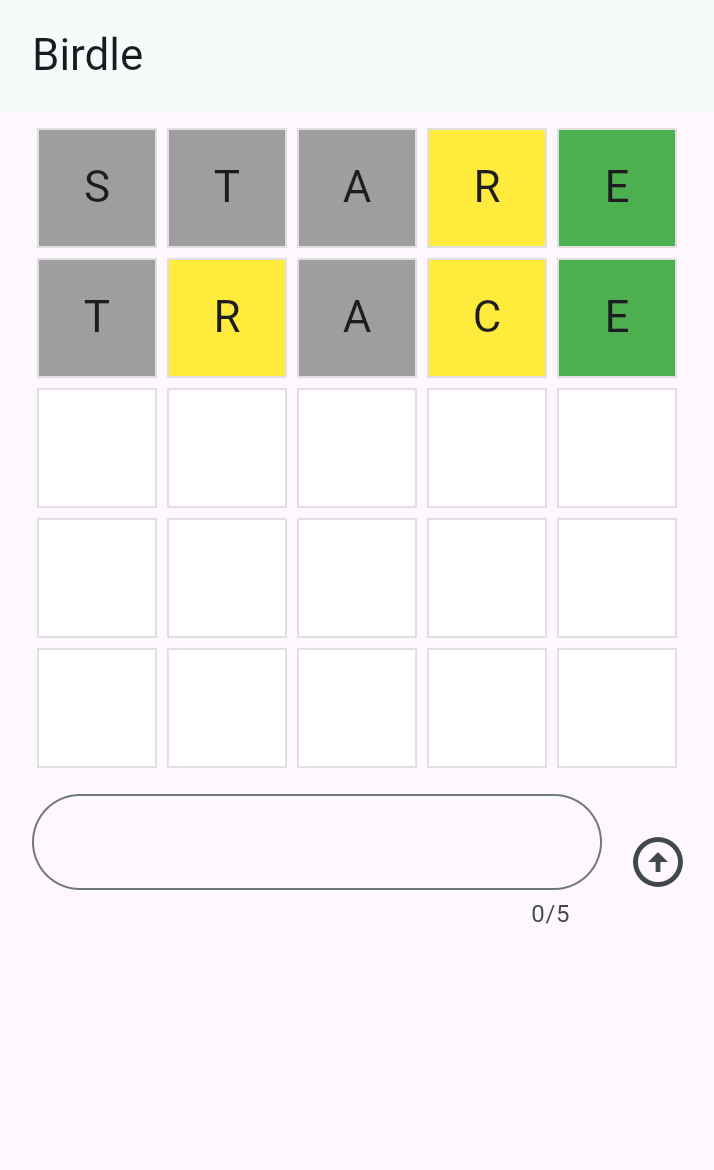
By the end of this tutorial, you'll have learned the fundamentals of building Flutter UIs, and your app will look like the following screenshot (and it'll even mostly work 😀).
2
Create a new Flutter project
Create a new Flutter project
The first step to building Flutter apps is to create a new project. You create new apps with the Flutter CLI tool, installed as part of the Flutter SDK.
Open your terminal or command prompt and run the following command to create a new Flutter project:
flutter create birdle --empty
This creates a new Flutter project using the minimal "empty" template.
3
Examine the code
Examine the code
In your IDE, open the file at lib/main.dart.
Starting from the top, you'll see this code.
void main() {
  runApp(const MainApp());
}
The main function is the entry point to any Dart program,
and a Flutter app is just a Dart program.
The runApp method is part of the Flutter SDK,
and it takes a widget as an argument.
In this case, an instance of the MainApp widget is being passed in.
Just below the main function, you'll find the MainApp class declaration.
class MainApp extends StatelessWidget {
const MainApp({super.key});
@override
Widget build(BuildContext context) {
return const MaterialApp(
home: Scaffold(
body: Center(
child: Text('Hello World!'),
),
),
);
}
}
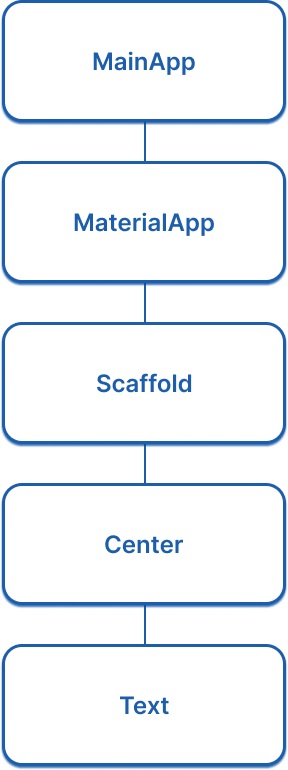
MainApp is the root widget,
as it's the widget that's passed into runApp.
Within this widget, there's a build method that
returns another widget called MaterialApp.
Essentially, this is what a Flutter app is:
a composition of widgets that make
up a tree structure called the widget tree.
Your job as a Flutter developer is to compose widgets from the SDK into larger, custom widgets that display a UI.
At the moment, the widget tree is quite simple:
4
Run your app
Run your app
-
In your terminal, navigate to the root directory of your created Flutter app:
cd birdle -
Run the app using the Flutter CLI tool.
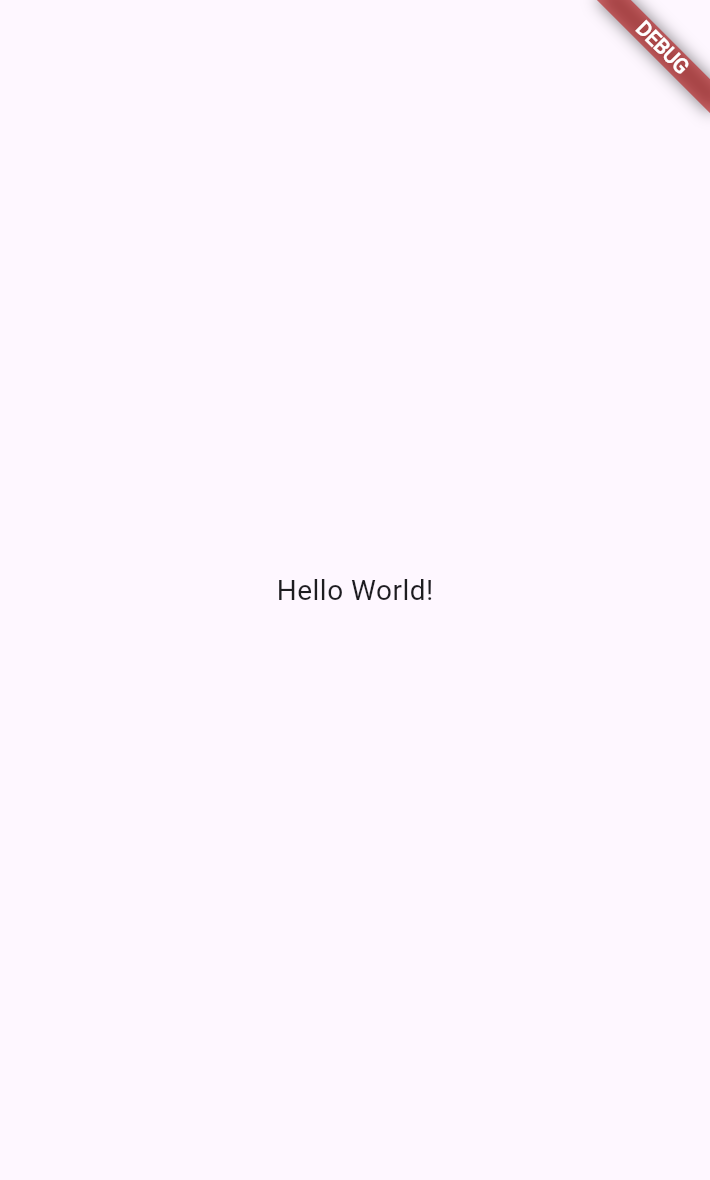
flutter run -d chromeThe app will build and launch in a new instance of Chrome.
5
Use hot reload
Use hot reload
Stateful hot reload, if you haven't heard of it, allows a running Flutter app to re-render updated business logic or UI code in less than a second – all without losing your place in the app.
In your IDE, open the main.dart file and navigate to line ~15 and find this
code:
child: Text('Hello World!'),
Change the text inside the string to anything you want.
Then, hot-reload your app by
pressing r in the terminal where the app is running.
The running app should instantly show your updated text.
6
Review
Review
What you accomplished
Here's a summary of what you built and learned in this lesson.
You used flutter create with the --empty flag to scaffold a minimal Flutter project. The CLI generates the project structure and boilerplate code needed to get started.
Flutter UIs are built by composing widgets into a tree structure. The runApp
function takes a root widget, and that widget's build method returns other widgets, forming the
widget tree. Your job as a Flutter developer is to compose these widgets into custom UIs.
You ran your app with flutter run and experienced stateful hot reload, which lets you see code changes reflected in under a second without losing app state. Press
r in the terminal to trigger a hot reload.
7
Test yourself
Test yourself
Create an App Quiz
1 / 2runApp function in a Flutter application?
-
It compiles the Dart code into native machine code.
Not quite.
Compilation happens before the app runs;
runAppstarts the Flutter framework with a root widget. -
It takes a widget as an argument and makes it the root of the widget tree.
That's right!
The
runAppfunction inflates the given widget and attaches it to the screen, making it the root of the widget tree. -
It creates the
main.dartfile for the project.Not quite.
The file is created by
flutter create;runAppis called at runtime. -
It downloads Flutter dependencies from the internet.
Not quite.
Dependencies are managed by
flutter pub get, notrunApp.
-
Press
hin the terminal.Not quite.
Pressing
hshows help options;rtriggers hot reload. -
Press
rin the terminal.That's right!
Pressing
rin the terminal where the app is running triggers a hot reload. -
Stop and restart the app with
flutter run.Not quite.
A full restart is not needed; hot reload is faster.
-
Save the file and wait for automatic reload.
Not quite.
By default, you need to press
rto trigger hot reload in the terminal.
Unless stated otherwise, the documentation on this site reflects Flutter 3.44.0. Page last updated on 2026-05-05. View source or report an issue.